
Connect to the VPS
Apex Cloud documentation.
Before Continuing
If you have access to VPSs Control Panel, some information might be easier to get
What you need to know
When your VPS is created (it may take some time) an email from
virtualizor@systems.apexcloud.cc is forwarded to your email with credentials
used on this tutorial.
Protocol
Every OS (Operating System) has its preferred method of remote connection. On Linux is through SSH (Secure Shell Protocol) but for Windows Server is RDP (Remote Desktop Protocol). The main difference is the kind of apps you need to have in order to create a remote session. This tutorial is for both of then.
Default user
The default user also is different between both OSs:
- Linux:
root - Windows Server:
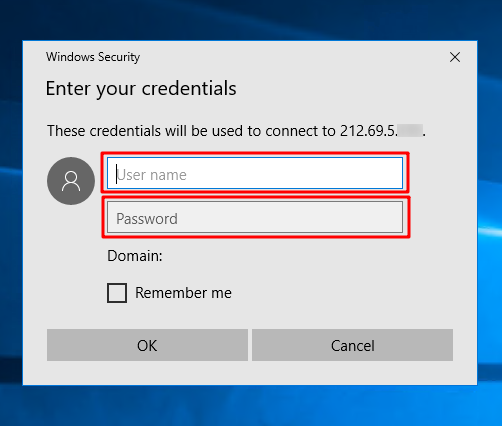
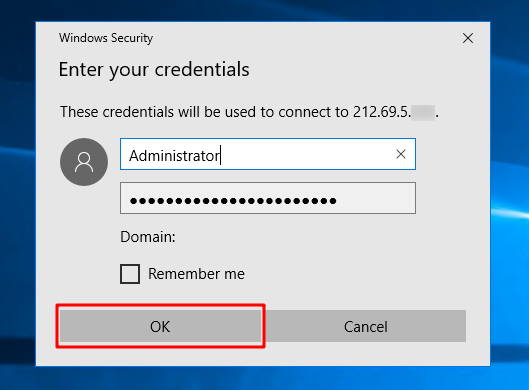
Administrator
Password
Your password can be reset or its available at the VPS Creation email sent by virtualizor@systems.apexcloud.cc.
IP Address
Every VPS has an Public IPV4 Address, those allow anyone anywhere on the world to access servers hosted on your VPS. An unsecure server might be attacked cybercriminals, learn more.
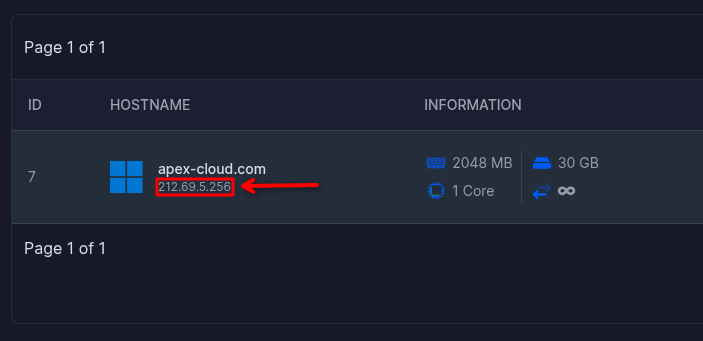
This IP Address can also be found at the VPS Creation email sent by
virtualizor@systems.apexcloud.cc or you could find under your VPS Name at
the Control Panel.
Example (IP is fictional):
RDP
This tutorial only covers the more traditional apps for remote desktop, we won't help with other apps.
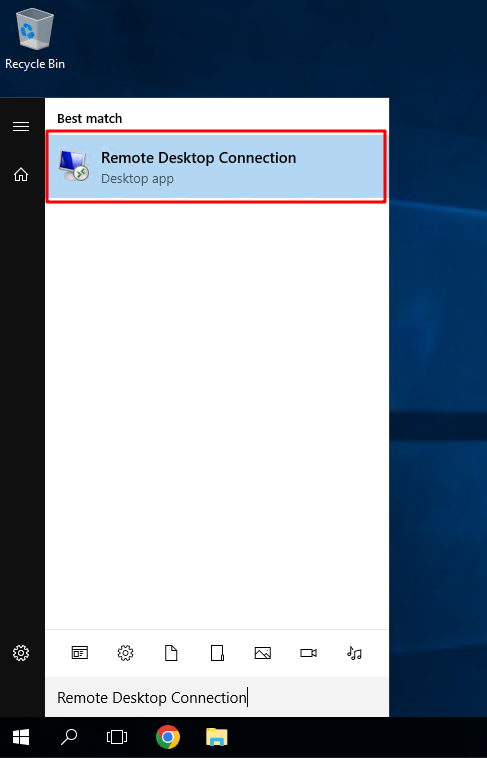
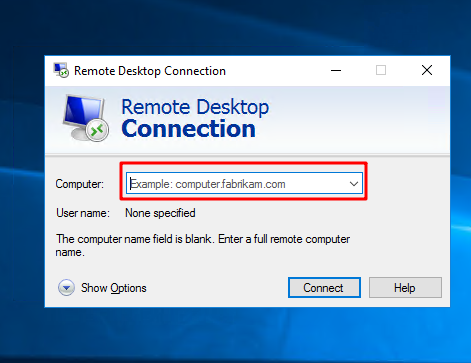
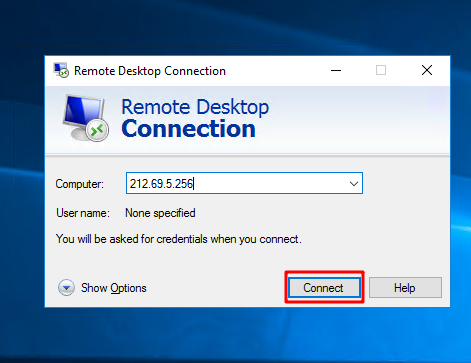
Open Remote Desktop Connection App
Trust the Certificate
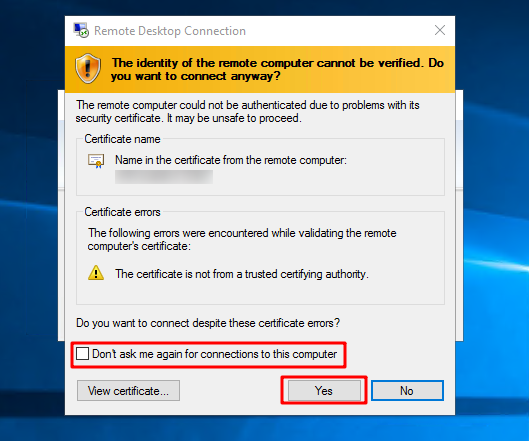
First click on Don't ask me again for connections to this computer. Then click Yes.
Done
You can now, use your VPS the way you intend.