
Recipes
Save your own setup scripts and run them when a server is created or reinstalled.
A recipe is a shell script saved in your account. When you launch a VPS you can choose a recipe, and Virtualizor runs it on the new server. Use recipes to repeat the same setup on every server: update packages, install your tools, create users or pull your application.
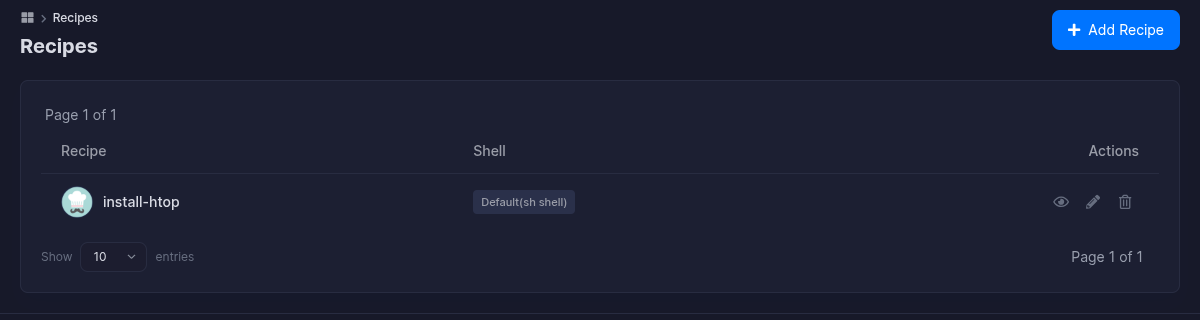
The number next to Recipes in the sidebar is how many recipes you have. A new account has none: the page says There are no Recipes.
Create a recipe
Click Add Recipe
Open Recipes under Compute and click Add Recipe.
Fill in the form
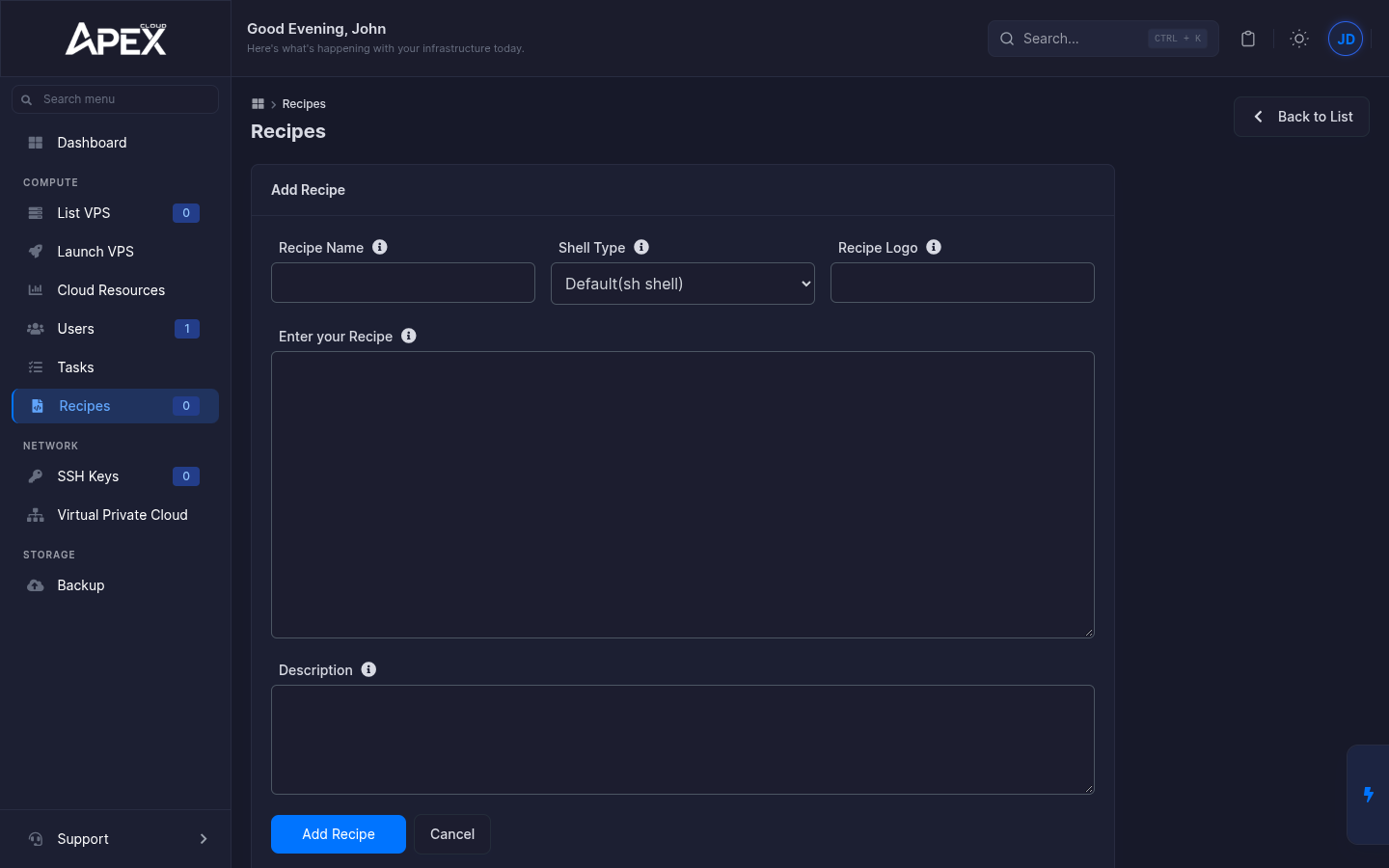
| Field | What to enter |
|---|---|
| Recipe Name | A short name, for example install-htop. |
| Shell Type | Default(sh shell), Bash, Ksh or Zsh. Pick the shell your script is written for. |
| Recipe Logo | Optional. |
| Enter your Recipe | The script itself. Start it with a shebang such as #!/bin/bash. |
| Description | Optional note for yourself. |
A minimal script for an Ubuntu server:
#!/bin/bash
apt-get update -y
apt-get install -y htop
Save
Click Add Recipe. The message The Recipe has been added appears and the recipe is in the list.
Manage recipes
Each row has three icons: view (eye), edit (pencil) and delete (bin). Deleting asks you to confirm with Ok.
Use a recipe
- When creating a server, open Advanced Options, then the Misc tab, and pick the recipe in Recipes. See Launch a VPS.
- On an existing server, the Manage page has a Recipes option in its Install tab, which lists your recipes and has an Execute button.
Recipes have full access to the server
A recipe is a script that runs inside the server, so treat it like any other administrator script. Only run scripts you wrote or trust, and never put passwords or keys in a script you share. Test a new recipe on a throwaway server first.