
Your own pool of servers
Split a pool of RAM, cores, disk and IPv4 addresses into VPS, and give your customers their own login.
Cloud resources
See what is used and what is left in your pool.
Launch a VPS
Pick the OS, size and owner of a new server.
Manage, resize and delete
Change a server's resources or remove it.
Users
Give a customer a login for the servers you assign.
A Cloud account is what you get when you order a VPS Reseller plan (Revenda VPS, in the Revendas category of the billing shop). Instead of one ready-made server, you receive a pool of resources in Virtualizor: a number of virtual machines, RAM, CPU cores, disk space and IPv4 addresses. You decide how to split it, create and delete servers yourself, and can give your own customers a login to manage the servers you assign to them.
The plans and their pools are listed in the VPS Overview. Everything runs on the same Apex Cloud platform in São Paulo, fully managed by Apex Cloud, behind the network's anti-DDoS protection.
How it differs from a normal VPS
| Normal VPS or Semi-Dedicated | VPS Reseller (Cloud) |
|---|---|
| One server, created for you after payment. | A pool of resources. You create the servers. |
| Resources are fixed by the plan. | You choose RAM, cores, disk and IPv4 for each server, as long as the total fits the pool. |
| No Launch VPS page. | Launch VPS, Cloud Resources, Users, Recipes and Virtual Private Cloud in the sidebar. |
| Can only manage its own server. | Can edit, resize, suspend, reassign and delete every server in the pool. |
| One login. | Can create users for your own customers. |
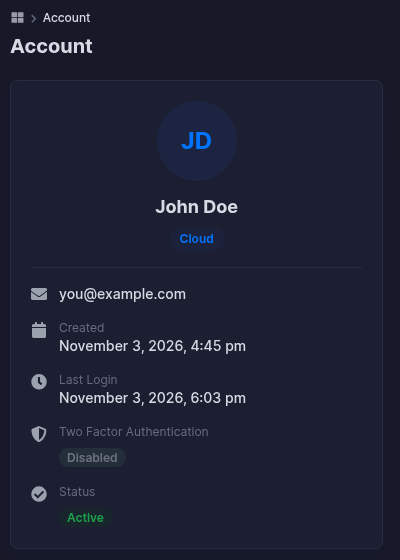
Your account page shows a Cloud badge under your name, which is how you can tell which type you have.
Log in
You log in the same way as any Virtualizor account, from billing with Go to Server or directly at vps.apexcloud.cc. See Control Panel. Your Cloud login is separate from the Billing Panel in billing, which is where you order, pay and upgrade the reseller plan.
The Cloud menu
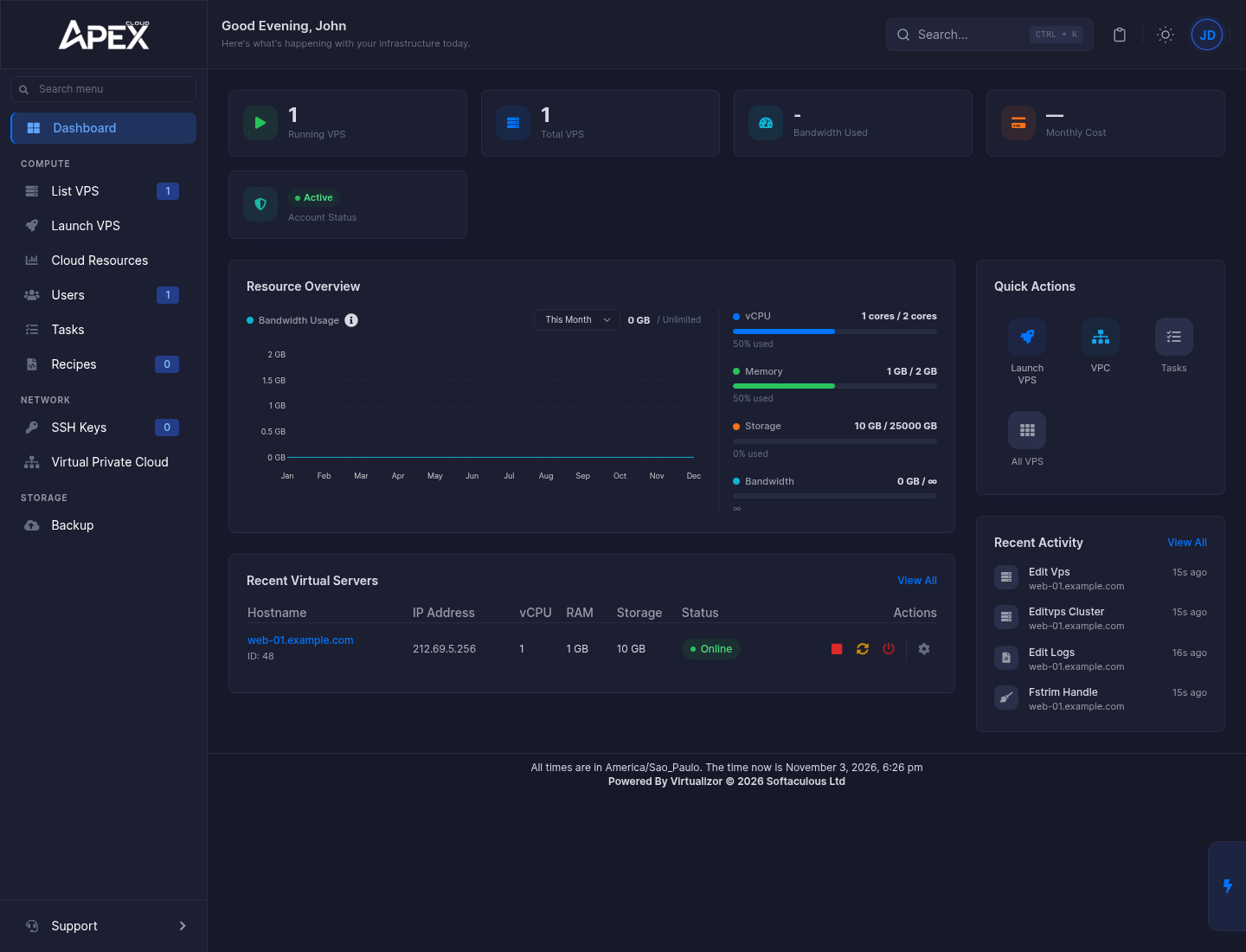
The Dashboard shows how many servers are running, how many you have in total, and a Resource Overview with the vCPU, memory, storage and bandwidth you have used out of your pool. Quick Actions link to Launch VPS, VPC, Tasks and All VPS, and Recent Activity lists the latest operations.
| Sidebar entry | What it is for |
|---|---|
| Dashboard | Summary of your pool and your servers. |
| List VPS | All servers in your account, with power controls and edit/manage buttons. See Manage, resize and delete a VPS. |
| Launch VPS | Create a new server from your pool. See Launch a VPS. |
| Cloud Resources | Your limits, what is used and what is left. See Cloud Resources. |
| Users | Logins for your customers. See Users. |
| Tasks | History of operations on your servers: Create VPS Operation, Installing Guest Agent, VPS Start, Edit VPS Operation. |
| Recipes | Your own install scripts. See Recipes. |
| SSH Keys | Keys you can attach to a server. See SSH keys. |
| Virtual Private Cloud | Private networks between your servers. See Virtual Private Cloud. |
| Backup | Lists backups, which you can filter by server. See Backups. |
| Support | Takes you to billing. |
The avatar menu at the top right has Account, API Credentials, MCP Server and Logout. API Credentials and MCP Server are advanced automation features that are not covered in these docs.
Typical workflow
- Check what is left in your pool in Cloud Resources.
- Launch a VPS with the OS, hostname and size you need.
- Connect to it and secure it.
- If the server belongs to one of your customers, create a user for them and assign the server to that user.
- Resize or reassign servers later from Edit VPS.
Backups and security are yours to manage
As with any VPS, what runs inside each server, its updates, firewall and backups are the responsibility of whoever holds the server. See who is responsible for what. If you resell servers, this applies to you and to your customers.