
Virtual Private Cloud
Create private networks with subnets for your servers, and attach servers to them.
A Virtual Private Cloud (VPC) is a private network between your servers. Servers attached to the same VPC can talk to each other over private addresses, without going through the public internet. Use it, for example, to keep a database server reachable only from your web servers.
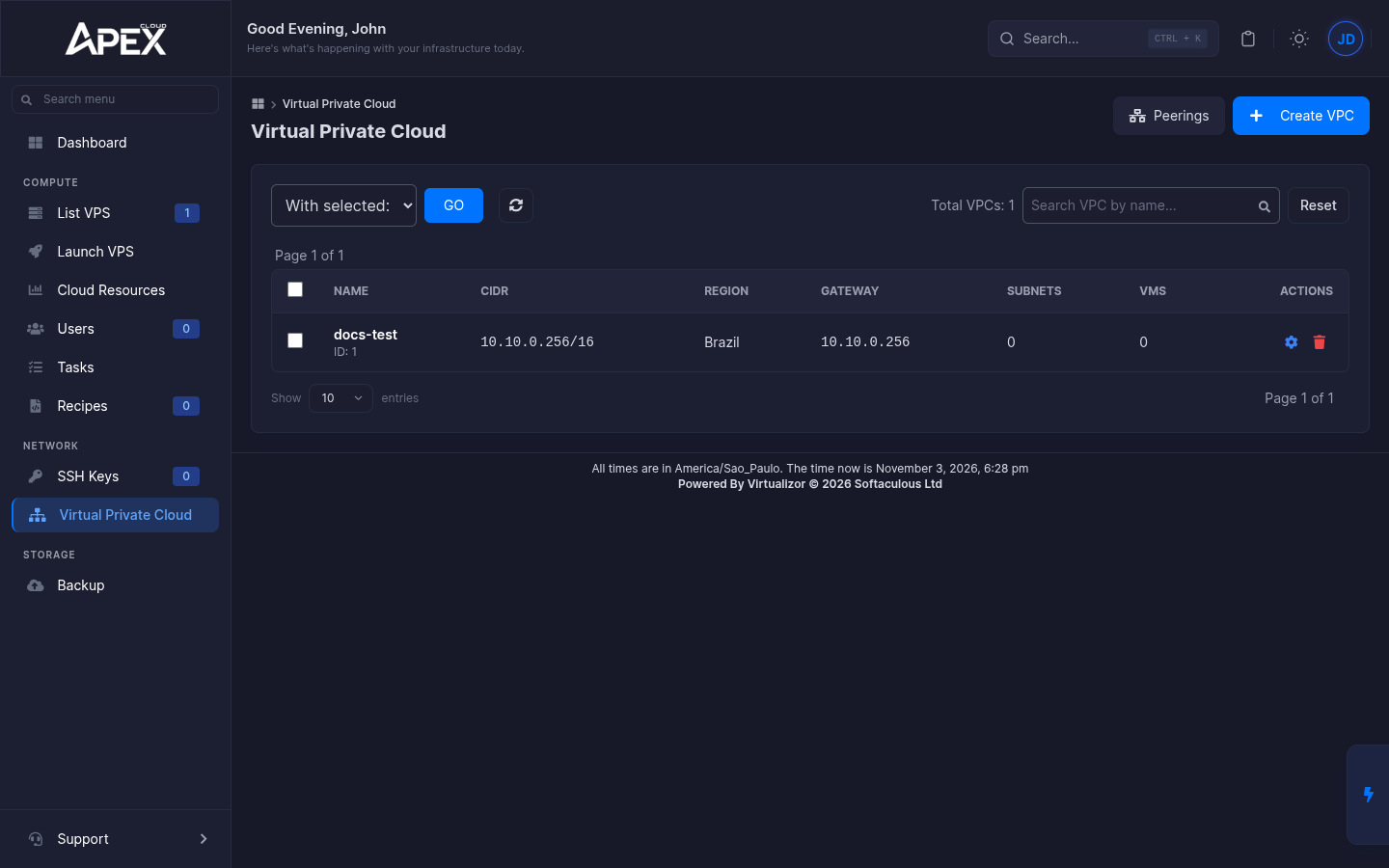
Open Virtual Private Cloud under Network in the left sidebar. A new account has no VPC: the page says No VPC Networks Yet.
Create a VPC
Click Create VPC
Click Create VPC at the top right, or Create Your First VPC when the list is empty.
Fill in the network
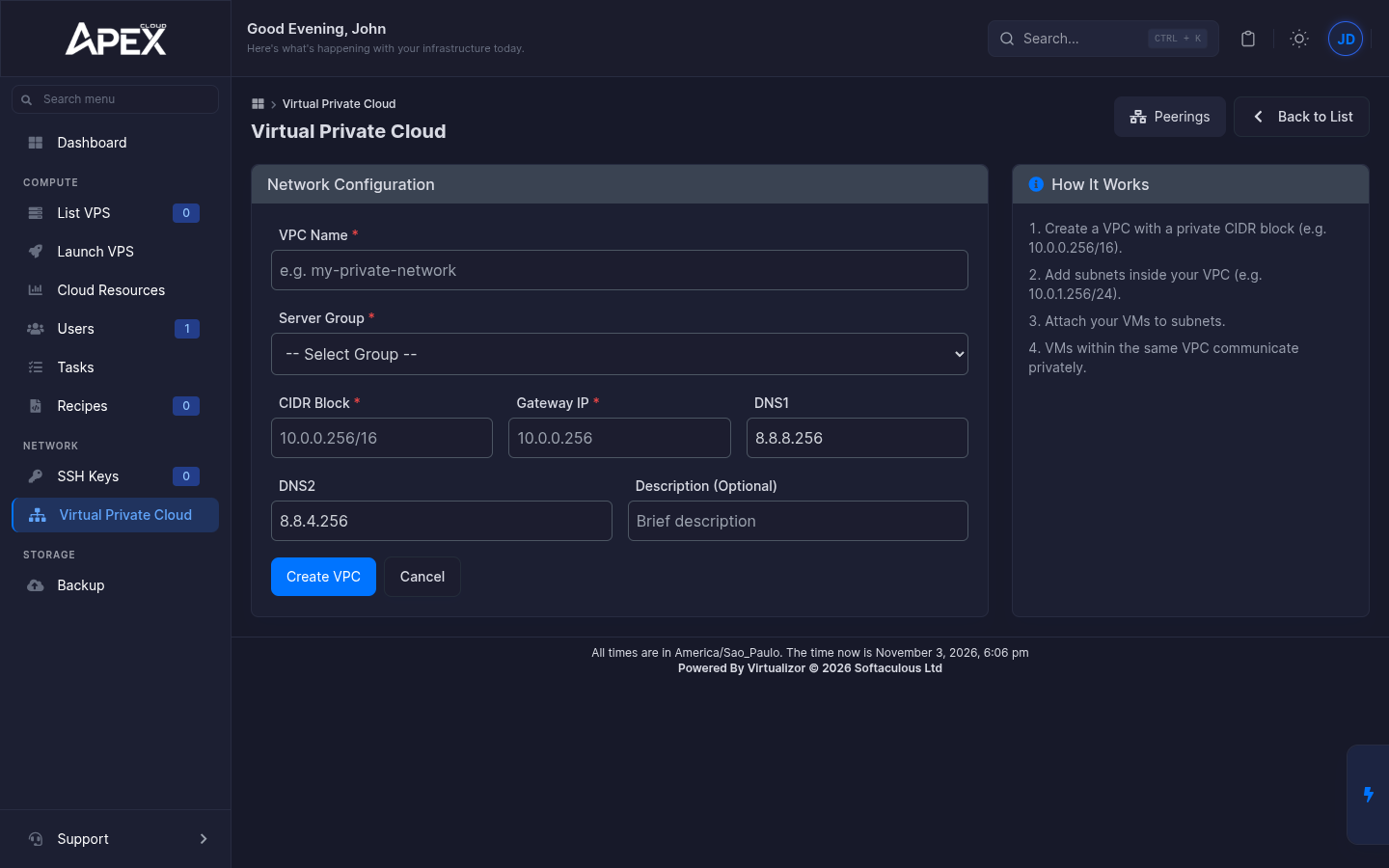
| Field | What to enter |
|---|---|
| VPC Name | A name, for example my-private-network. It must be unique in the server group. |
| Server Group | Choose Default. |
| CIDR Block | The private address range of the whole VPC, for example 10.0.0.0/16. |
| Gateway IP | The gateway address inside that range, for example 10.0.0.1. |
| DNS1, DNS2 | DNS servers. They are pre-filled with public resolvers. |
| Description | Optional. |
Click Create VPC. The VPC appears in the list with its Region, and with 0 subnets and 0 VMs.
If you reuse a name, the panel answers You already have a VPC with this name in the selected server group.
Add subnets and attach servers
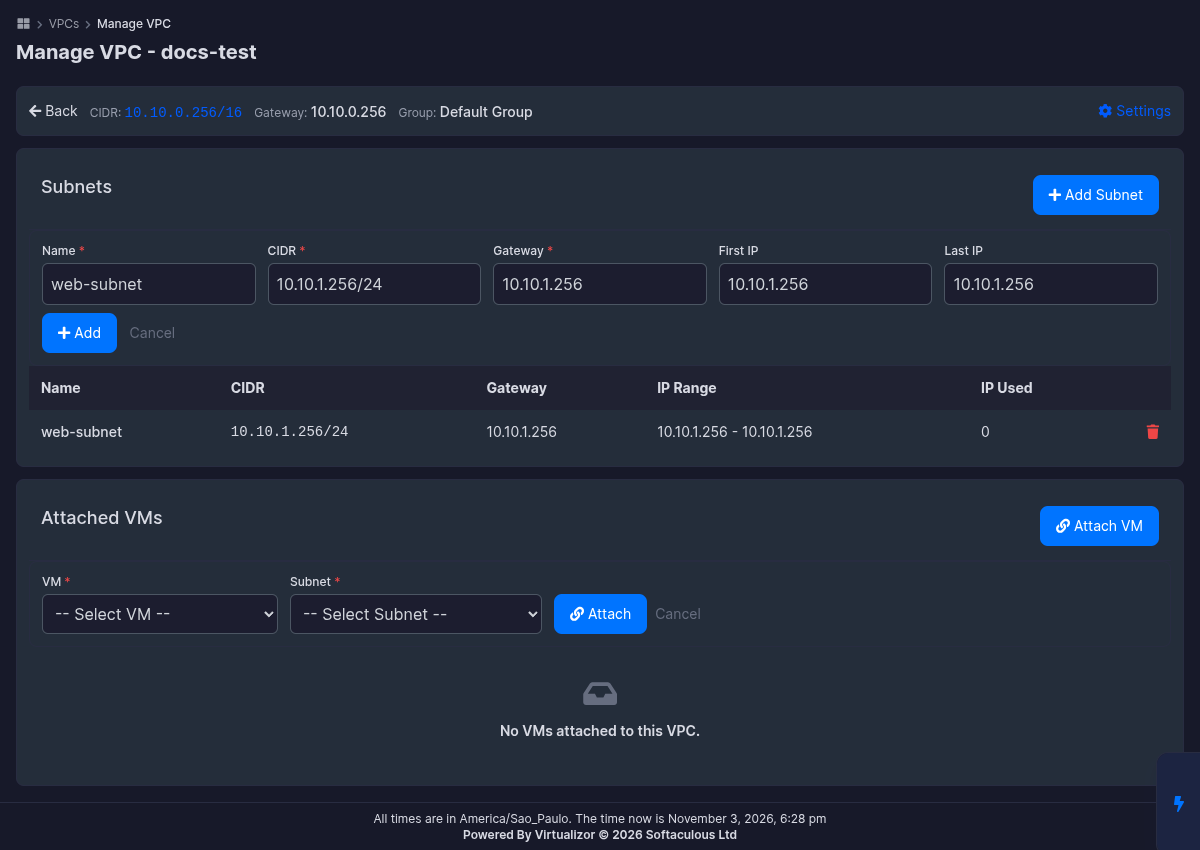
Click the cog (Manage) icon of a VPC to open Manage VPC. It shows the CIDR, gateway and group at the top, and two sections.
Add a subnet
In Subnets, click Add Subnet and fill in:
- Name, for example
web-subnet. - CIDR, a part of the VPC range, for example
10.0.1.0/24. - Gateway, inside the subnet.
- First IP and Last IP, the range of addresses that servers in this subnet can receive.
Click Add. The subnet is listed with its Name, CIDR, Gateway, IP Range and IP Used. The bin icon deletes it.
Attach a server
In Attached VMs, click Attach VM. Choose the server in VM and the subnet in Subnet, then click Attach. The server is then listed under Attached VMs.
Test the connection
Once servers are attached, check that two of them can reach each other over their private addresses before you rely on the VPC. The management page of each server also has a Networking tab, with its VPC Network.
Peerings
Peerings (button at the top of the VPC list) is for connecting two of your VPCs. The page explains it as Peer two of your VPCs together to allow private traffic between them, and has a Create Peering button. This is an advanced feature; if you are unsure, ask support.
Delete a VPC
Click the red bin icon at the end of the row, or tick several VPCs and use With selected then GO. The panel warns: Are you sure you want to delete this VPC? This will remove all subnets and tunnels. Click Ok to confirm.