
Cloud Resources and Limits
See your pool, how much of it your servers use, and what each limit means.
Cloud Resources is the page where you check your pool: how much your plan gives you, how much your servers already use, and how much is left to create or resize servers.
Open Cloud Resources under Compute in the left sidebar.
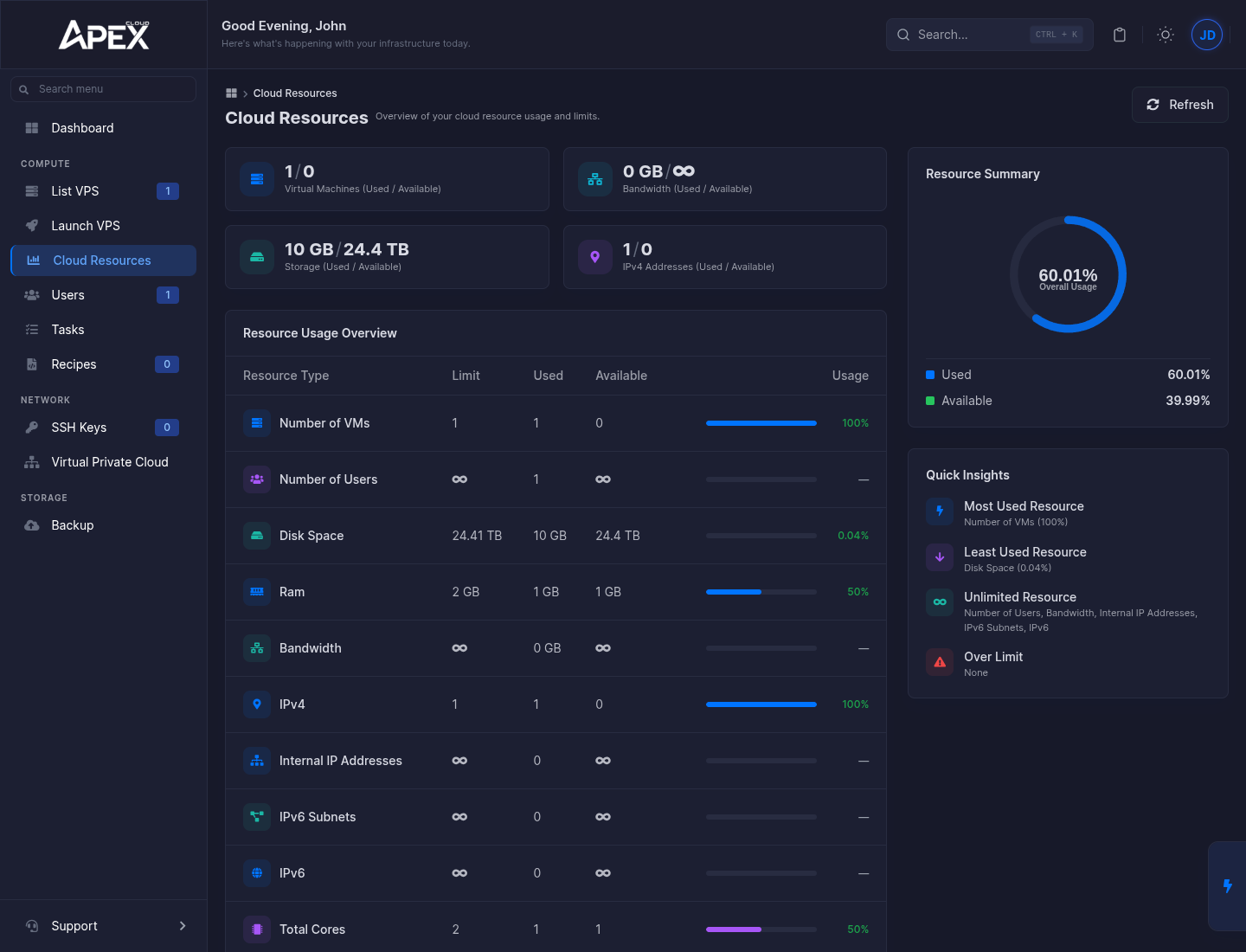
The four counters
At the top, four tiles show used / available for the most important limits:
- Virtual Machines, the number of servers.
- Bandwidth.
- Storage, the disk space.
- IPv4 Addresses.
The Refresh button reloads the numbers.
Resource Usage Overview
The table lists every limit with its Limit, how much is Used, how much is Available and a usage bar. A row with an infinity sign (∞) and no bar has no limit.
| Resource | What it limits |
|---|---|
| Number of VMs | How many servers you can have at the same time. |
| Number of Users | How many users you can create. |
| Disk Space | Total disk of all your servers together (shown in GB or TB). |
| Ram | Total RAM of all your servers together. |
| Bandwidth | Total transfer of your servers. |
| IPv4 | Public IPv4 addresses. Every server needs one. |
| Internal IP Addresses | Private addresses, used with a Virtual Private Cloud. |
| IPv6 Subnets and IPv6 | IPv6 resources. |
| Total Cores | CPU cores of all your servers together. |
| Max Cores / VPS | The largest number of cores a single server can have. |
| Max disk space / VPS | The largest disk a single server can have. |
The two / VPS rows are not shared totals: they cap the size of each individual server, and they show a dash in the Used and Available columns.
The numbers on this page are the ones that apply to your own plan. Your plan's pool is listed in the VPS Overview.
Resource Summary and Quick Insights
On the right, Resource Summary shows one overall usage percentage, split into Used and Available. Quick Insights names the Most Used Resource, the Least Used Resource, the Unlimited Resource list and any resource that is Over Limit.
What happens when you run out
When a resource is at 100%, you cannot create a server or enlarge one that needs more of it. The Launch VPS and Edit VPS forms show the amount that is still free next to each field, for example 2048 MB Free beside RAM.
If you try to go above a per-server limit, the panel refuses with an error such as You are not allowed to create a VPS with so many cores or You have crossed the assigned disk space limit. Lower the value, or free capacity by deleting or shrinking another server. To get a larger pool, see Upgrades and downgrades or contact support.