
Users
Create logins for your own customers, assign servers to them, and remove them.
If you resell servers, give each customer their own login instead of sharing yours. A user can see and control only the servers you assign to them, and has no access to your pool or to your other users.
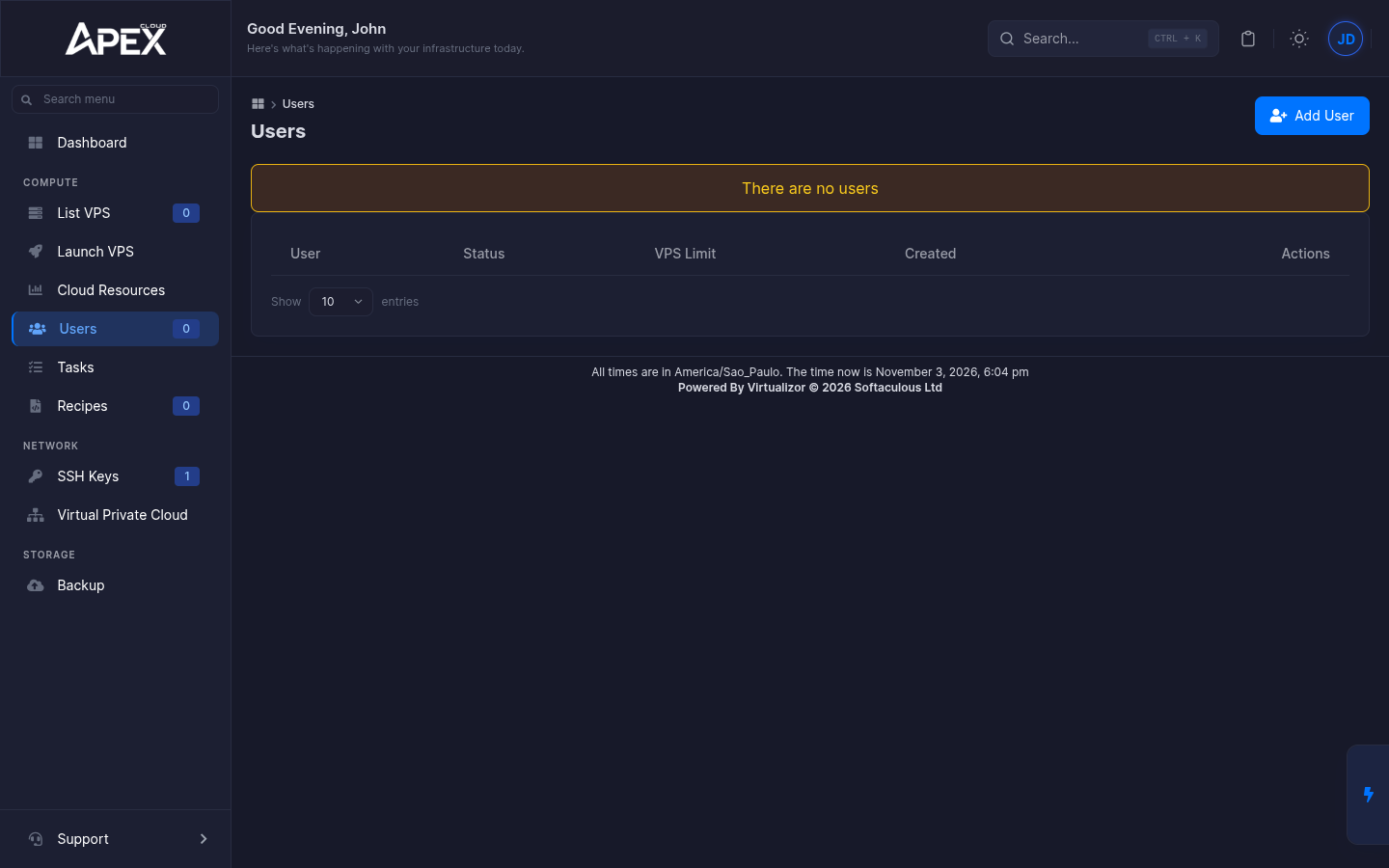
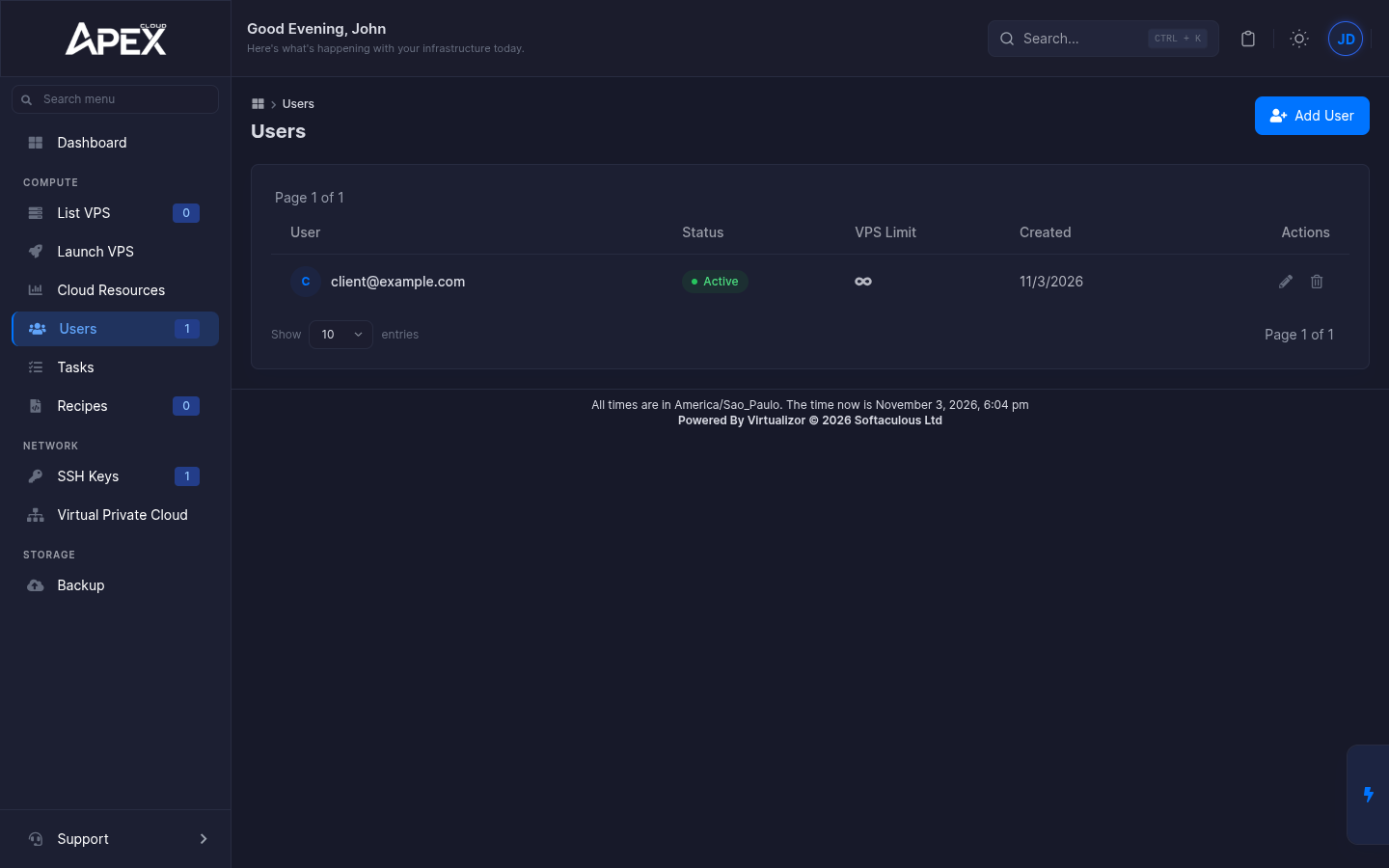
Users are managed in Users under Compute in the left sidebar. The page lists every user with their Status, VPS Limit (the infinity sign means no limit), Created date and two action icons: edit (pencil) and delete (bin).
Create a user
Click Add User
Click Add User at the top right of the Users page.
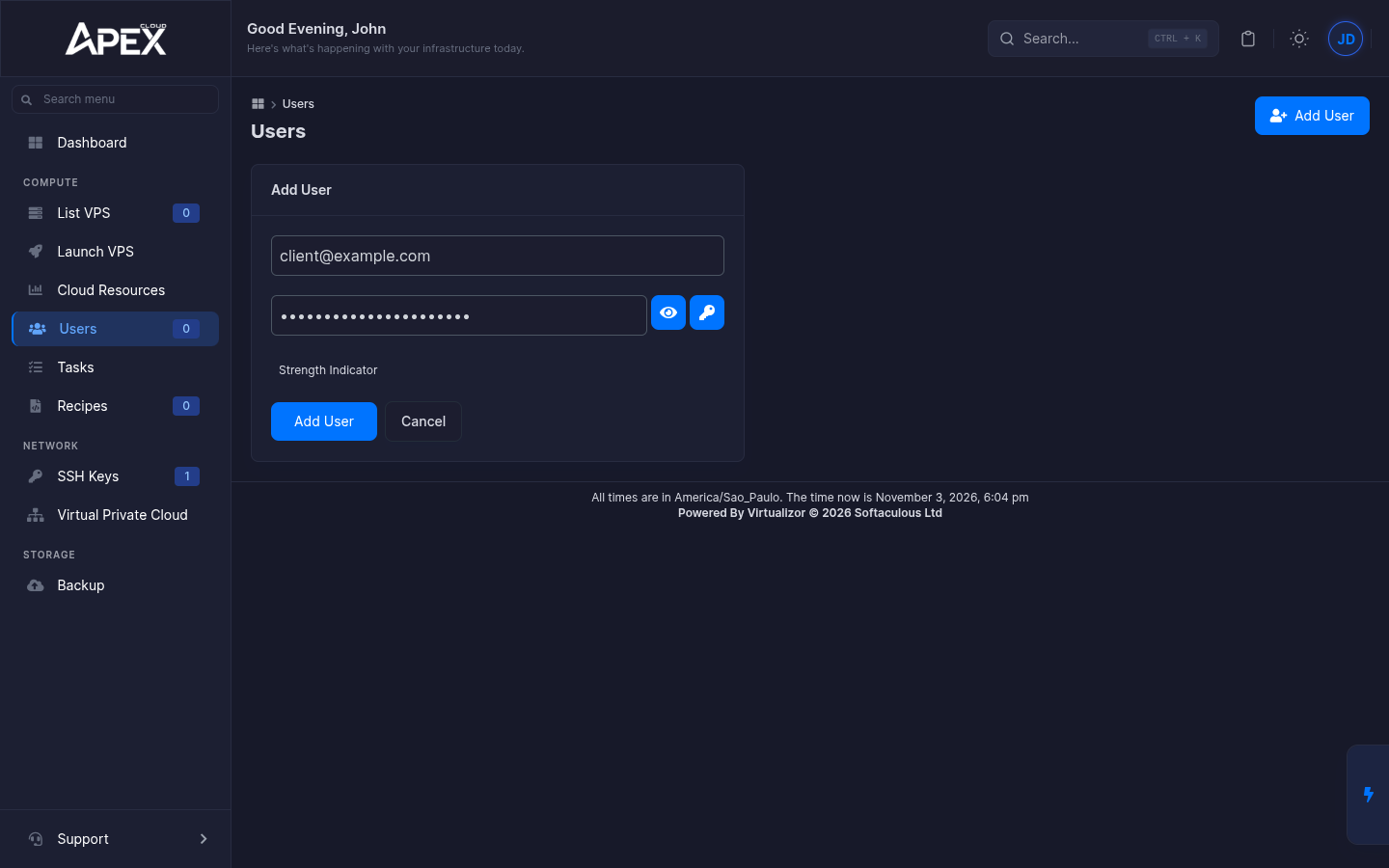
Enter the email and a password
Type the customer's email in New User Email, and a password. The eye button shows the password, the key button generates one, and a strength indicator rates it.
Click Add User
A green User has been added message appears and the new user is in the list as Active.
Send the login details yourself
The form does not mention sending the customer an invitation. Give them their email, their password and the address vps.apexcloud.cc, and ask them to change the password after the first login.
Assign a server to a user
A new user starts with no servers. There are two ways to give them one:
- When you launch a VPS, choose the user in User, under Advanced Options.
- For a server you already have, edit it and change User.
What a user sees
A user logs in at vps.apexcloud.cc with their email and password. Their panel looks like the one of a normal VPS account. The sidebar only has Dashboard, List VPS, Tasks, SSH Keys, Backup and Support. There is no Launch VPS, Cloud Resources, Users, Recipes or Virtual Private Cloud. The resource meters on their dashboard read Unlimited, because limits apply to your pool, not to them.
In List VPS they only see the servers you assigned to them and have the stop, restart, power off and Manage buttons, with no edit or delete. See Manage, resize and delete a VPS.
Users do not use pool resources
A user login does not take VM, RAM or disk from your pool. It only counts in Number of Users on Cloud Resources, which showed no limit (∞) on the account we checked.
Change a user's email or password
Click the pencil icon
In the Users list, click the pencil icon at the end of the user's row.
Change the details
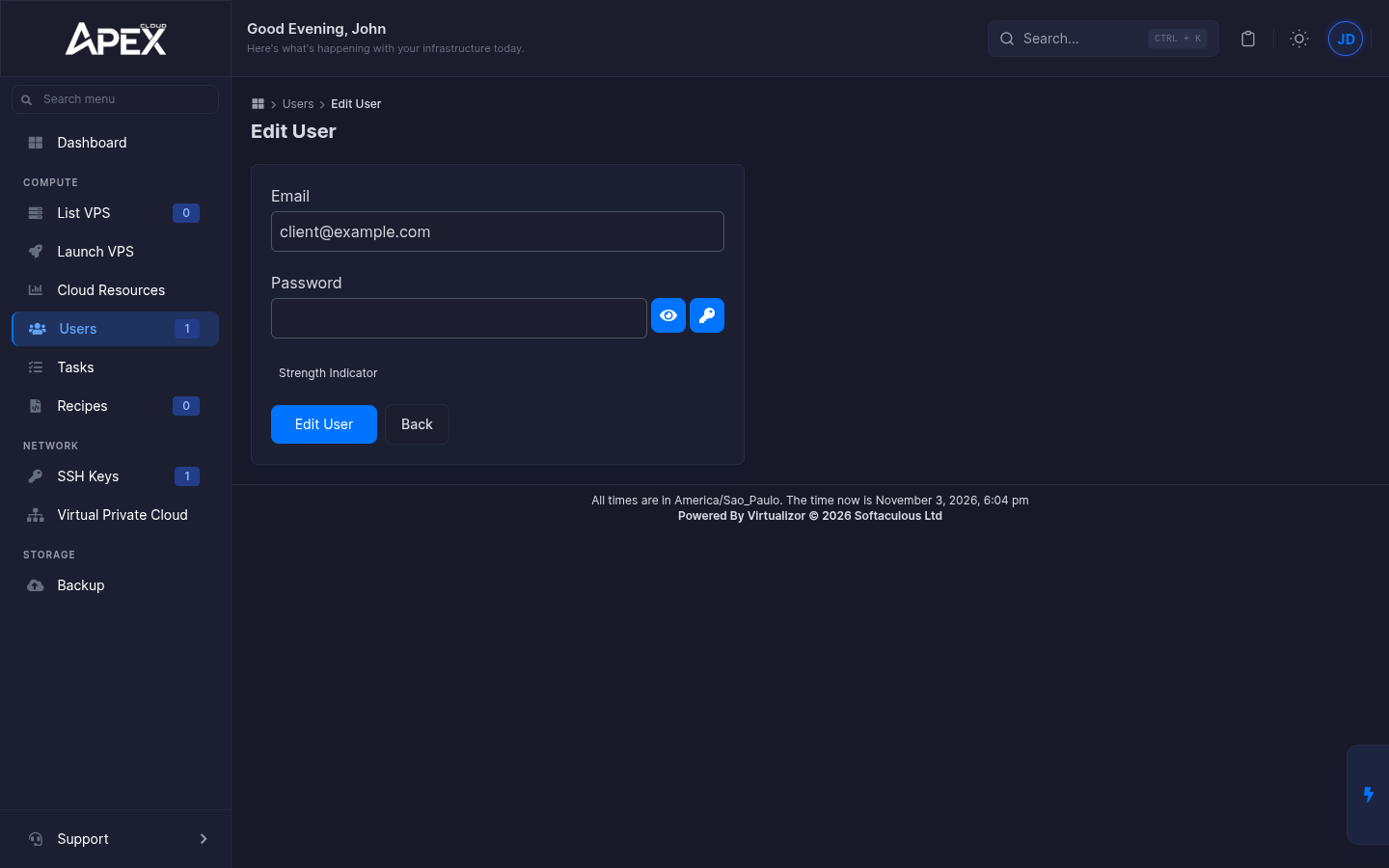
Edit User shows the Email and an empty Password. Fill in only what you want to change and click Edit User. Back returns to the list without saving.
Delete a user
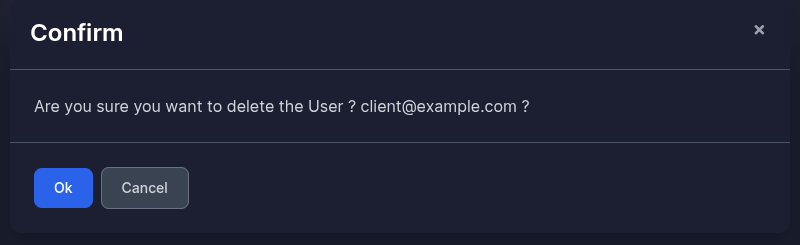
Click the bin icon at the end of the row and confirm with Ok. The panel shows The User has been deleted.
Before you delete a user who owns servers, move those servers to another owner, so none is left without a clear owner.