
Backups
What the Backup page shows, and how to protect the data on your VPS yourself.
You cannot create backups or snapshots from the panel
There is no button in the control panel to create a backup or a snapshot of a VPS, and the VPS management page has no backups tab. Do not assume that Apex Cloud keeps a copy of your data. You are responsible for your own backups.
This matches the Terms of Service (Portuguese), which say that VPS servers may not include automatic backups, and that the customer must keep their own up-to-date copies of important data.
The Backup page
Backup in the sidebar of the control panel lists backups that exist for your servers. It shows:
- counters for Total Backups, Successful, Scheduled and Backup Storage;
- the tabs Legacy Backup and Backuply Backup;
- a Filter by Virtual Server selector;
- a list with the VPS and OS, the backup name, the type (Manual or Scheduled), size, status, creation date and actions.
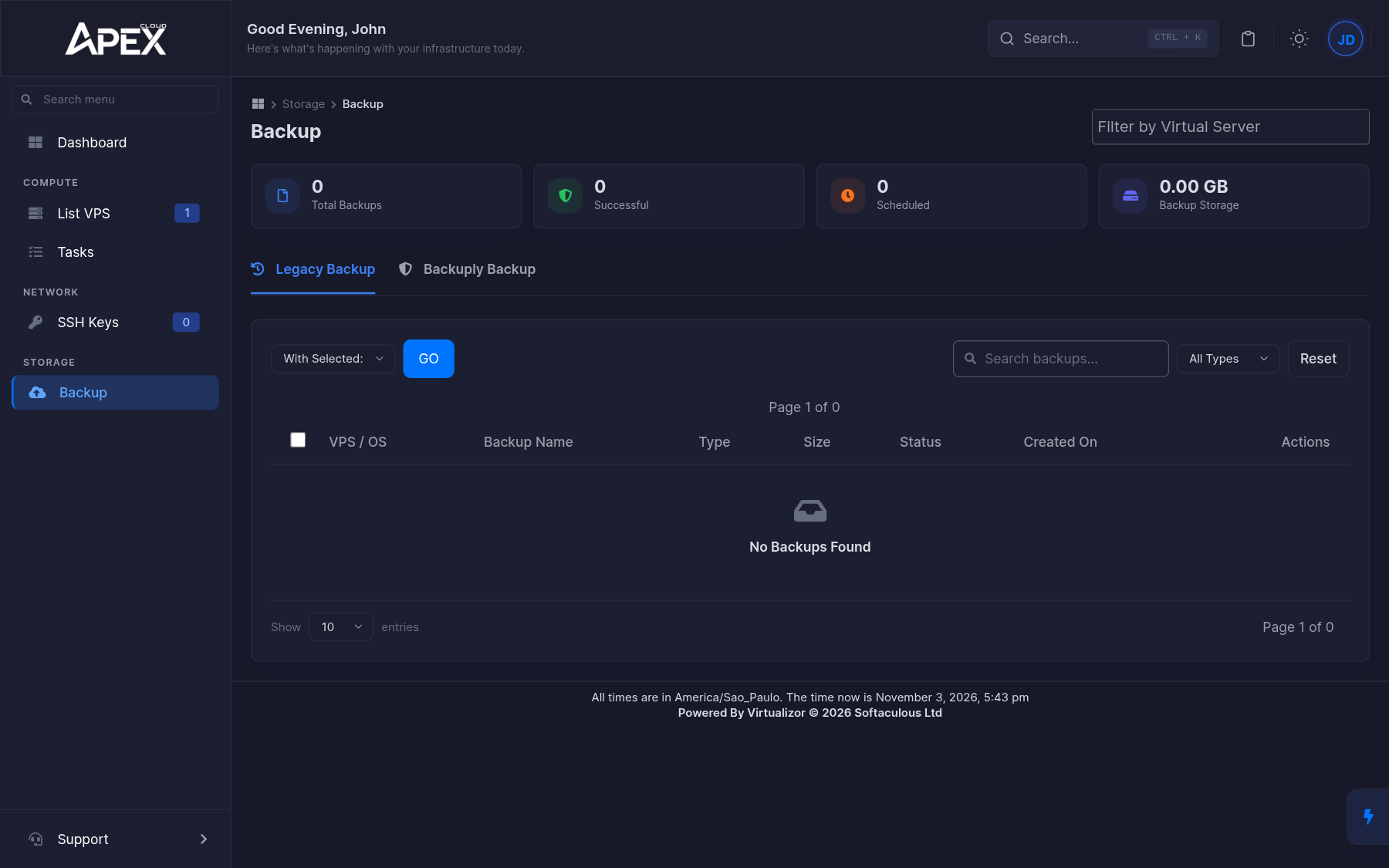
For a normal VPS the list is empty and shows No Backups Found. If a backup has been arranged with support, it is listed here. To ask about backups made on Apex Cloud's side, contact support.
Back up your data yourself
Copy your data to storage that is outside the server. A backup kept on the same VPS is lost with it.
General guidance
The tools below are common examples. Choose what fits your project.
Linux
-
rsynccopies files to another machine over SSH:rsync -avz /var/www/ backup-user@backup.example.com:/backups/my-vps/www/ -
resticmakes encrypted, deduplicated backups to another server or to object storage. -
rclonecopies files to many kinds of cloud and object storage. -
For databases, export a dump first (for example
mysqldumporpg_dump) and back up the dump file.
Run backups on a schedule with cron or a systemd timer, so you do not depend on remembering.
Windows Server
Use Windows Server Backup (a Windows Server feature) to back up to external storage, such as a network share or an attached backup disk. Add the feature from Server Manager if it is not installed.
Good habits
- Keep more than one copy, and at least one in a different place.
- Test restoring from time to time. A backup you have never restored is only a hope.
- Take a copy before risky changes, and always before you reinstall the OS, which erases all data.
- Keep backup credentials and encryption keys safe and separate from the server.