
VNC Console and Rescue Mode
Reach your VPS from the browser when SSH or RDP does not work, and repair a system that will not boot.
Two tools in the control panel let you reach a VPS without a working network connection or SSH/RDP service:
- VNC shows the server's screen and keyboard in your browser, like a monitor plugged into the machine.
- Rescue Mode boots a small Linux system so you can repair the main disk or copy files from it.
VNC console
Use VNC when SSH or RDP cannot connect, for example after a firewall rule locked you out, after a broken network configuration, or when you changed the SSH settings and lost access.
In the browser
There are three places to start it:
- the blue monitor icon on the List VPS row (Launch NoVNC viewer);
- the VNC button at the top right of the management page;
- Settings > VNC > Launch VNC.
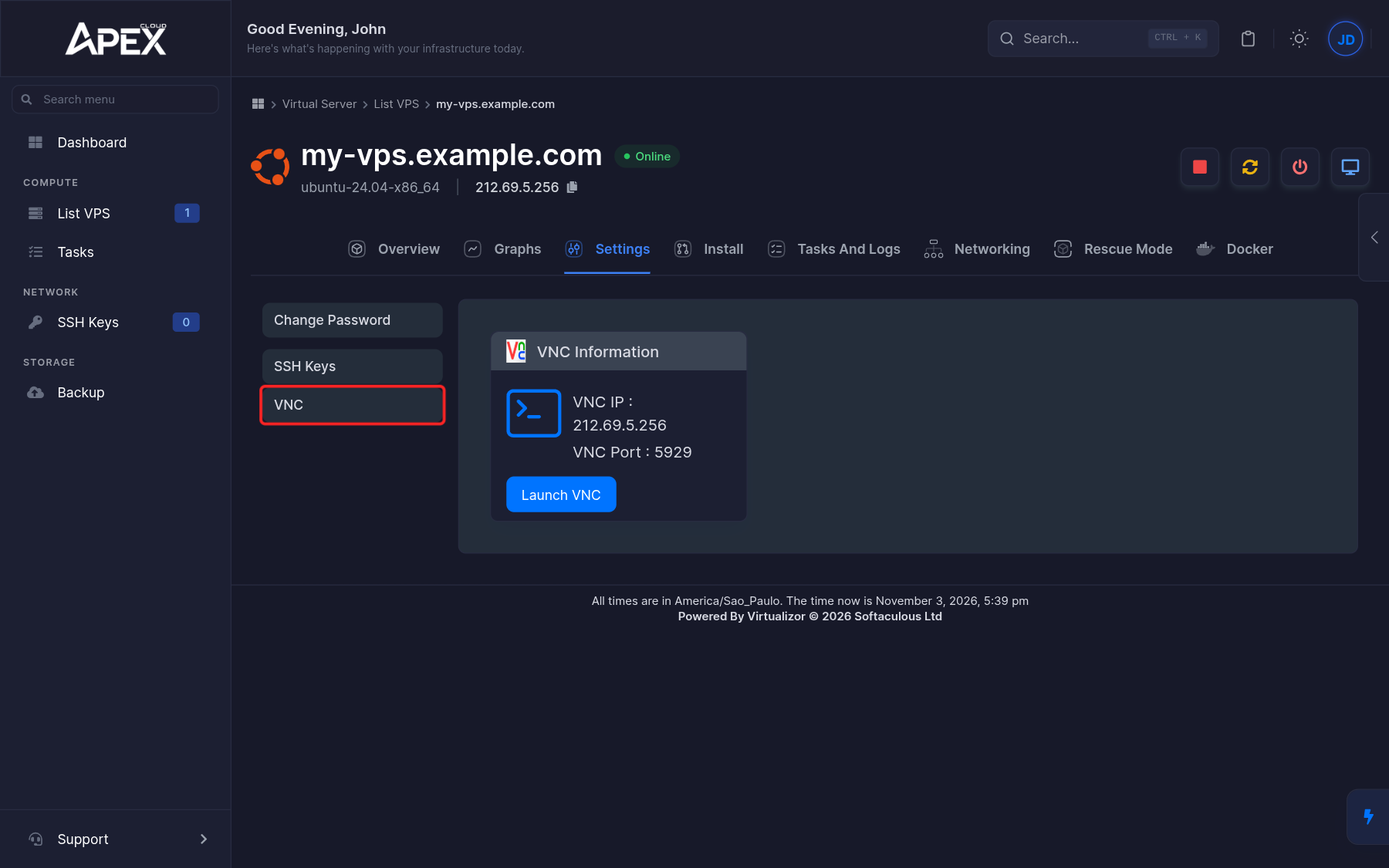
The console opens in the browser. On Linux you get a login prompt: log in as root with the server's root password. On Windows Server, sign in as Administrator. If you do not remember the password, change it first.
With a VNC client
The VNC Information box shows the VNC IP and VNC Port. You can enter these in a desktop VNC client instead of using the browser.
The console shows the server as it is, including a stuck boot or a screen that is waiting for input. It does not need the server's network to be configured correctly.
Rescue Mode
Rescue Mode boots a small Linux environment from another disk, so you can rescue your primary Linux VPS or back up the files on it. Use it when the system no longer boots, or when a mistake in a configuration file prevents you from logging in.
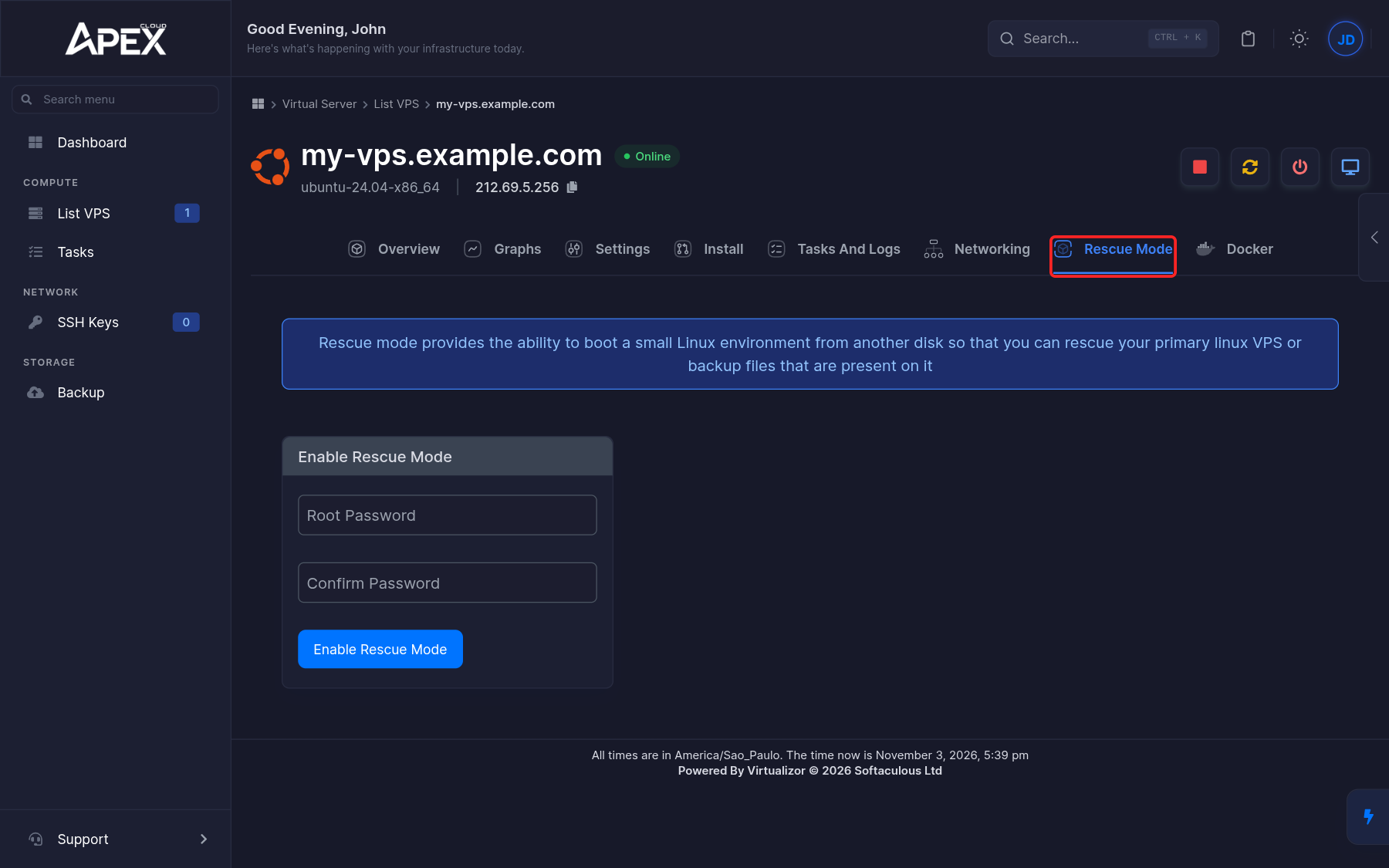
Enable Rescue Mode
Open the Rescue Mode tab of the VPS. Enter a root password in Root Password and Confirm Password, then click Enable Rescue Mode. This password is only for the rescue environment.
Connect to the rescue environment
Connect to the server, preferably through the VNC console, and log in as root with the rescue password. Rescue Mode boots from another disk, so your own system is not running.
Mount the system disk and fix it
List the disks and mount the one that holds your system:
lsblk
mount /dev/vda1 /mnt
/dev/vda1 is an example. Device names depend on the server and on how the disk is partitioned. Use the name that lsblk shows for your system partition.
From there you can edit configuration files under /mnt (for example /mnt/etc/ssh/sshd_config), copy your data to another machine with scp or rsync, or review logs in /mnt/var/log.
Unmount and disable Rescue Mode
When you are done, unmount the disk:
umount /mntThen go back to the Rescue Mode tab and disable rescue mode, so that the VPS boots from its own disk again. Restart the VPS and check that it comes back.
Copy the data before anything drastic
If the system cannot be repaired, copy your important files out of the server before you reinstall the OS, which erases the disk.
If none of this works, contact support and describe what you tried. See Troubleshooting.