
Change the VPS Password
Set a new root or Administrator password for your VPS from the control panel.
You can set a new password for the root user (Linux) or the Administrator user (Windows Server) from the control panel, without logging in to the server. This is also how you recover access when you have lost the password.
This is the password of the server's operating system. It is not the password of your billing account or of your Virtualizor login. For those, see Control Panel and Security.
Choose a strong password
Use a long, unique password, ideally from a password manager. NIST's password guidelines favour length over complexity rules. For Linux servers, SSH keys are even safer.
Open the VPS settings
In the control panel, open List VPS and click the Manage (cog) icon of your server. Go to the Settings tab.
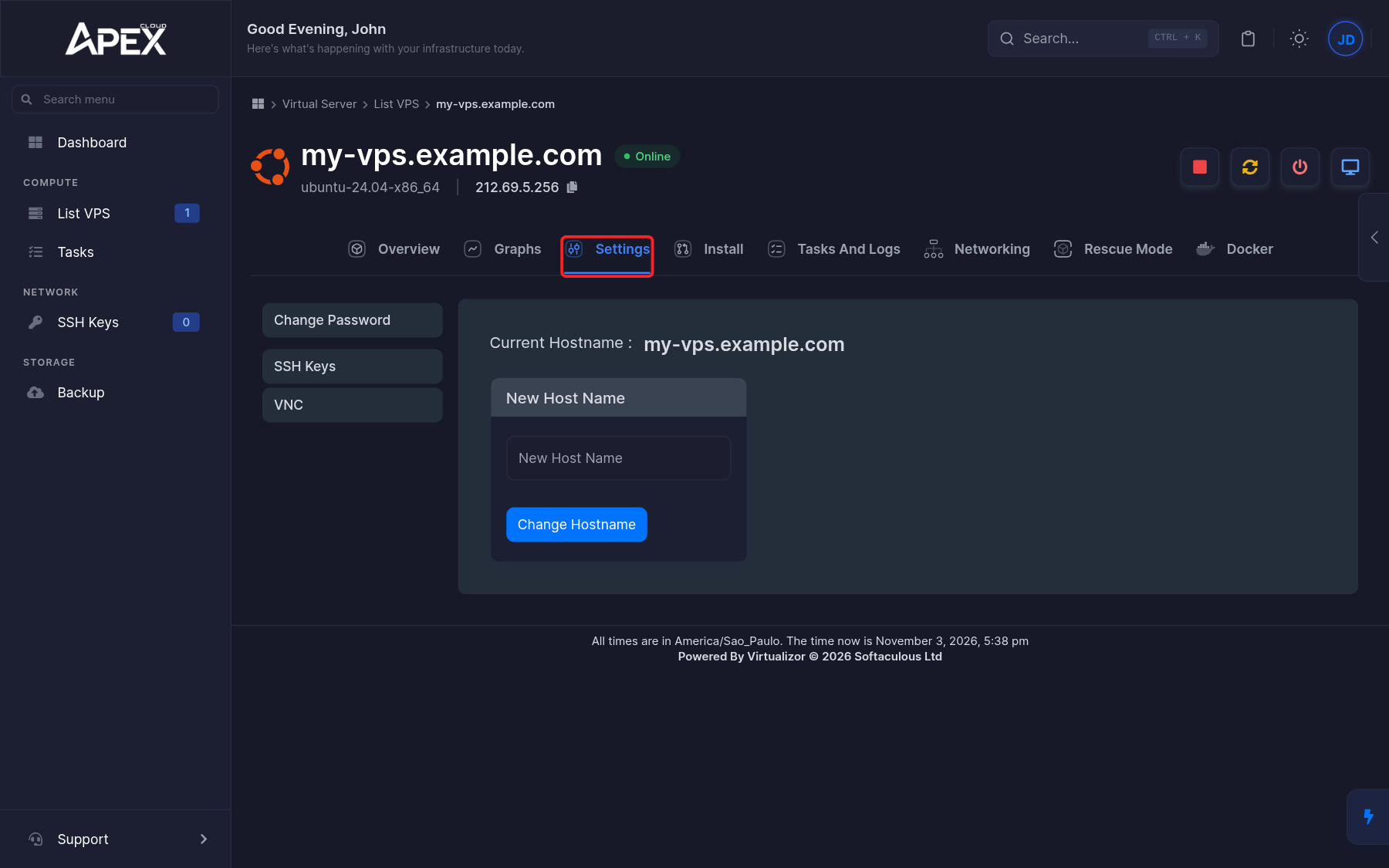
Open Change Password
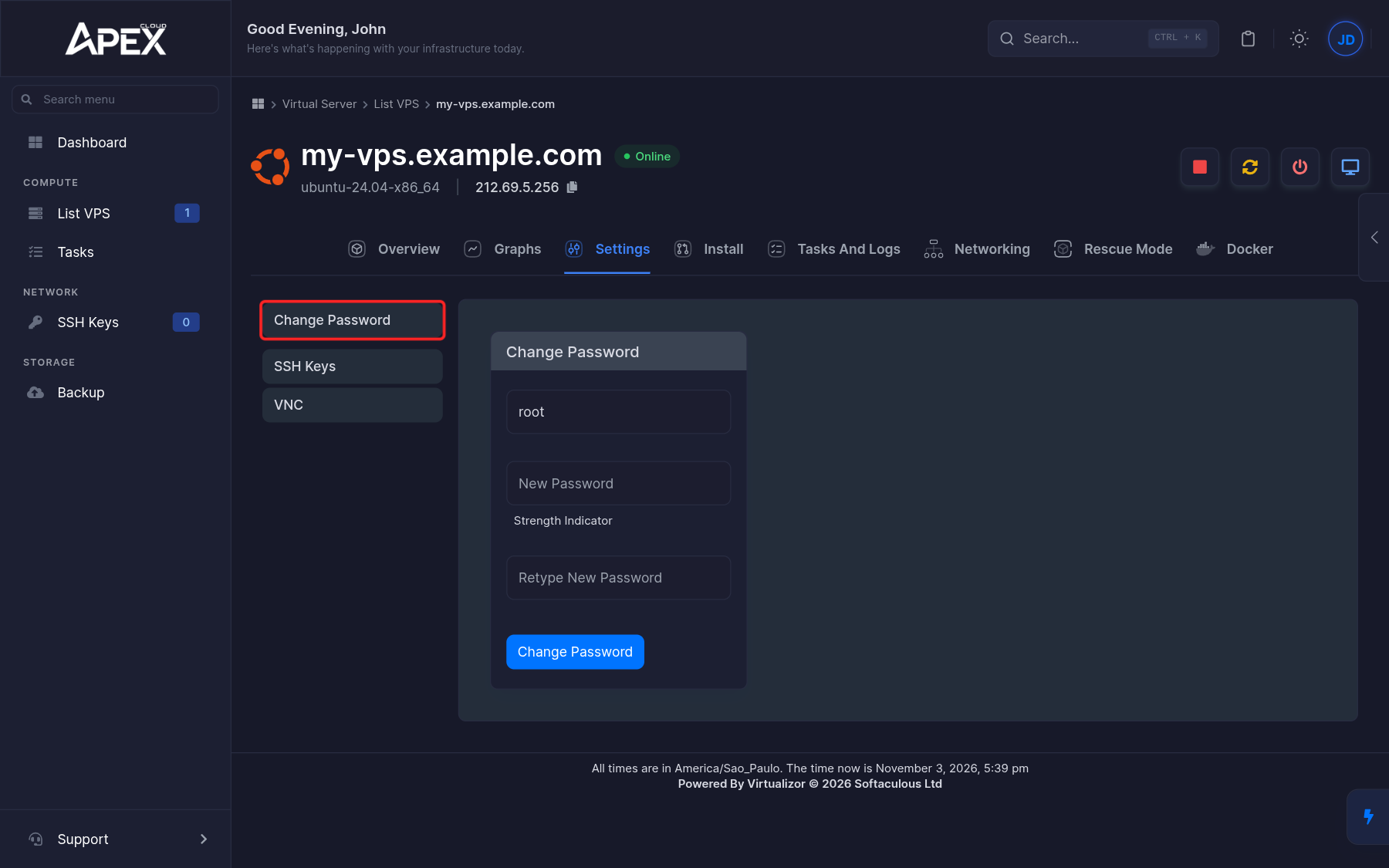
Click Change Password in the menu on the left.
Enter the new password
Leave the username field as it is: it already contains root on Linux or Administrator on Windows. Type the new password in New Password and again in Retype New Password. The Strength Indicator shows how strong it is. Then click Change Password.
Restart the VPS
Reboot the VPS so the new password takes effect. Click the Restart button at the top right of the page and confirm. See Power controls.
Connect with the new password
Once the VPS is back online, connect with the new password.
The password in the creation email stops working after you change it. If you reinstall the OS, you set a new password as part of the reinstall.