
Power Controls
Start, stop, restart and power off your VPS from the control panel.
You can control the power state of a VPS from the control panel, even when the server itself does not respond. There are four actions: Start, Stop, Restart and Power off.
| Action | What it does | When to use it |
|---|---|---|
| Start | Turns on a stopped VPS. | After a stop or a power off. |
| Stop | Asks the operating system to shut down gracefully, as if you chose Shut down in the OS. Services and files are closed properly. | Normal shutdowns. |
| Restart | Reboots the VPS. | After updates, or after changing the password or attaching an SSH key. |
| Power off | Cuts the power immediately, like pulling the plug. The operating system gets no chance to close files. | Only when the VPS is frozen and Stop or Restart do nothing. |
Power off can lose data
A hard power off can corrupt files or databases that were being written at that moment. Try Stop or Restart first, and use Power off as a last resort.
From the VPS list
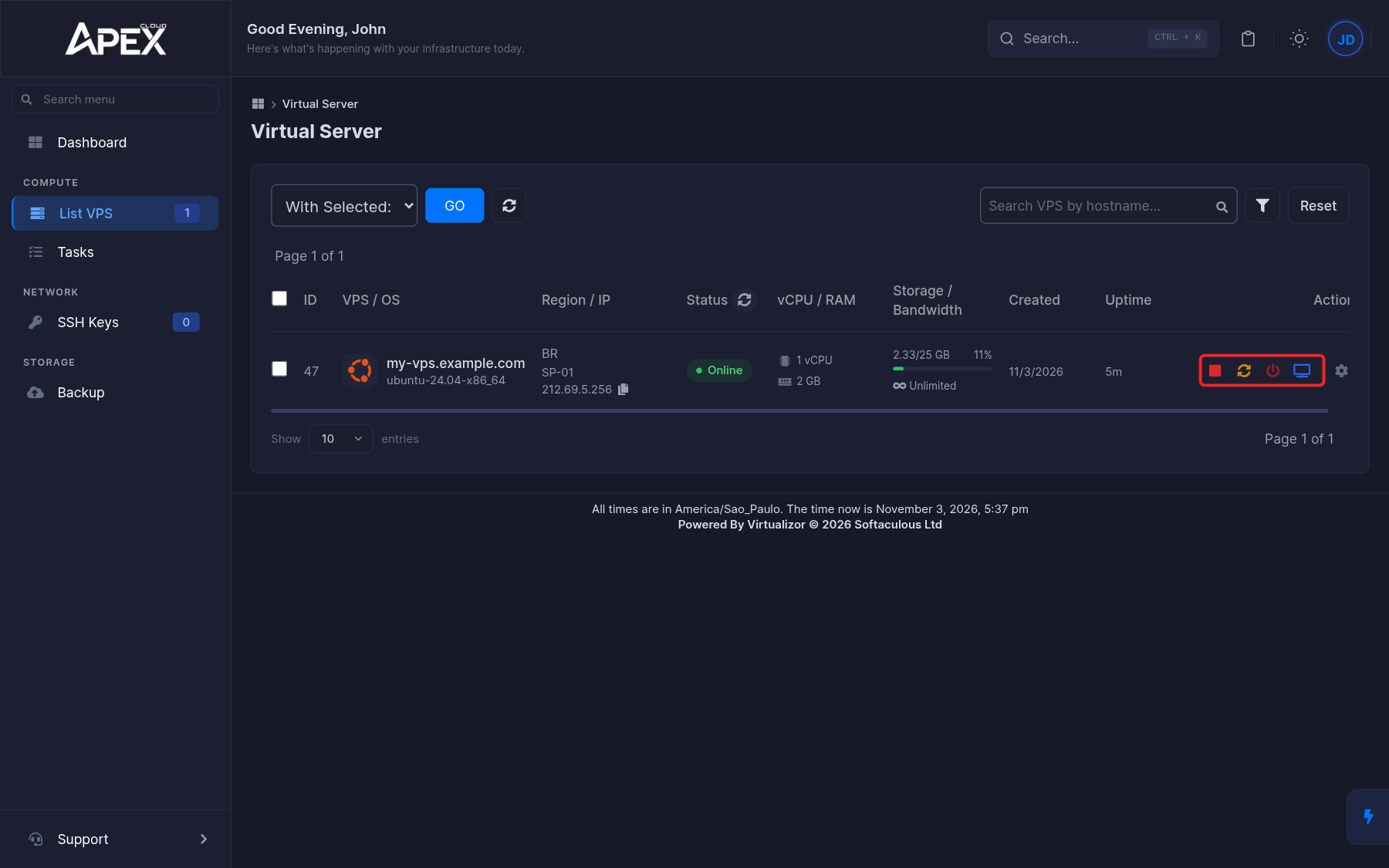
Open List VPS in the control panel. Each row has action icons at the end:
- the red square is Stop VPS;
- the orange arrows are Restart VPS;
- the red power icon is Poweroff VPS;
- the blue monitor icon launches the NoVNC viewer, see Console and rescue.
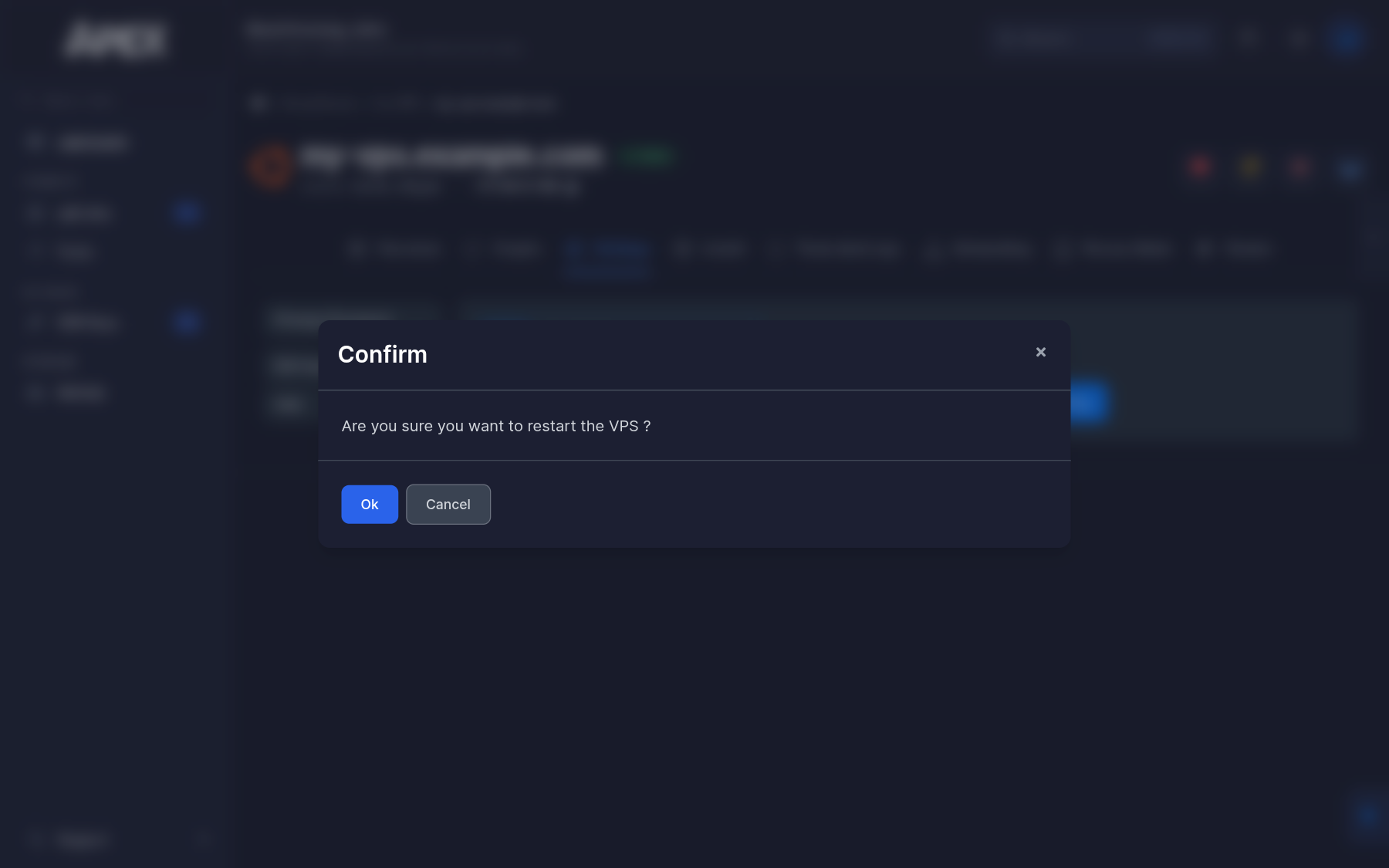
The panel asks you to confirm the action, for example before it restarts the server:
From the management page
The same actions are at the top right of the management page of a VPS, next to its name: Stop, Restart, Power off and VNC. Use this when you are already working on one server, for example after you change its password or attach an SSH key.
Several servers at once
On the List VPS page, tick the boxes of the servers you want, open the With Selected menu, choose Start, Stop, Restart or Power Off, and click GO.
Follow the progress
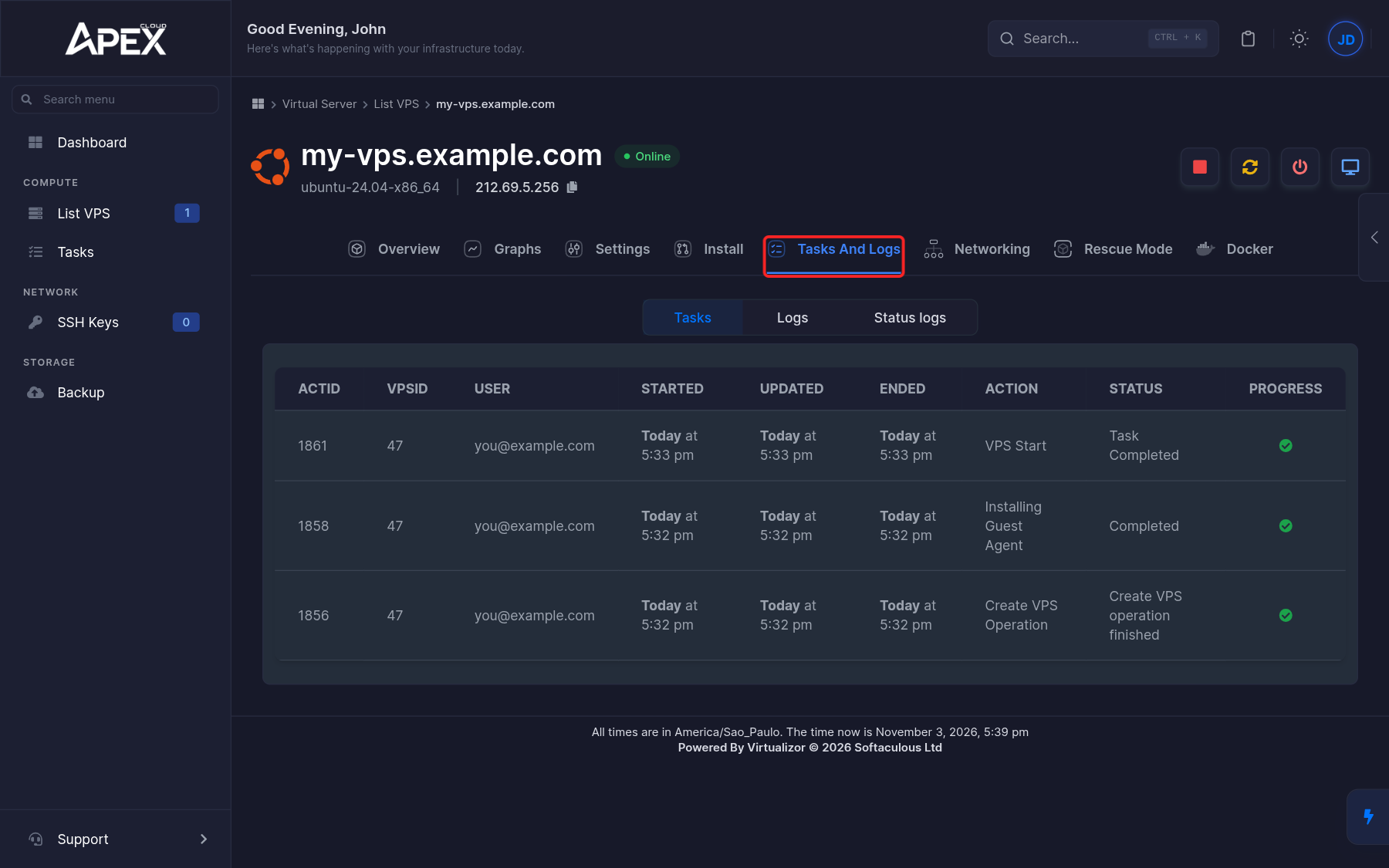
Each action is queued as a task. Open the Tasks And Logs tab of a server (or Tasks in the sidebar for all servers) to see its status and progress. See Monitoring.
If a server does not come back after a restart, see Troubleshooting.