
SSH Keys
Create an SSH key, add it to your VPS, and turn off password logins.
An SSH key is a pair of files: a private key that stays on your computer, and a public key that you put on the server. Logging in with a key is safer than using a password, because there is nothing to guess and nothing to brute-force. This page applies to Linux VPS servers (Ubuntu).
Keep the private key private
Never share the private key (the file without the .pub extension) and never paste it anywhere. Only the public key (.pub) goes into the panel or onto the server.
1. Generate a key
Ed25519 is a good default. Run the command on your own computer, not on the VPS.
Open PowerShell and run:
ssh-keygen -t ed25519 -C "you@example.com"Press Enter to accept the default location, then choose a passphrase (recommended). Show the public key with:
Get-Content $env:USERPROFILE\.ssh\id_ed25519.pubIf you use PuTTY, you can create a key with PuTTYgen instead (key type EdDSA, Ed25519). Copy the text from the box called Public key for pasting into OpenSSH authorized_keys file.
The public key is one line that starts with ssh-ed25519. Copy the whole line.
2. Add the key in the panel
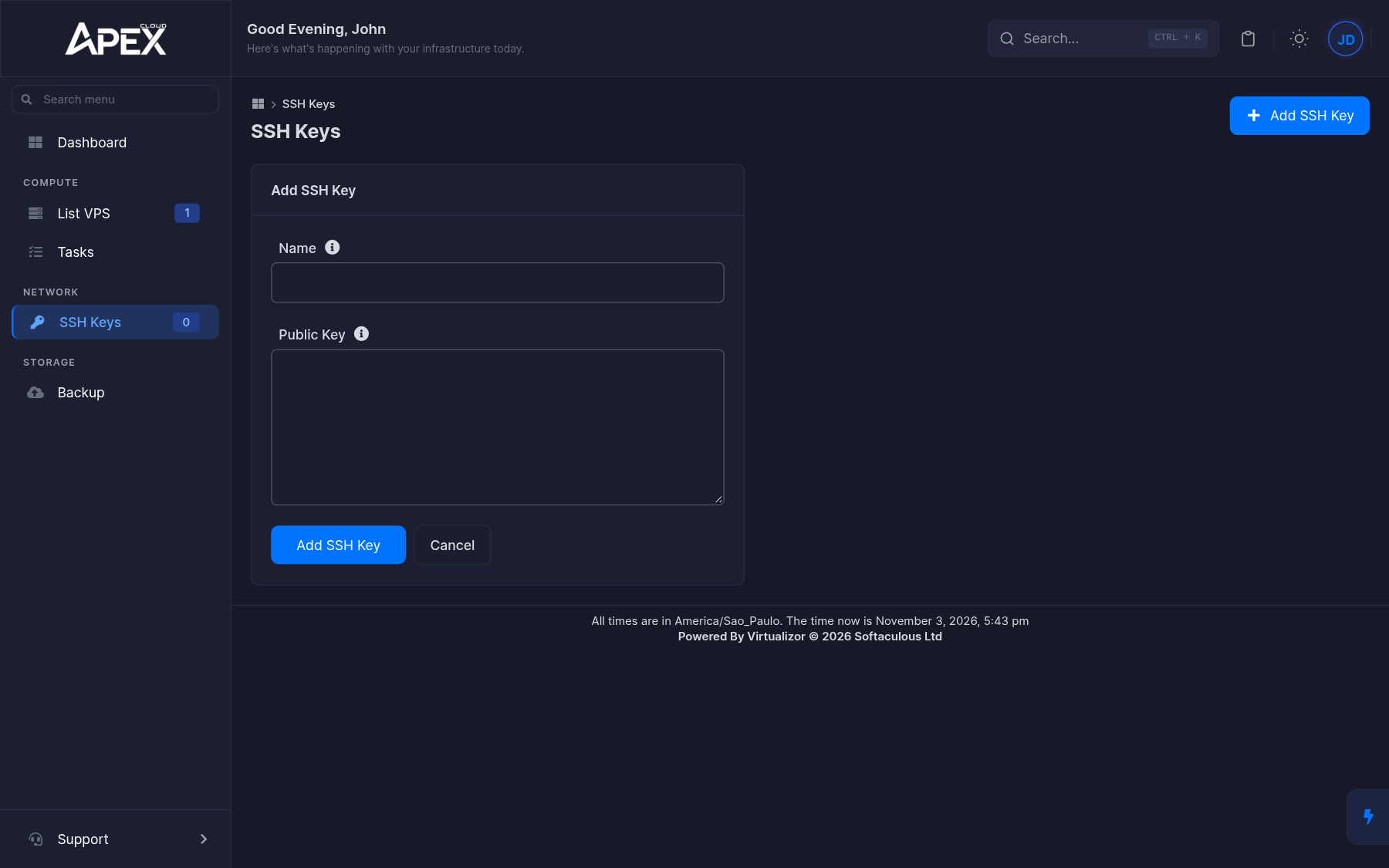
Fill in the form
Give the key a Name you will recognise, for example my-laptop, paste the public key into Public Key, and click Add SSH Key.
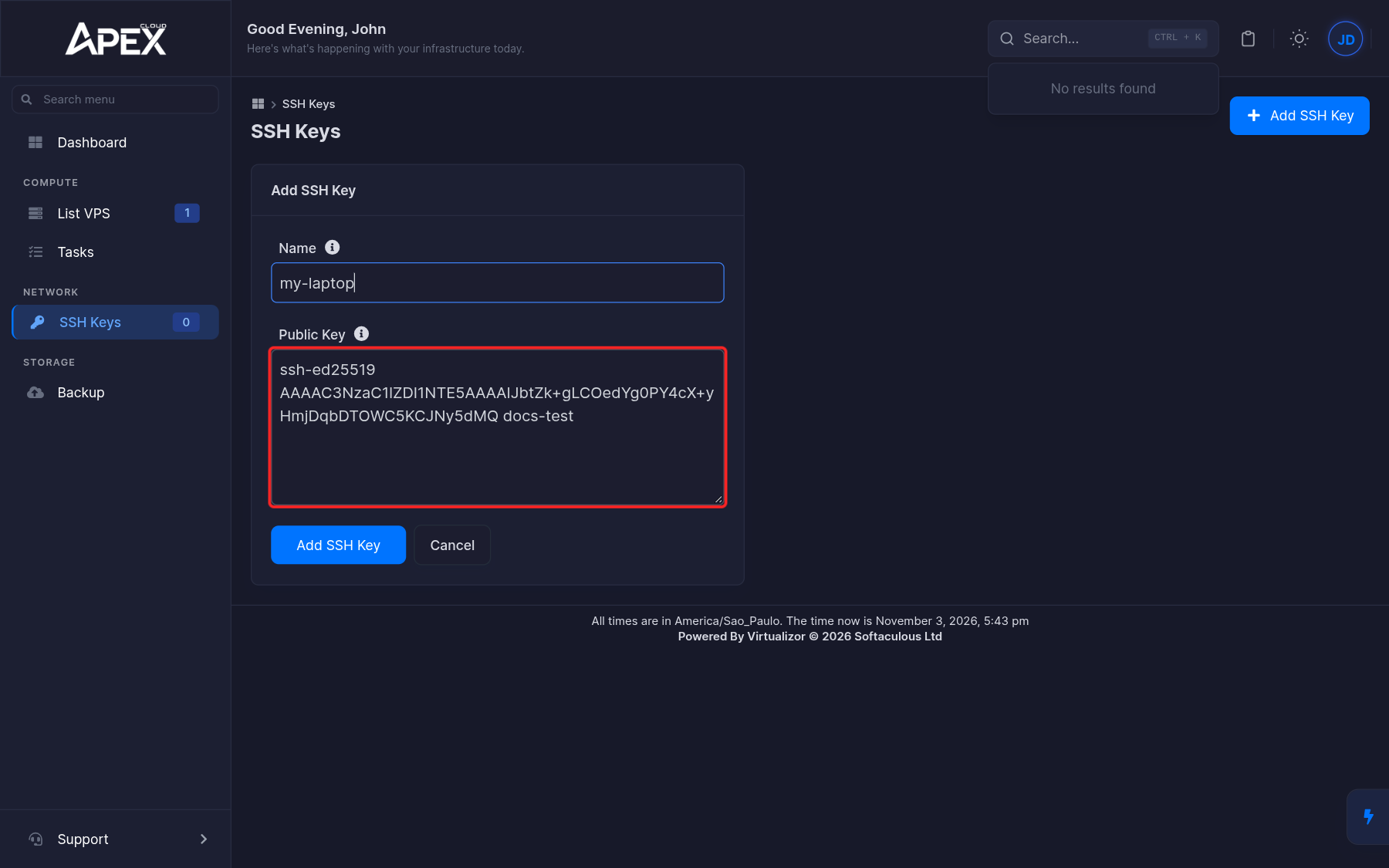
Check the list
The key now appears in the list with its name, type (ED25519) and a shortened version of the key.
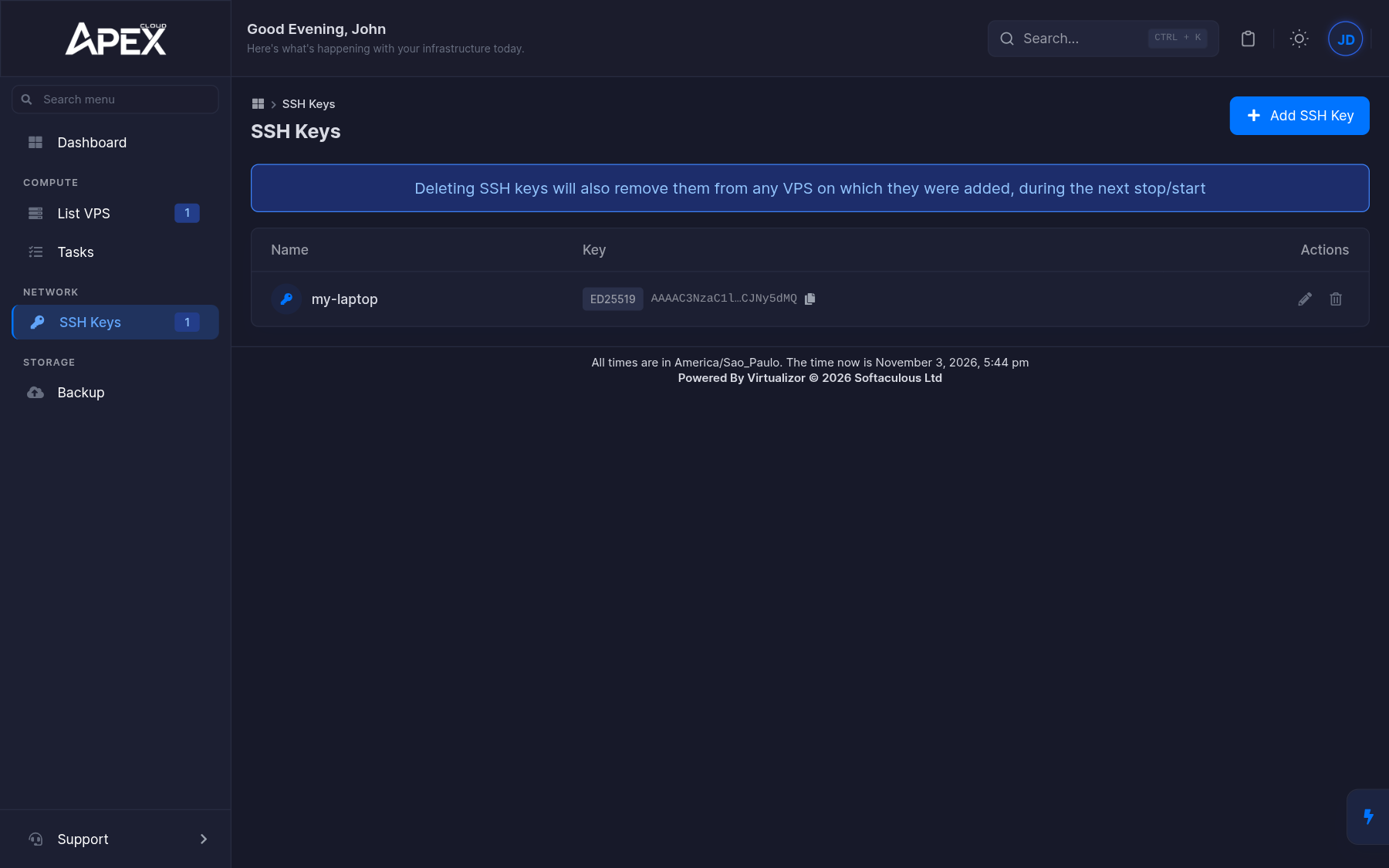
3. Attach the key to a VPS
Adding a key to your account does not put it on any server yet. You can attach it to an existing VPS, or choose it when you reinstall the OS.
Open the VPS settings
Open the VPS with the Manage (cog) icon, go to Settings, then SSH Keys.
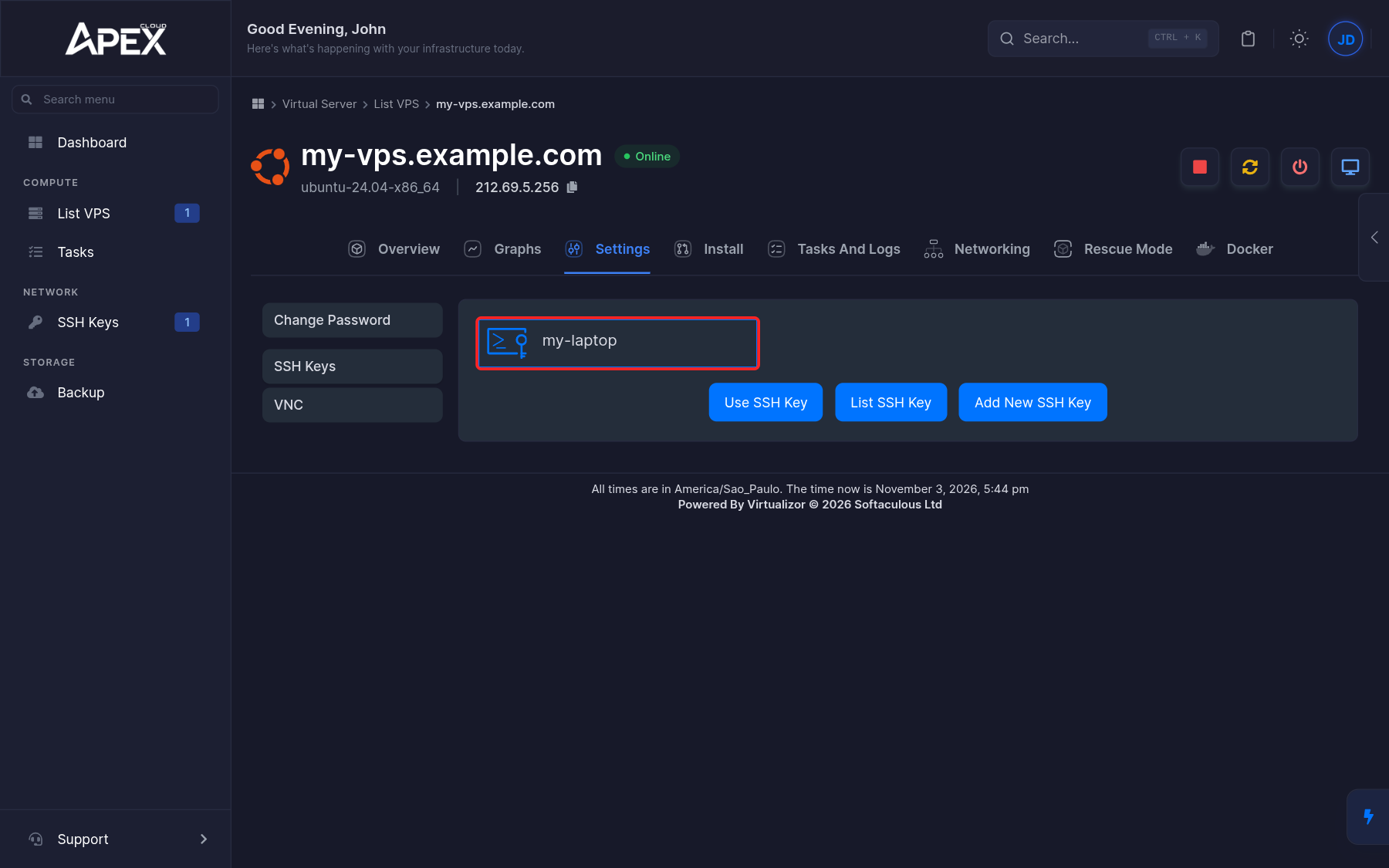
Select the key
Click the card of the key you want, then click Use SSH Key. The other buttons on this page are List SSH Key and Add New SSH Key.
Restart the VPS
The panel confirms with "The SSH key(s) have been added successfully. The changes will take effect on next reboot." Restart the VPS so the key is installed. See Power controls.
Now connect without a password prompt (you will be asked for the key passphrase, if you set one):
ssh root@203.0.113.256If your key is not in the default location, point to it with ssh -i /path/to/private_key root@203.0.113.256.
Deleting a key
Deleting a key on the SSH Keys page also removes it from every VPS where it was added, on the next stop and start of that VPS.
Alternative: install the key yourself
If you can already log in with a password, you can copy the key over SSH instead of using the panel.
ssh-copy-id -i ~/.ssh/id_ed25519.pub root@203.0.113.256ssh-copy-id appends the key to ~/.ssh/authorized_keys on the server. If it is not available, log in and append the public key by hand:
mkdir -p ~/.ssh
chmod 700 ~/.ssh
echo "ssh-ed25519 AAAA...your-public-key... you@example.com" >> ~/.ssh/authorized_keys
chmod 600 ~/.ssh/authorized_keys
Disable password login
Once key login works, you can turn off password logins so that nobody can try to guess the root password.
Test your key first
Keep your current SSH session open. Open a second terminal and confirm that you can log in with the key. If you disable passwords and the key does not work, you will be locked out of SSH. You can still recover through the VNC console.
Create a drop-in file
On the Ubuntu template, /etc/ssh/sshd_config.d/50-cloud-init.conf contains PasswordAuthentication yes. SSH reads the files in that folder in alphabetical order and uses the first value it finds for a setting, so your file must sort before 50-cloud-init.conf. A later name such as 99- would not work.
echo "PasswordAuthentication no" > /etc/ssh/sshd_config.d/01-disable-password.confAlternatively, edit /etc/ssh/sshd_config.d/50-cloud-init.conf and change its value to PasswordAuthentication no.
Check the configuration
sshd -t
sshd -T | grep -i passwordauthentication
The first command prints nothing when the configuration is valid. The second should print passwordauthentication no.
Test from a new session
From your computer, ssh root@203.0.113.256 should log you in with the key. Connecting from a machine without the key should now be refused with Permission denied (publickey).
Keep a strong root password anyway: you will need it to log in through the VNC console, which does not use your SSH key. For more hardening, see Secure your VPS.