
Connect to the VPS
Log in to your new VPS over SSH (Linux) or Remote Desktop (Windows Server) from Windows, macOS or Linux.
You connect to a Linux VPS with SSH (Secure Shell) and to a Windows Server VPS with RDP (Remote Desktop Protocol). This page covers both, from Windows, macOS and Linux computers. It only covers the standard clients named below.
What you need
Default user
| OS | Username |
|---|---|
| Ubuntu (Linux) | root |
| Windows Server | Administrator |
Password
The initial password is in the VPS creation email from virtualizor@systems.apexcloud.cc. That email arrives about a minute after the payment is confirmed. If you lost it, you can change the password from the control panel.
IP address
Every VPS has a public IPv4 address. You can find it:
- in the creation email from
virtualizor@systems.apexcloud.cc; - on the List VPS page, in the Region/IP column;
- in the header of the VPS management page, next to the hostname. Click the copy icon to copy it.
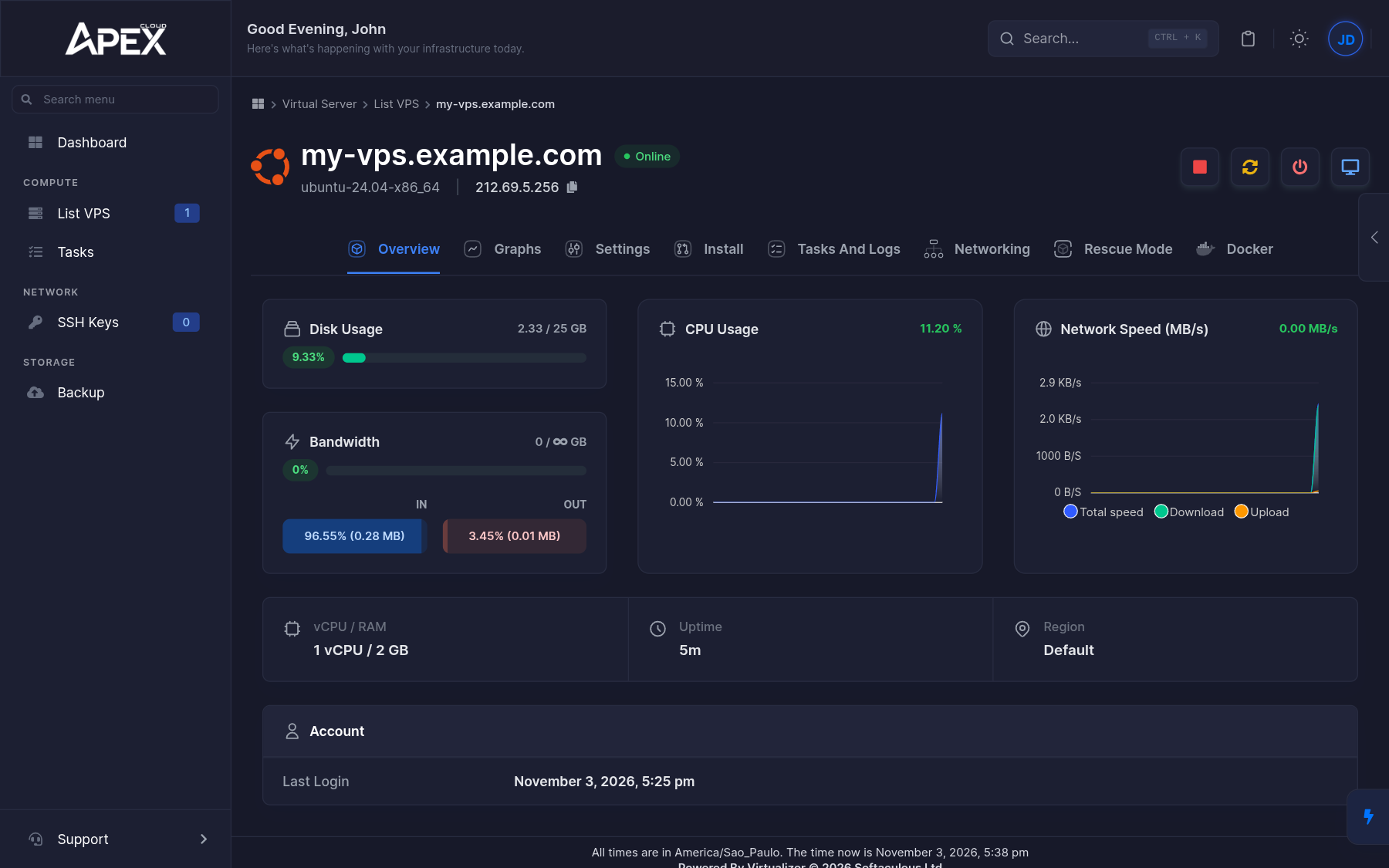
The examples below use the fictional address 203.0.113.256. Replace it with your own.
A public IP is reachable by everyone
Anyone on the internet can try to connect to your server. Apply the advice in Secure your VPS soon after your first login. Learn more about the risks of public IP addresses.
If you cannot connect, check Troubleshooting. If SSH or RDP is unreachable you can still get in with the VNC console.
SSH (Linux)
Windows 10 and 11 include an OpenSSH client. You can also use PuTTY.
OpenSSH in PowerShell
Open PowerShell
Press the Windows key, type PowerShell and press Enter.
Start the connection
ssh root@203.0.113.256Accept the host key
On the first connection, SSH asks you to confirm the server's identity. See the host key prompt below. Type yes and press Enter.
Enter the password
Type the password and press Enter. Nothing is shown while you type, which is normal.
If ssh is not recognised, install the OpenSSH client from Settings > Apps > Optional features.
PuTTY
Install and open PuTTY
Download it from the PuTTY website.
Enter the server
In Host Name (or IP address), enter 203.0.113.256. Keep the port at 22 and the connection type at SSH, then click Open.
Accept the host key
On the first connection PuTTY shows a PuTTY Security Alert with the server's key fingerprint. Click Accept to continue. See the host key prompt below.
Log in
At the login as: prompt type root, then enter the password.
The host key prompt
The first time you connect to a server, your SSH client does not know it yet, so it shows a message like this:
The authenticity of host '203.0.113.256 (203.0.113.256)' can't be established.
ED25519 key fingerprint is SHA256:examplefingerprint.
Are you sure you want to continue connecting (yes/no/[fingerprint])?
The fingerprint identifies your server. Answering yes saves it on your computer, and from then on your client warns you if the server presents a different one. This protects you from someone impersonating your server.
If the warning appears later
If you see WARNING: REMOTE HOST IDENTIFICATION HAS CHANGED! on a server you already connected to, stop and check why. It is expected after you reinstall the OS, because the new system generates new keys. In that case remove the old entry with ssh-keygen -R 203.0.113.256. If you did not reinstall the server, do not continue and contact support.
Once you are in, set up SSH keys so you do not depend on the password.
RDP (Windows Server)
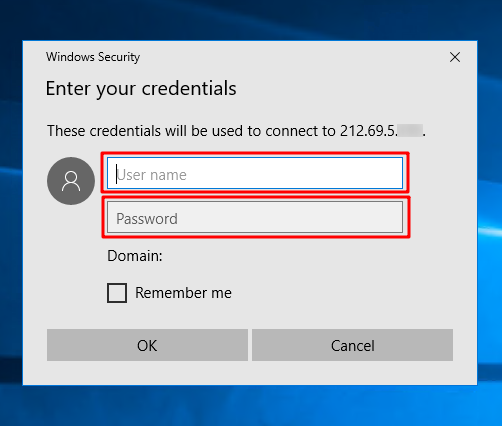
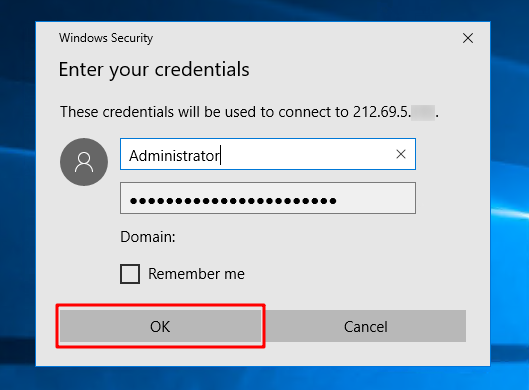
Windows Server is managed with Remote Desktop. Use the user Administrator and the password from the creation email.
Open Remote Desktop Connection
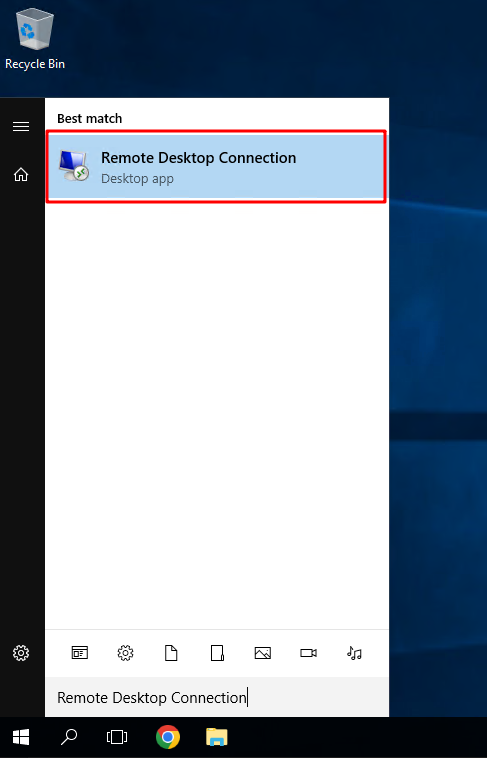
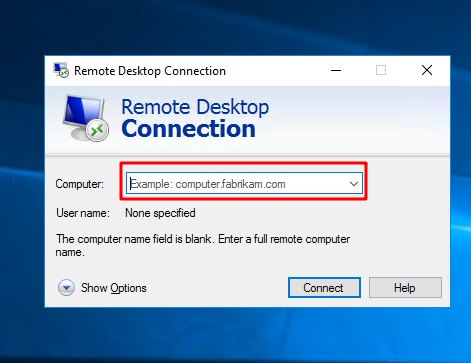
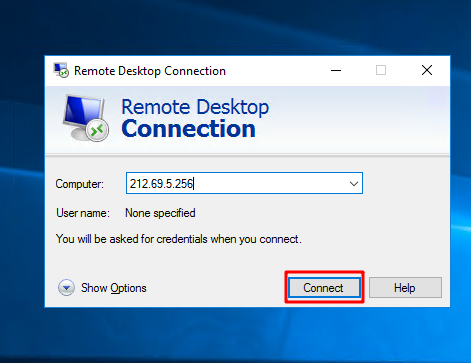
Trust the certificate
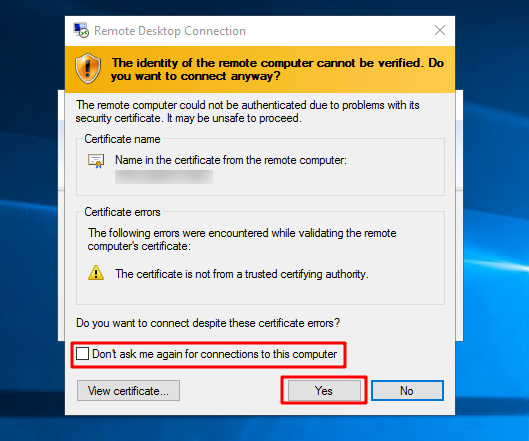
First select Don't ask me again for connections to this computer, then click Yes.
Done
You are now connected to your VPS.