
Security
Review your sessions, change your password and turn on two-factor authentication.
Open Account > Security (/account/security) to manage the security of your Billing Panel account.
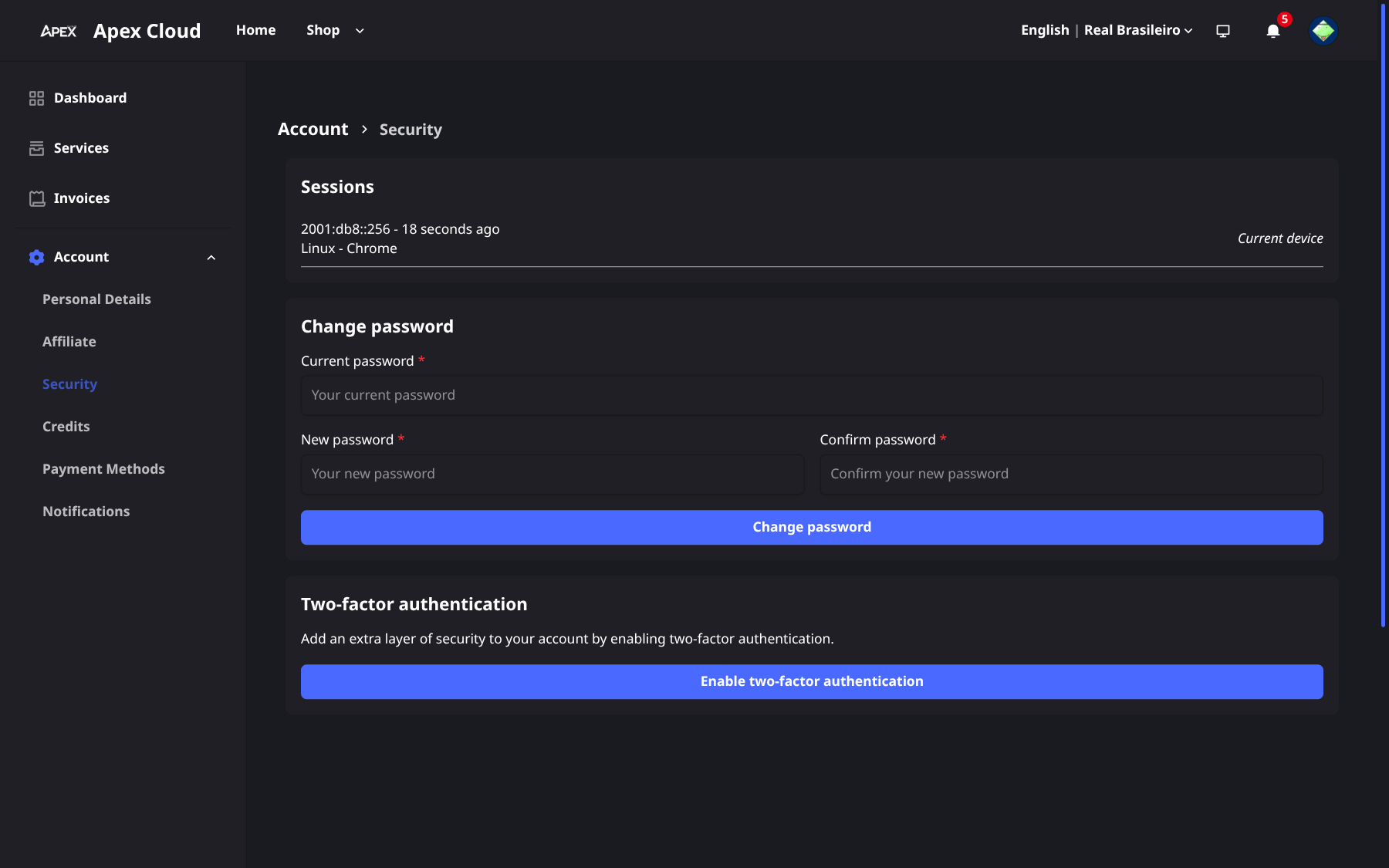
These settings protect the Billing Panel only. The VPS panel and the game server panel have their own logins, see which credentials go where.
Sessions
The Sessions list shows the places your account is currently logged in: IP address, operating system and browser. Your own session is marked Current device. If you see a device you do not recognise, change your password right away.
The list is informational: this page has no button to end a session.
Change your password
Fill in the form
Under Change password, enter your current password, the new password, and the new password again to confirm.
Two-factor authentication
Two-factor authentication (2FA) asks for a 6-digit code from an authenticator app in addition to your password. Even if someone learns your password they cannot log in without your phone.
Install an authenticator app
Use an app such as Google Authenticator or Authy on your phone.
Start the setup
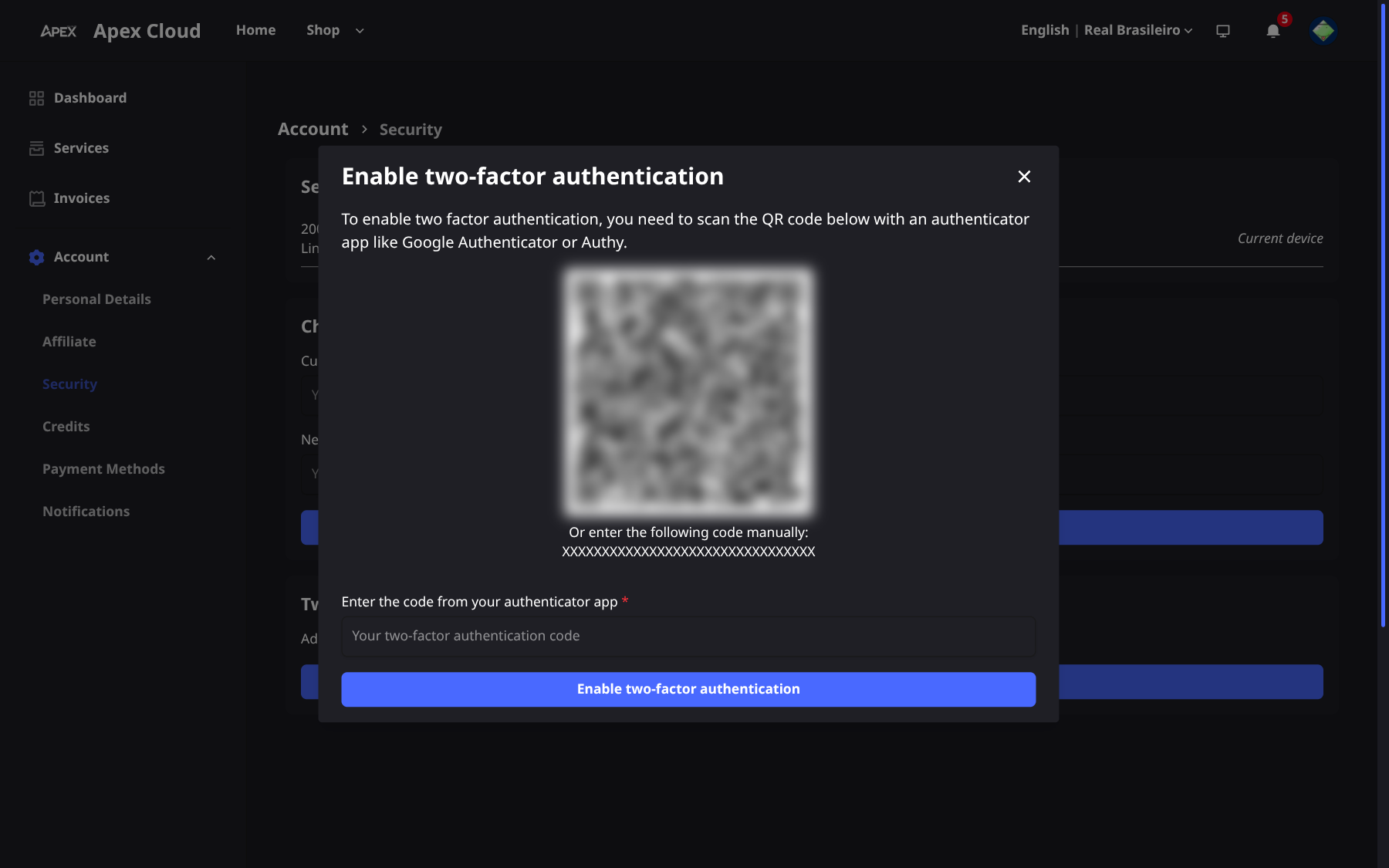
In the Two-factor authentication section, select Enable two-factor authentication. A dialog opens with a QR code and a manual code.
Add the account to your app
Scan the QR code with your authenticator app. If you cannot scan it, type the manual code shown in the dialog into the app instead.
Confirm with a code
Type the 6-digit code that the app now shows into Enter the code from your authenticator app, then select Enable.
From now on, logging in asks for the code from the app.
Keep your access safe
Store your authenticator app and its manual code carefully, for example in a password manager. Moving to a new phone without transferring the app can lock you out.
Lost your device?
If you lose the device that holds your authenticator app, contact support to regain access, see Getting support.
Tips
- Use a long, unique password.
- Log out on shared computers instead of using Remember me.