
Ordering a service
How to pick a plan, configure it, check out and pay the first invoice.
Every product at Apex Cloud is ordered the same way: Shop, category, product, checkout page, cart, invoice, payment. This applies to VPS, Semi-Dedicated plans, game servers, Patreon Keys and add-ons alike. You need a Billing Panel account first.
The billing panel opens in Portuguese by default. Use the language selector at the top of the page to switch to English. Category and product names mirror the billing panel and may stay in Portuguese.
Order a service
Choose a category
Open the Shop menu in the header. It lists the categories:
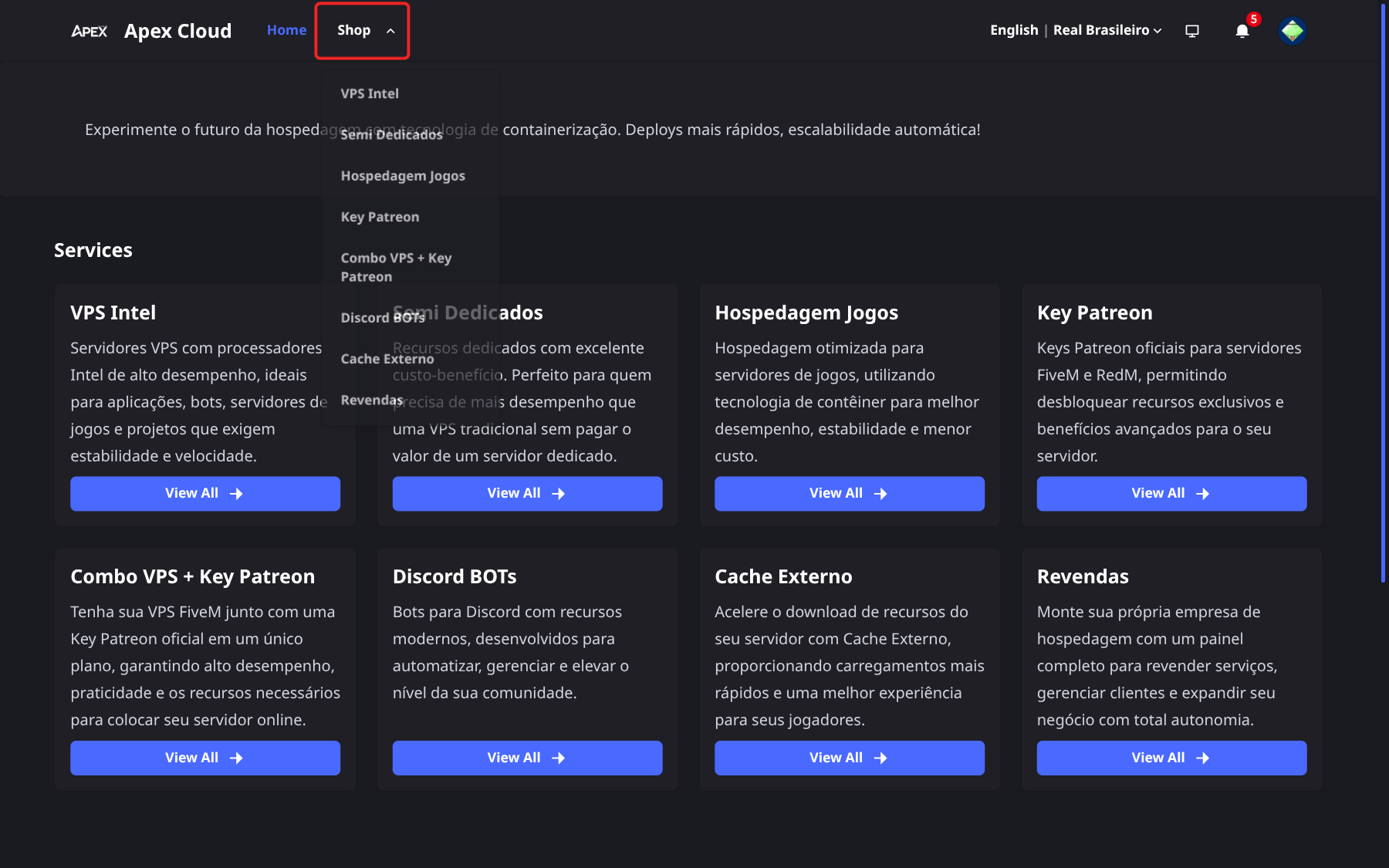
| Category (as shown in the panel) | What it is |
|---|---|
| VPS Intel | Virtual servers, see VPS |
| Semi Dedicados | Semi-dedicated servers |
| Hospedagem Jogos | Game servers, with MTA:SA, Minecraft and FiveM sub-categories, see Game servers |
| Key Patreon | FiveM licenses, see Add-ons |
| Combo VPS + Key Patreon | A VPS together with a Patreon Key |
| Discord BOTs | FiveM BOT and Ticket BOT |
| Cache Externo | External Cache for FiveM |
| Revendas | VPS reseller plans: Start, Pro and Business |
Choose a product
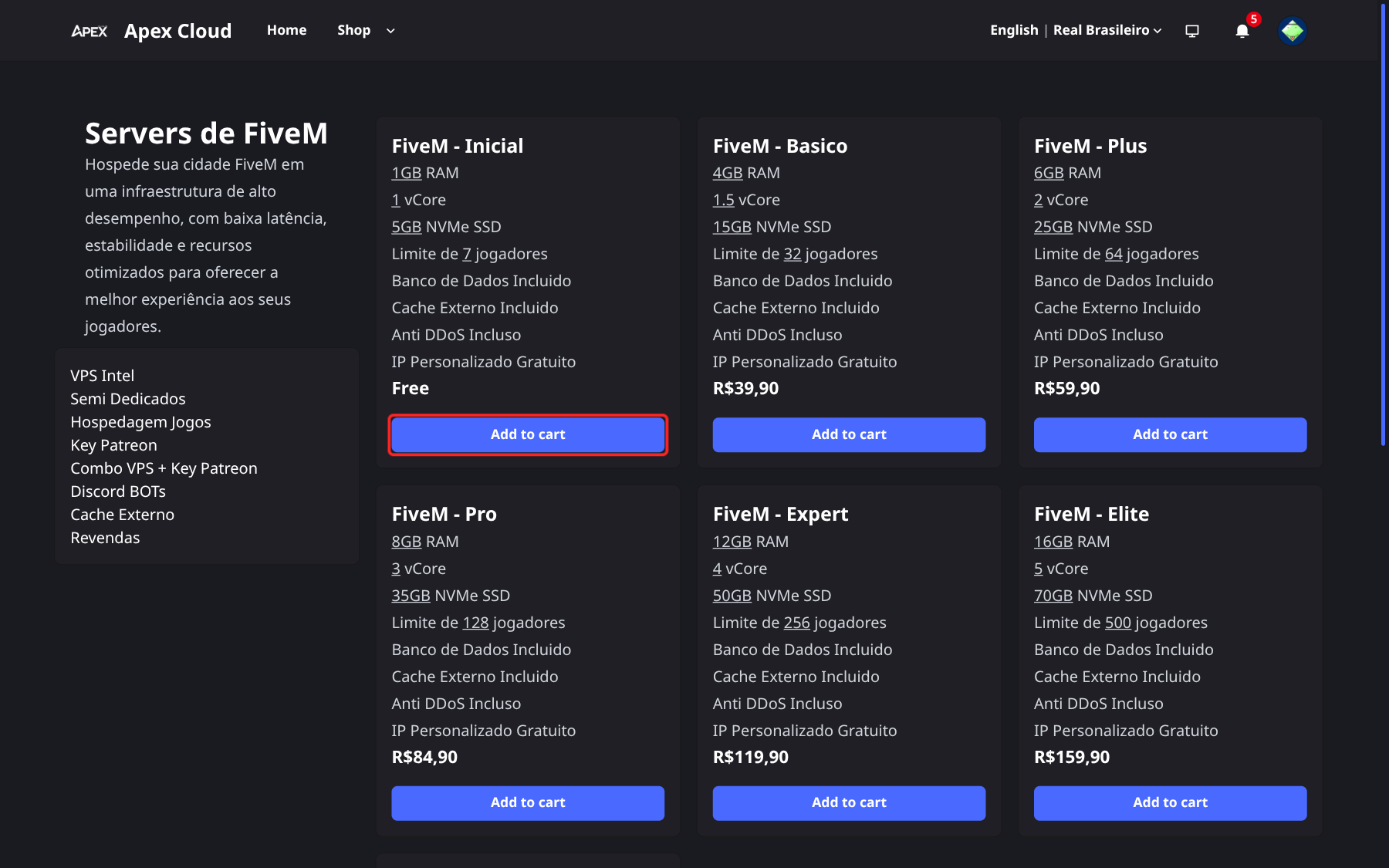
Pick the plan that fits you. Plans and specs are also listed on the VPS, FiveM, Minecraft and MTA:SA pages.
On a game server category page, such as FiveM, each plan card has an Add to cart button.
Configure it on the checkout page
The checkout page asks for the options of that product. For a VPS plan you will find:
- Select a plan: a dropdown with Monthly (Mensal) and Quarterly (Trimestral). Quarterly gives 10% off, for example R$107,90 for three months.
- IPV4 Adicional: from 0 to 4 extra IPv4 addresses, R$20 each.
- Espaço em Disco Adicional: from 0 to 100 GB of extra disk, R$10 per 10 GB.
- Hostname (required): the name of the server, for example
my-vps.example.com. - os (required): the operating system. Available: Ubuntu 20.04, Ubuntu 22.04.5, Ubuntu 24.04, Windows Server 2016 and Windows Server 2025.
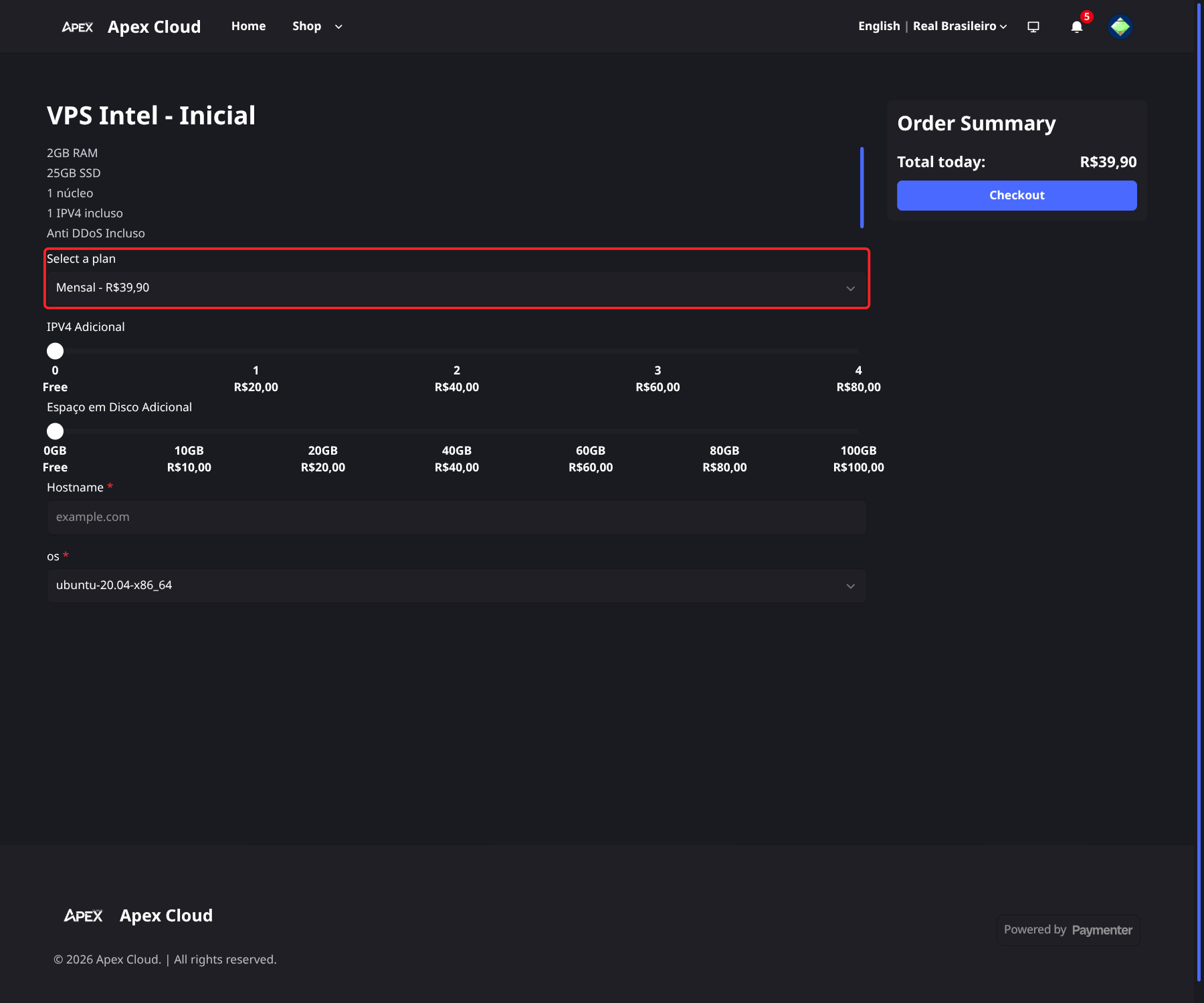
The Order summary shows the Total today. Select Checkout.
Game server plans ask for different fields:
- Apelido do Servidor (server nickname): required, any name that helps you recognise the server.
- Máximo de jogadores (maximum players): asked for FiveM and MTA:SA. It is fixed by the plan.
- Tipo de Servidor (server type): asked for Minecraft. Choose among Vanilla Java/Bedrock, Forge, NeoForge, Sponge, Bungeecord, Magma, Nukkit, Paper, Purpur, Folia, Purpur-Geyser-Floodgate, Spigot, Velocity and SpongeFord. See Minecraft servers.
Review the cart
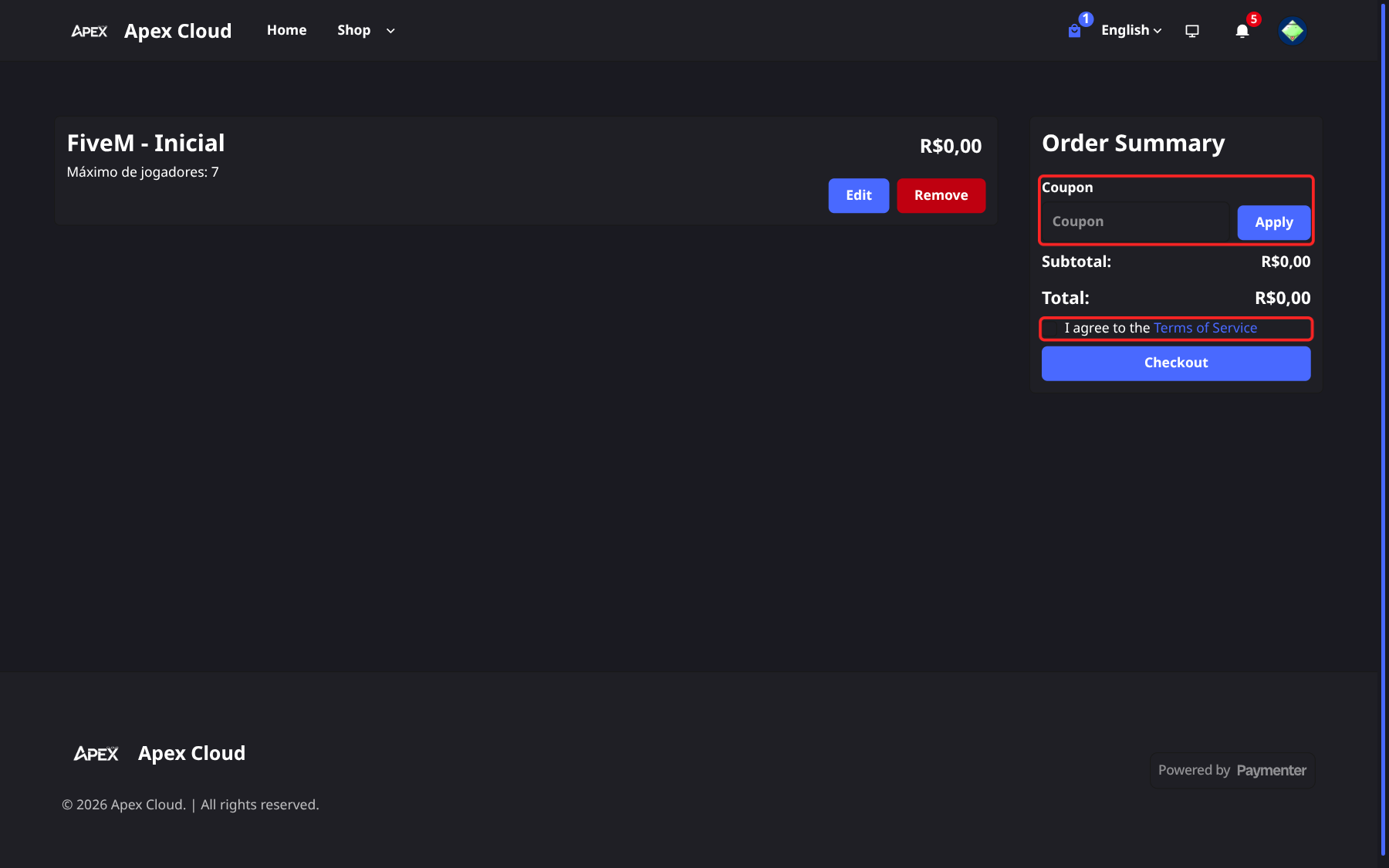
On the cart page (/cart) you see your items, each with Edit and Remove.
- Enter a coupon in the coupon field and select Apply, if you have one.
- Check I agree to the Terms of Service. This is required, and links to the Terms of Service (see also Terms).
- Check Subtotal and Total, then select Checkout.
Pay the invoice
Checkout creates an invoice and opens it with the payment dialog already showing. Choose a payment method (Stripe, PIX - Brasil or PayPal) and select Pay Now. The full walk-through is in Pay an invoice.
Free plans
A plan that costs R$0,00, for example the FiveM Inicial plan, is activated immediately when you select Checkout. There is no invoice to pay.
After you pay
Once the payment is confirmed, the service is created automatically.
- VPS: it is provisioned within a few minutes. The credentials arrive by email from
virtualizor@systems.apexcloud.cc. Then follow Connect to the VPS. - Game servers: open the server with Go to server from its service page, see Your services, or read panel access.
- Patreon Keys, External Cache and Discord bots: after buying, contact us to receive the key or to have the product activated, see Add-ons.
Your new service appears under Services, see Your services. The invoice stays available under Invoices, see Invoices.
Good to know
- The bell in the header notifies you when the order is created, the invoice is issued and the service is activated, see Notifications.
- You can change your mind: the 7-day guarantee applies to a first purchase.
- Services are paid in advance, and later invoices follow the rules in Renewals and overdue invoices.