
Minecraft
Start a Minecraft server, accept the EULA, choose the Java version, edit server.properties, install plugins, manage players and point a domain at the server.
A Minecraft server runs in the Apex Cloud game panel. This page covers what is specific to Minecraft. For the panel itself, see Panel access and Console.
Plans and server type
The plan sets RAM, disk and CPU. Minecraft plans do not have a slot count: how many players fit depends on the RAM and CPU, and max-players in server.properties defaults to 20.
| Plan | RAM | Disk | CPU |
|---|---|---|---|
| Redstone | 4 GB | 10 GB | 2 vCPU |
| Iron | 6 GB | 15 GB | 2 vCPU |
| Gold | 8 GB | 20 GB | 3 vCPU |
| Diamond | 10 GB | 30 GB | 4 vCPU |
| Emerald | 12 GB | 30 GB | 6 vCPU |
| Obsidian | 16 GB | 30 GB | 6 vCPU |
| Netherite | 32 GB | 60 GB | 10 vCPU |
You choose the server software when you order. The checkout has a Tipo de Servidor (server type) field with these options:
- Java Edition: Vanilla - Java, Paper, Purpur, Spigot, Folia
- Mods: Forge, NeoForge, Sponge, SpongeFord, Magma
- Bedrock Edition: Vanilla - Bedrock, Nukkit
- Java and Bedrock together: Purpur-Geyser-Floodgate
- Proxies: Bungeecord, Velocity
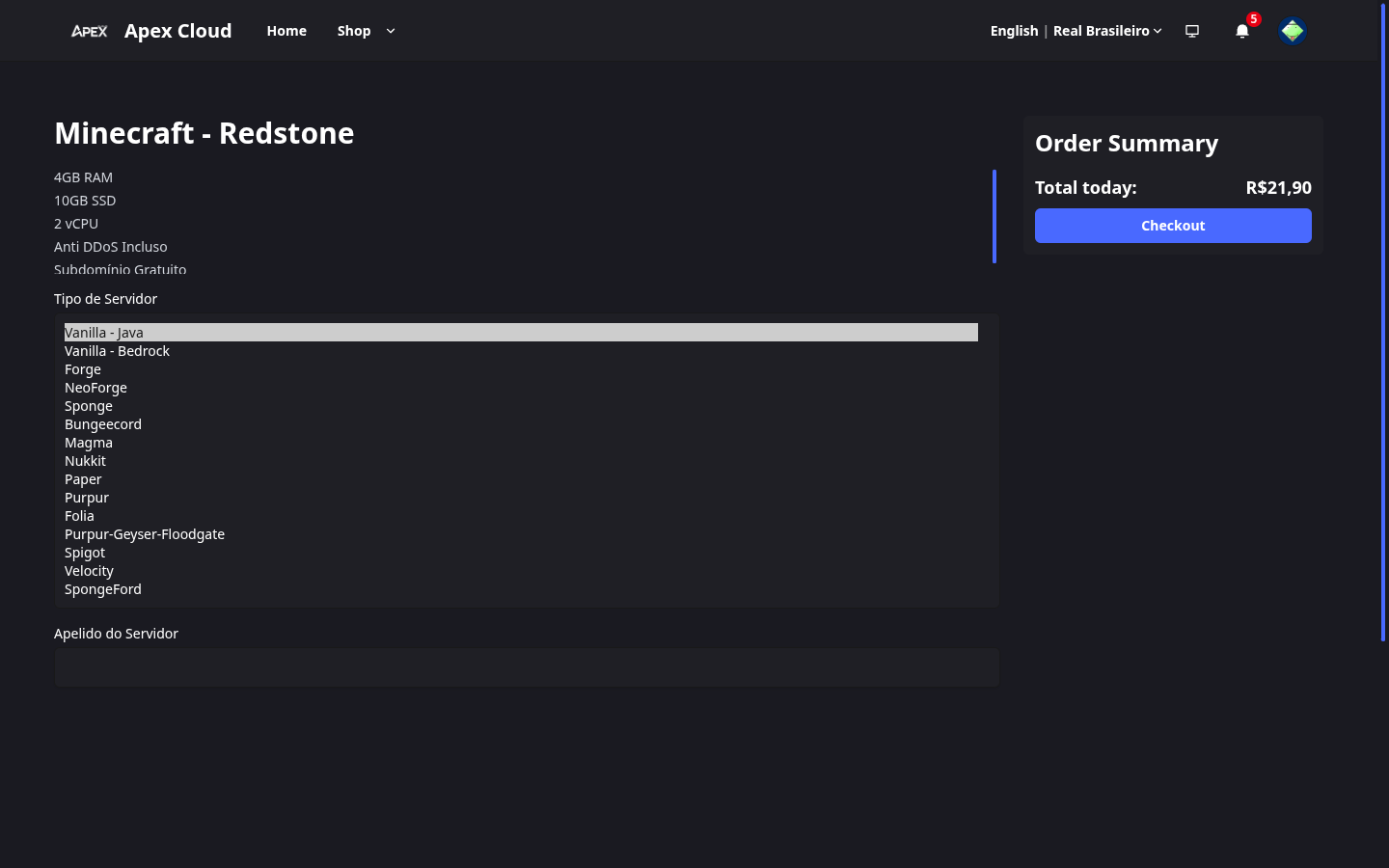
The checkout also asks for a server nickname. See Ordering a service for the rest of the checkout. The screenshots on this page come from a Paper server.
The game panel has no field to switch the server type after the order. If you need another type, contact support. You can also run your own jar, see Use another jar.
Start the server and accept the EULA
Open the console and click Start
In the game panel, open your server and go to Console, then click Start. A new server is already installed: Files shows server.jar and server.properties.
Accept the Minecraft EULA
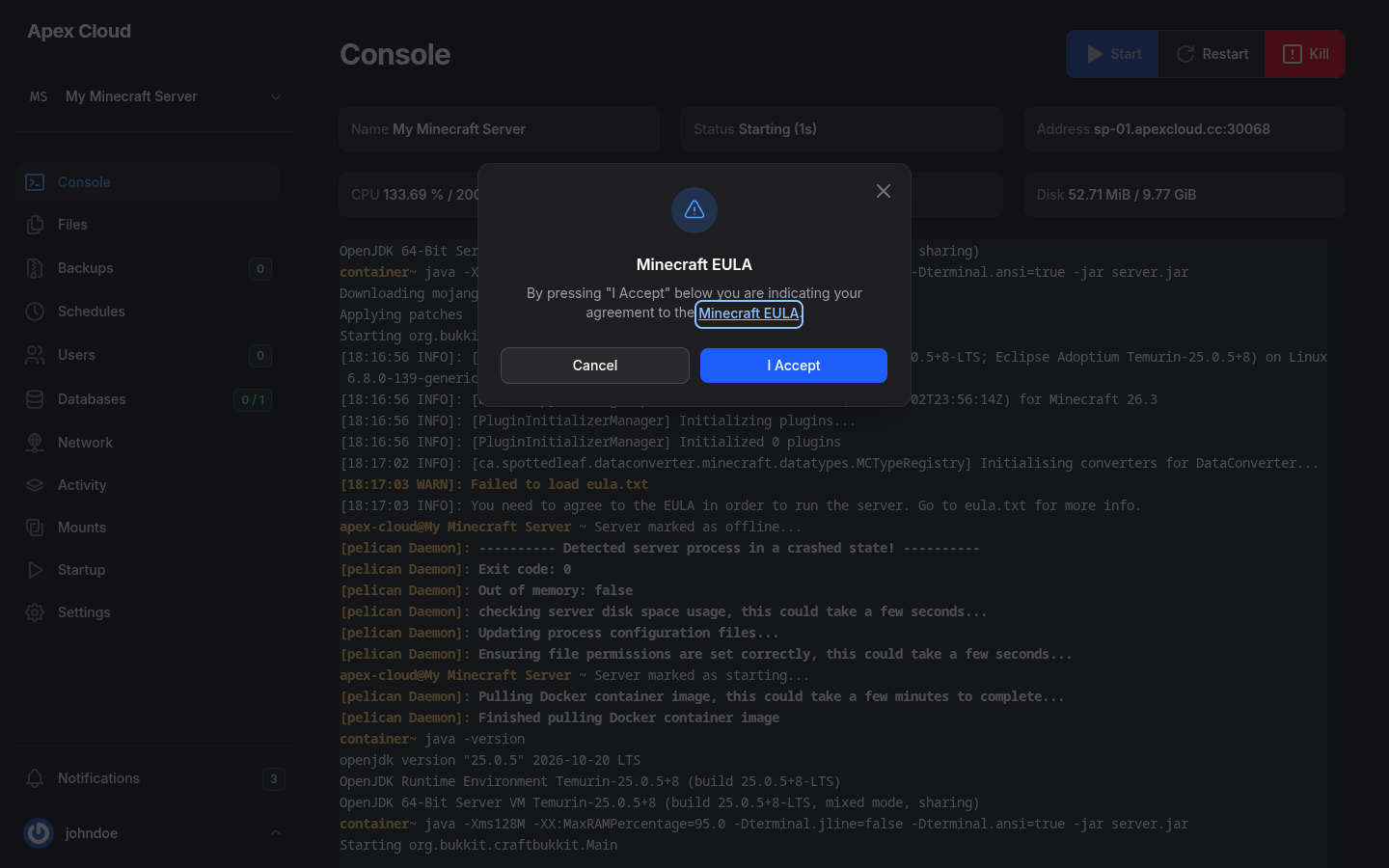
The first start stops because the EULA is not accepted yet (You need to agree to the EULA in order to run the server). The panel opens a Minecraft EULA window. Read the linked EULA, then click I Accept. If you click Cancel, the server does not run.
Wait for the server to start
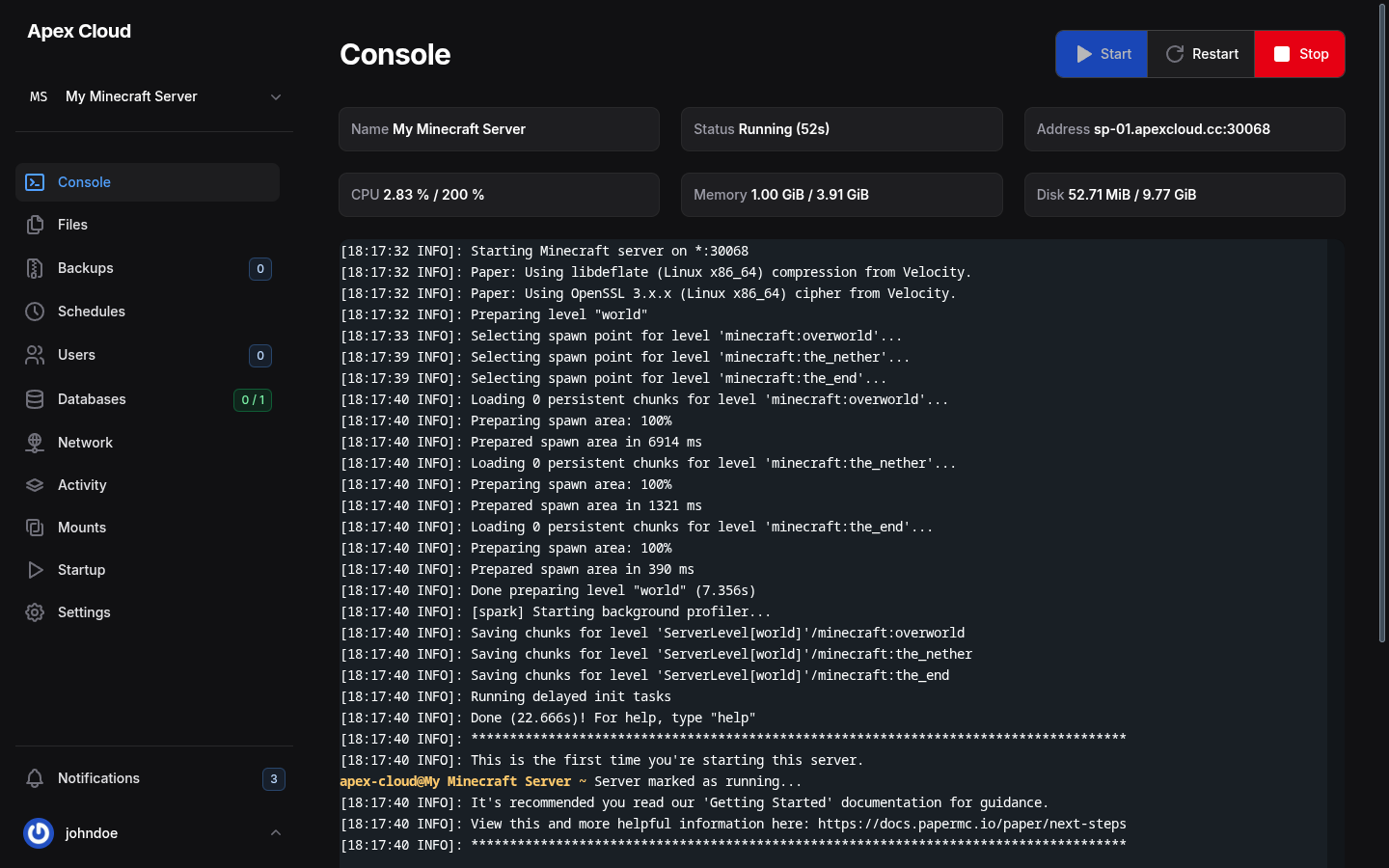
After you accept, the server starts. If it does not, click Start again. The first start takes a while because the server creates the world. When the console prints Done (22.666s)! For help, type "help", the server is running. The Address card shows the address and port to give to your players.
Connect
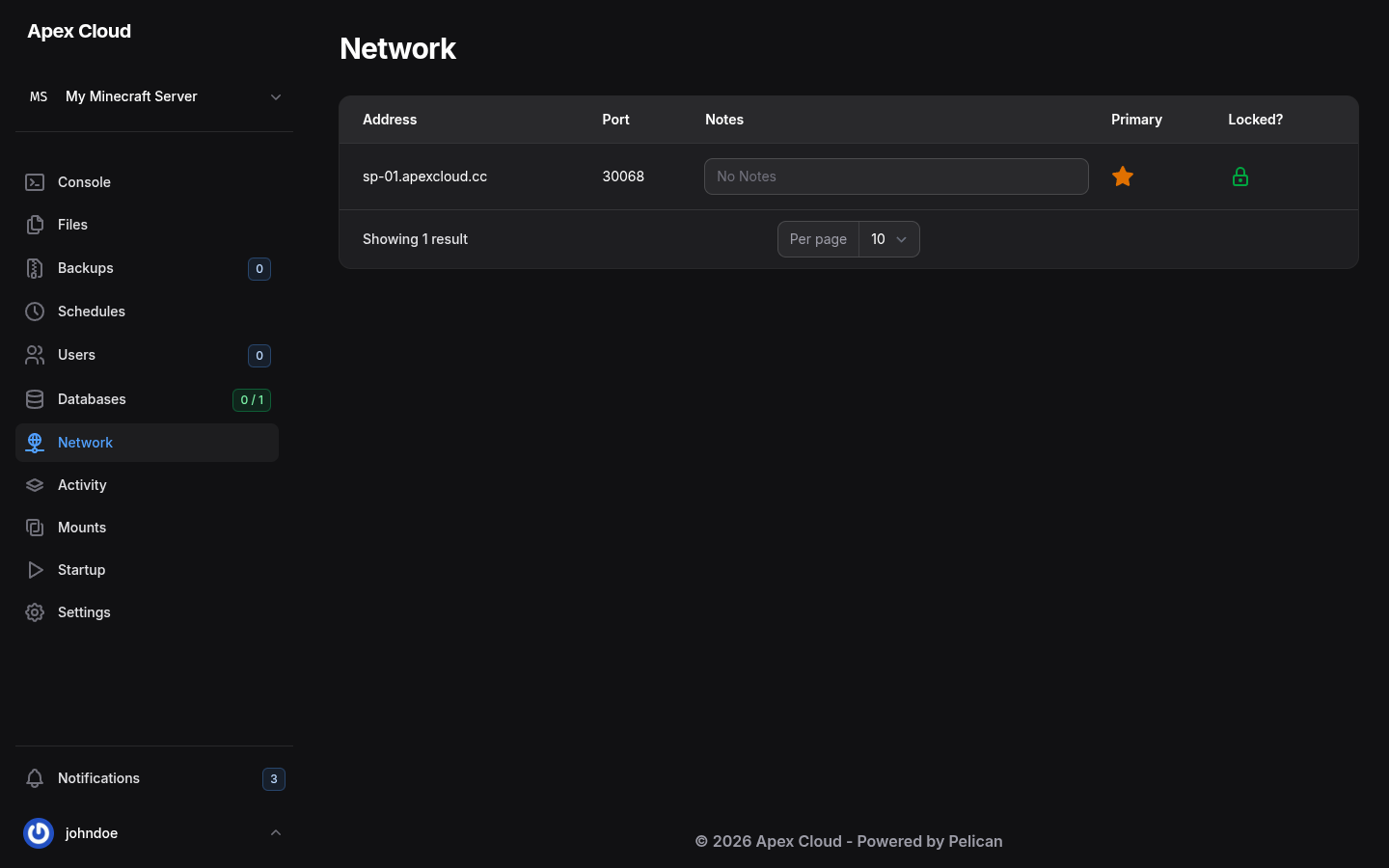
In Minecraft, add a server with the address and port from the Address card, for example sp-01.apexcloud.cc:30068. The same port is in server.properties as server-port and on the Network page.
The whitelist is on by default
server.properties has white-list=true and the console answers Whitelist is already turned on, with no player on the list. Nobody can join until you add them (see Ops, whitelist and bans) or turn the whitelist off with whitelist off.
Java version and server version
The Startup page controls how the server runs.
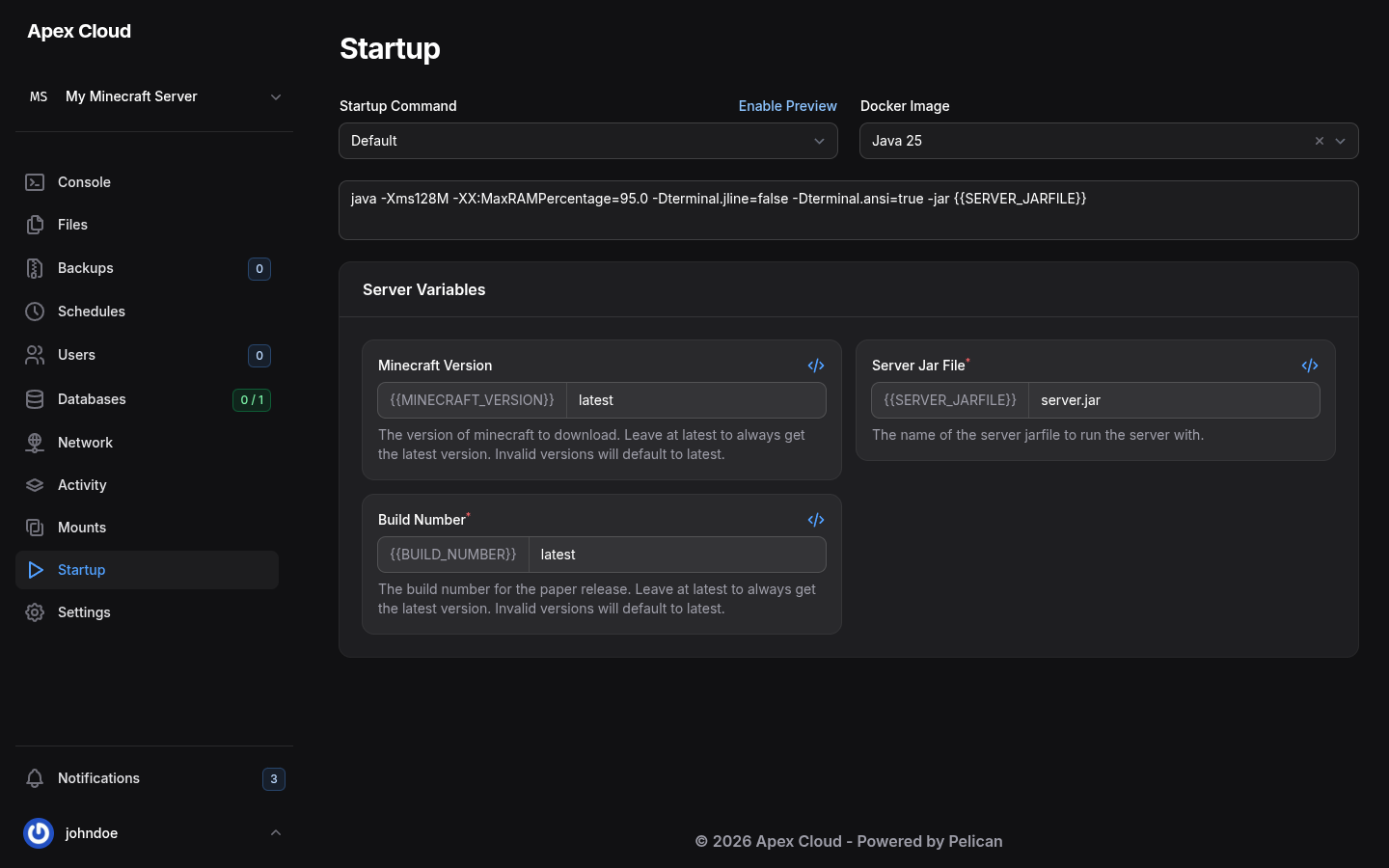
- Docker Image is the Java version. The test server ran Minecraft 26.3 on Java 25.
- Minecraft Version is the version the installer downloads.
latestmeans the newest. - Server Jar File is the jar the server runs (
server.jar). The startup command isjava -Xms128M -XX:MaxRAMPercentage=95.0 -Dterminal.jline=false -Dterminal.ansi=true -jar {{SERVER_JARFILE}}. - Build Number is the build of the Paper release (
latestfor the newest).
Changes in the Startup tab are saved as you make them and the panel confirms with a notification. They apply the next time the server starts.
Pick the Docker image that matches the Minecraft version. Mojang's requirements are:
| Minecraft version | Java |
|---|---|
| 26.1 and newer | Java 25 |
| 1.20.5 to 1.21.x | Java 21 |
| 1.18 to 1.20.4 | Java 17 |
| 1.17 | Java 16 |
| 1.16 and older | Java 8 or Java 11 |
The Docker Image list offers Java 25, 21, 17, 16, 11, 8 and 26. Select one and the server uses it on its next start.
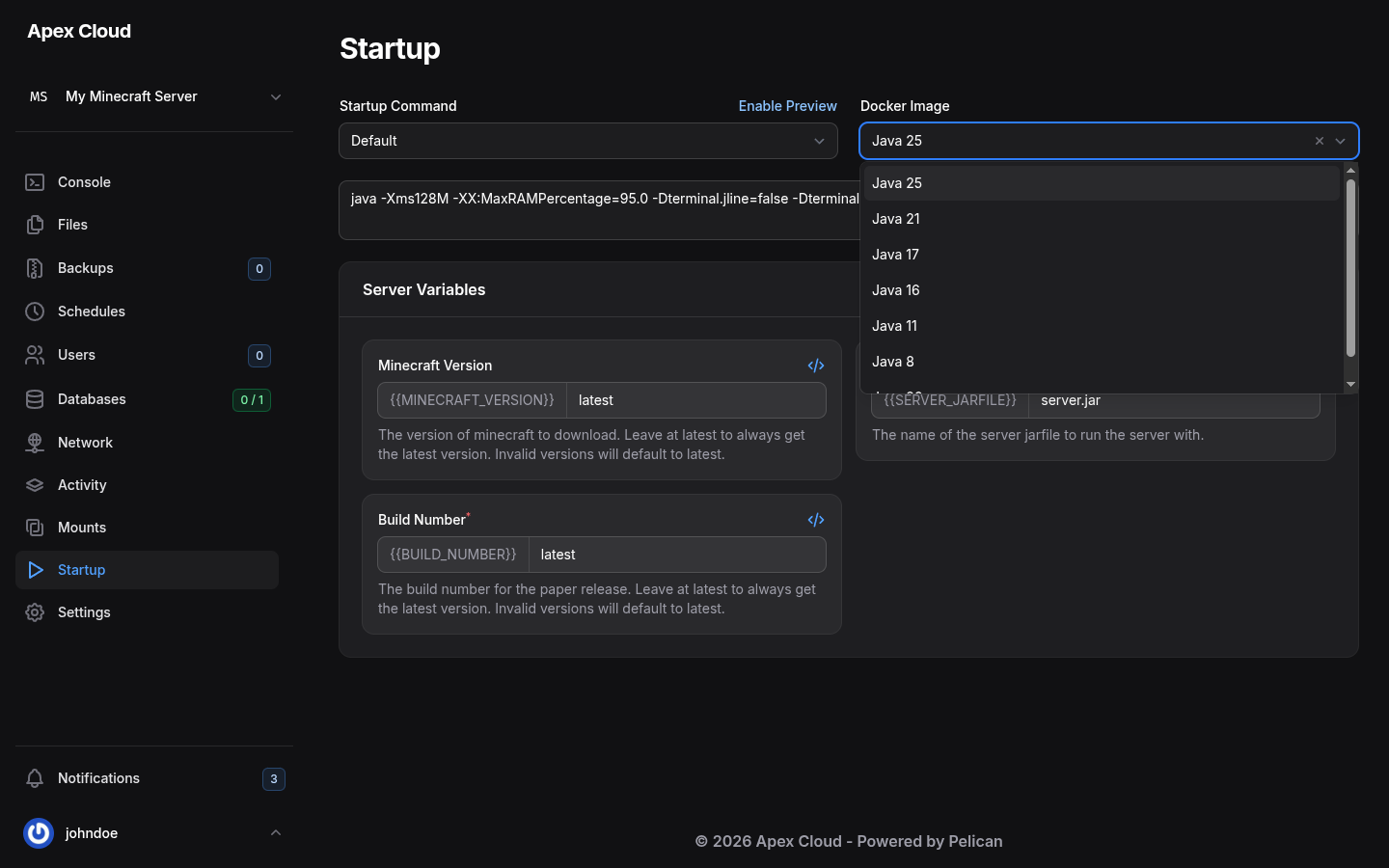
A server that crashes right after an update
If you change the Minecraft version, change the Java image too. A Java version that is too old for the server makes it stop with an error in the console, and a very new Java can break older mods and plugins.
Use another jar
The server runs whatever file the Server Jar File variable names. To run another build, for example a different Paper version or a Fabric launcher:
Upload the jar
Stop the server and upload the jar to the root of the server in Files, see File manager.
Point the variable at it
On Startup, type the file name in Server Jar File (for example paper-1.21.4.jar) and choose the matching Java image.
Start the server
Click Start in the Console and read the log to confirm it loaded.
Edit server.properties
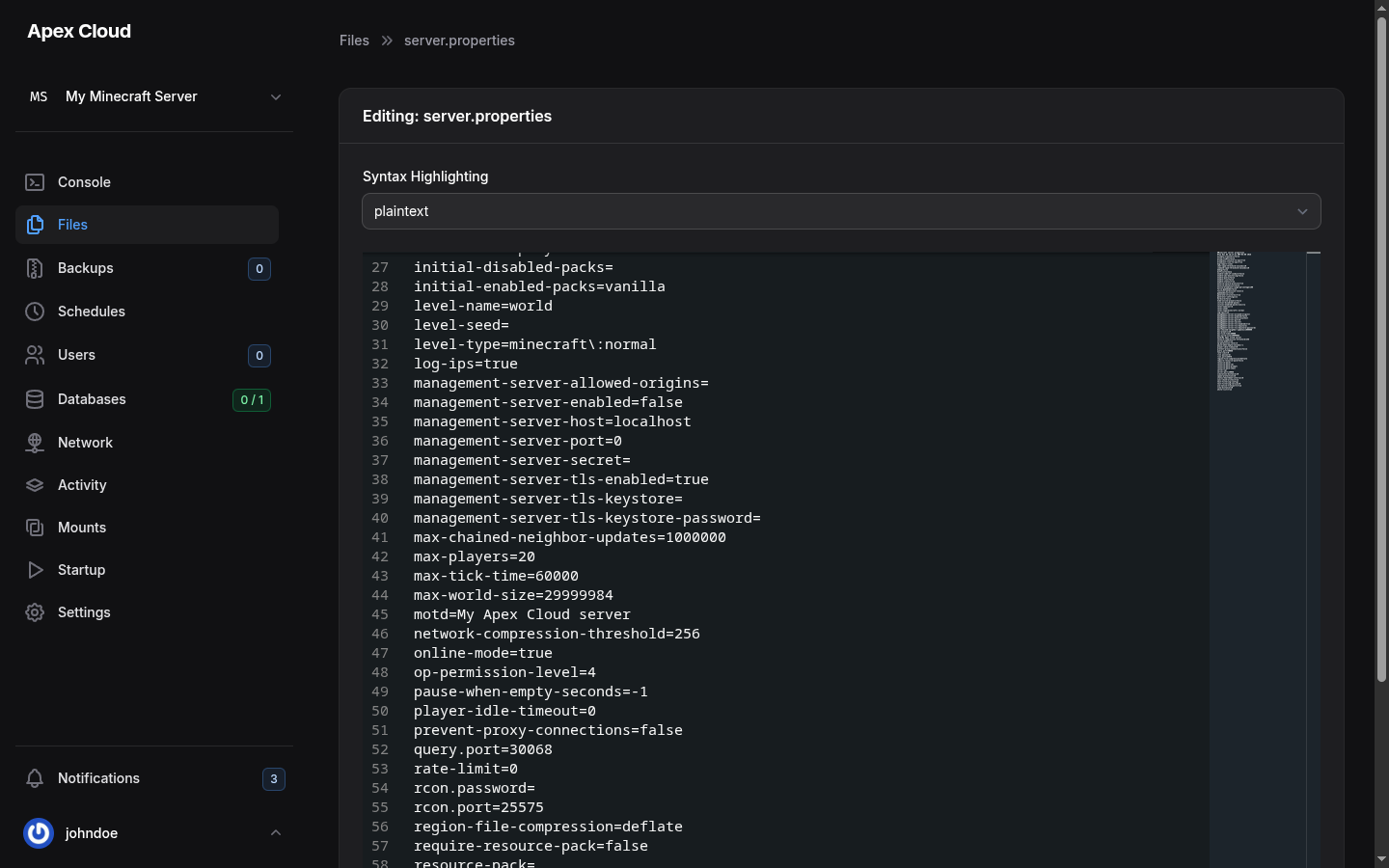
Change the settings you need
motd(defaultA Minecraft Server): the text under the server name in the server list.max-players(default20): maximum number of players at once.difficulty(defaulteasy):peaceful,easy,normalorhard.gamemode(defaultsurvival): the mode new players start in.online-mode(defaulttrue): checks players against Mojang accounts. Only turn it off if you run behind a proxy that does it.white-list(defaulttrueon this server): only players on the whitelist can join.level-name(defaultworld): the folder of the world the server loads.view-distance(default10): chunks sent to each player. Lower it if the server lags.
Save and restart
Click Save, then Restart in the Console. The new settings apply after the restart.
Do not change the ports
server-port and query.port hold the port of your server (30068 in the example) and must match the Network page. If you change them, players cannot connect.
Install plugins
Plugins work on Paper, Purpur, Spigot and Folia servers.
Upload the jar
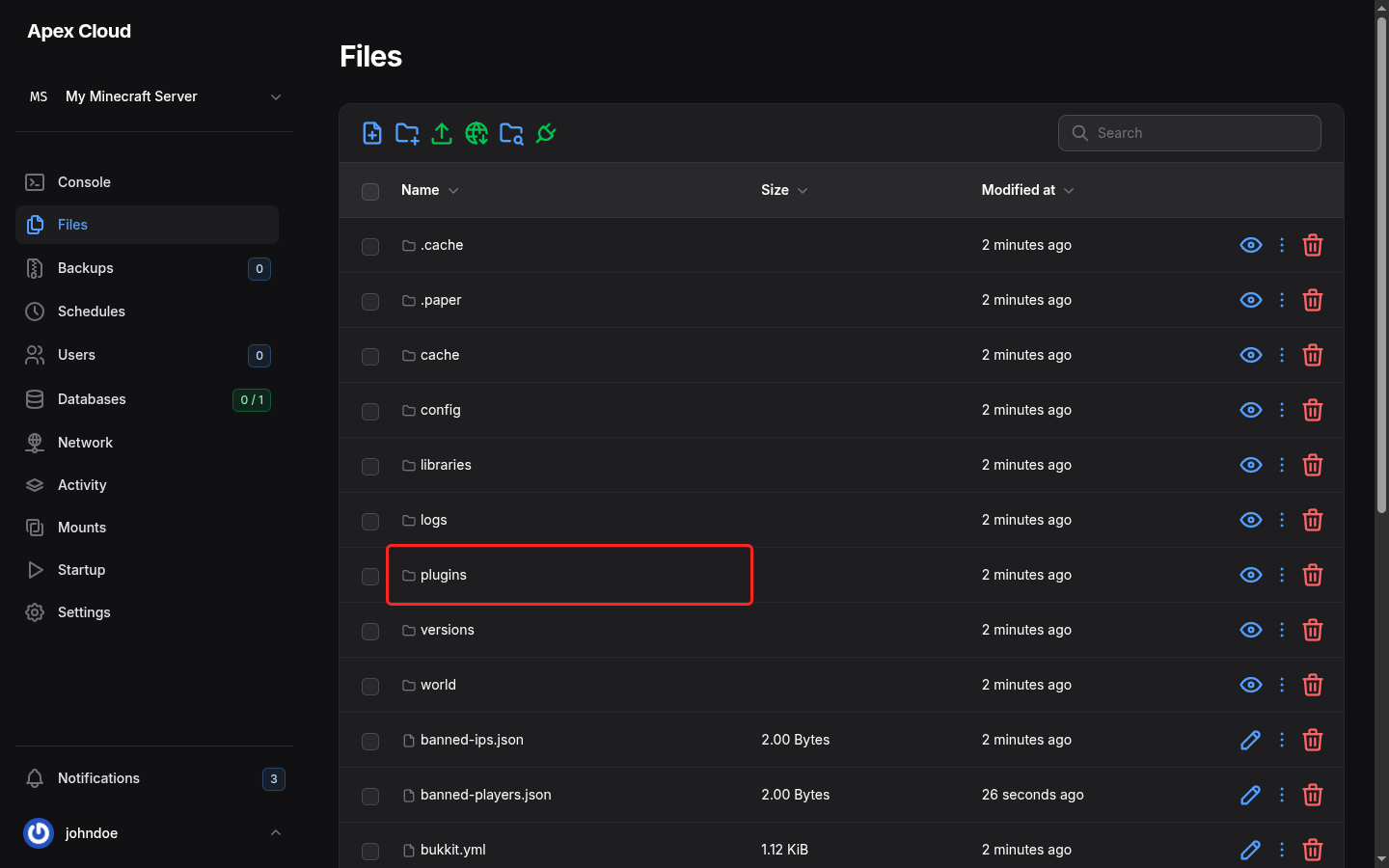
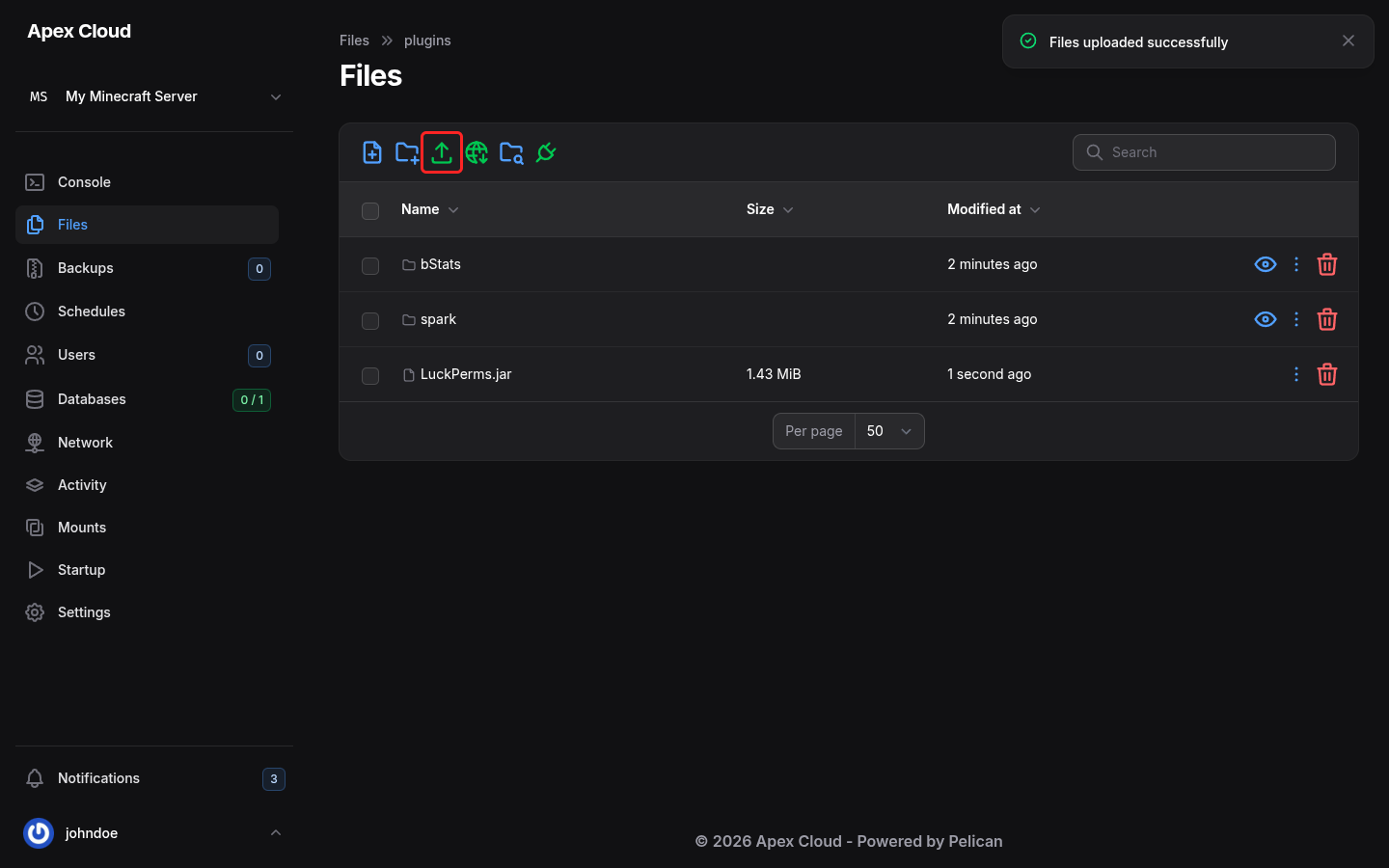
Open the plugins folder in Files, click the File upload icon in the toolbar and choose the plugin .jar. For many files use SFTP.
Restart the server
Click Restart in the Console.
Check that it loaded
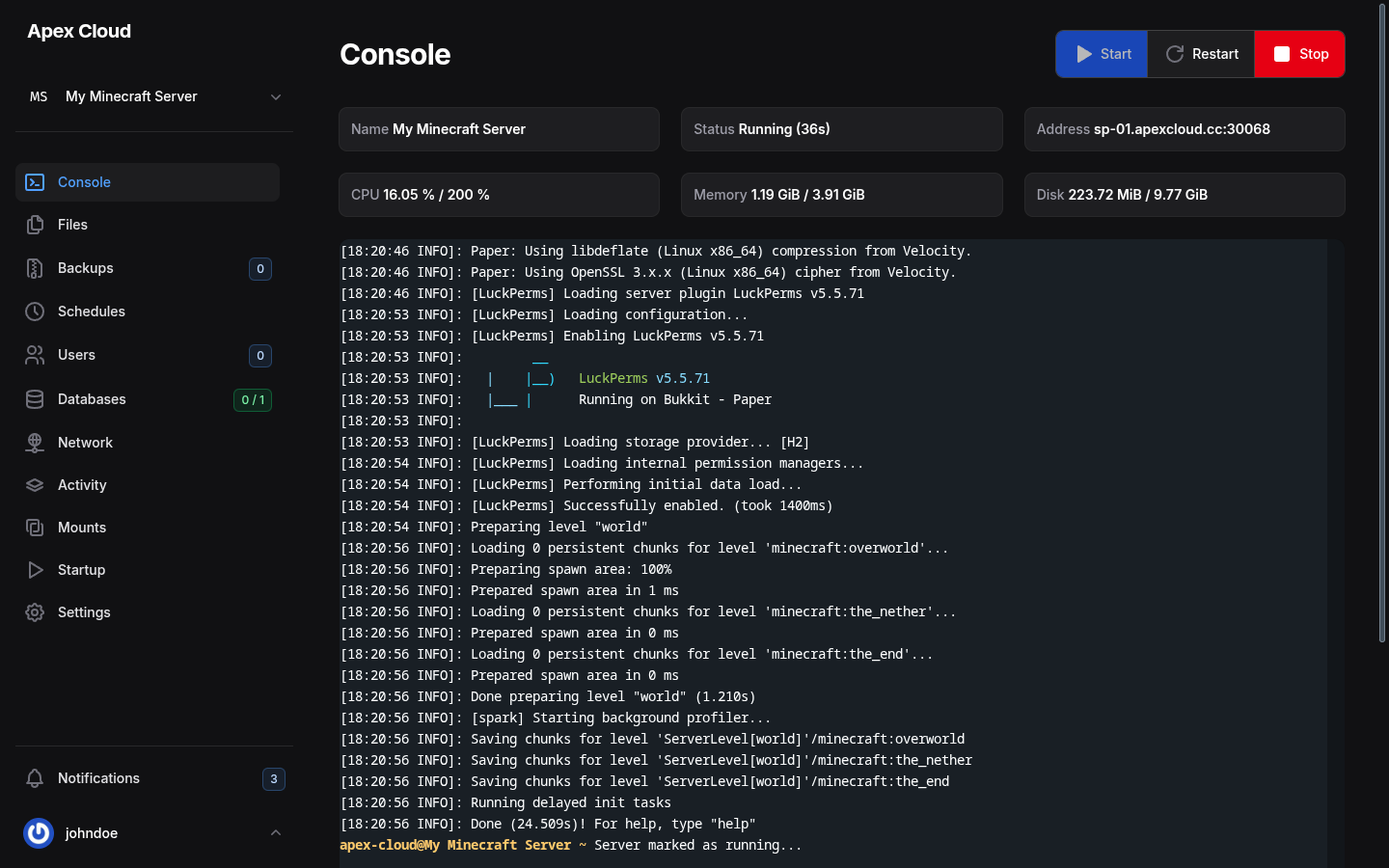
The console prints a line for the plugin when the server enables it. A plugin that is built for another Minecraft version prints an error instead, and you must use a build for your version.
Mod loaders such as Forge, NeoForge and Sponge load mods instead of plugins. Those servers are ordered with their own server type, see Plans and server type. The server on the screenshots runs Paper, so only plugins were tested here.
Ops, whitelist and bans
Type these in the Console. They need no slash.
| Command | What it does |
|---|---|
whitelist add PlayerName | Lets the player join. |
whitelist list | Lists the players on the whitelist. |
whitelist on / whitelist off | Turns the whitelist on or off. |
op PlayerName | Makes the player an operator. |
ban PlayerName reason | Bans the player. |
banlist players | Lists banned players. |
pardon PlayerName | Removes a ban. |
deop PlayerName and whitelist remove PlayerName undo op and whitelist add.
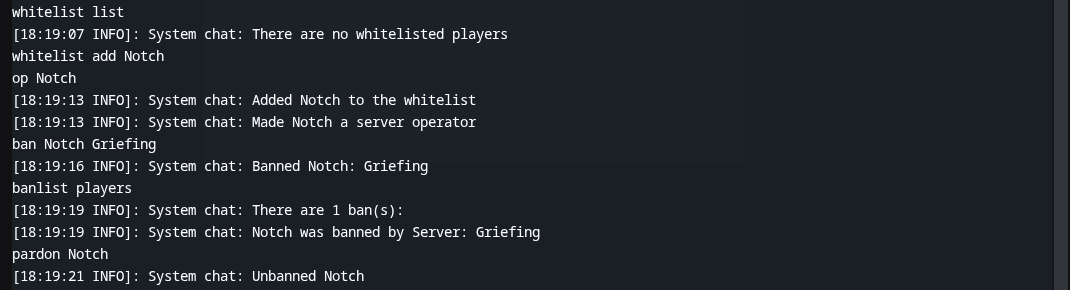
The server saves these lists in whitelist.json, ops.json and banned-players.json in the root of the server. You can also edit them in Files.
Upload an existing world
Stop the server
Click Stop in the Console. Replacing a world on a running server can corrupt it.
Back up the current world
In Files, click the three dots on the world folder and choose Archive to keep a copy, then Rename the folder or delete it.
Upload your world
Zip your world folder on your computer, then upload the .zip to the root of the server, see File manager. Click the three dots on the zip and choose Unarchive. For large worlds use SFTP.
Point the server at it
Open server.properties and set level-name to the folder name of your world. If you named the folder world, nothing changes.
Start the server
Click Start and watch the console while the world loads.
Domain name
By default players connect with the address and port of the server. To give players a name to type, create a DNS record at the company that manages your domain.
The Minecraft plans advertise a free subdomain (Subdomínio Gratuito) at checkout. The game panel has no page for it, so ask support how to get yours.
For your own domain, add an SRV record. Java Edition reads it, so players type play.example.com without a port:
| Field | Value |
|---|---|
| Type | SRV |
| Name | _minecraft._tcp.play |
| Priority | 0 |
| Weight | 5 |
| Port | your server port from the Network page, for example 30068 |
| Target | the address of the server, for example sp-01.apexcloud.cc |
DNS changes can take a while to spread. Bedrock Edition does not use SRV records, so Bedrock players still enter the address and port.
Bedrock players
The Tipo de Servidor list has Purpur-Geyser-Floodgate for Java and Bedrock players on the same server, and Vanilla - Bedrock and Nukkit for Bedrock-only servers. Pick the type when you order. The Network page of your server shows which ports your plan includes, and the Redstone plan has a single port. If Bedrock players cannot connect, contact support.
Good to know
- Memory: Java uses up to 95% of the RAM of your plan. The Memory card in the console shows the usage against the limit.
- Backups: plans do not include backup slots, and the required add-on is not yet on sale. Download your world with SFTP from time to time. See Backups.
- Restarts: to restart the server every night with a warning to players, use a schedule, see Scheduled tasks.
- Database: some plugins store data in MySQL. See Databases.
- Upgrades: moving to a bigger plan keeps your files, see Upgrades.
- Problems: see Troubleshooting.