
Databases
Create a MySQL database from the panel and connect your game to it.
Game Servers can have MySQL databases created and managed through the panel. Your game can use a database without you installing, configuring or securing a MySQL server: Apex Cloud runs the database server and the panel creates the database and its user for you.
How many databases you get
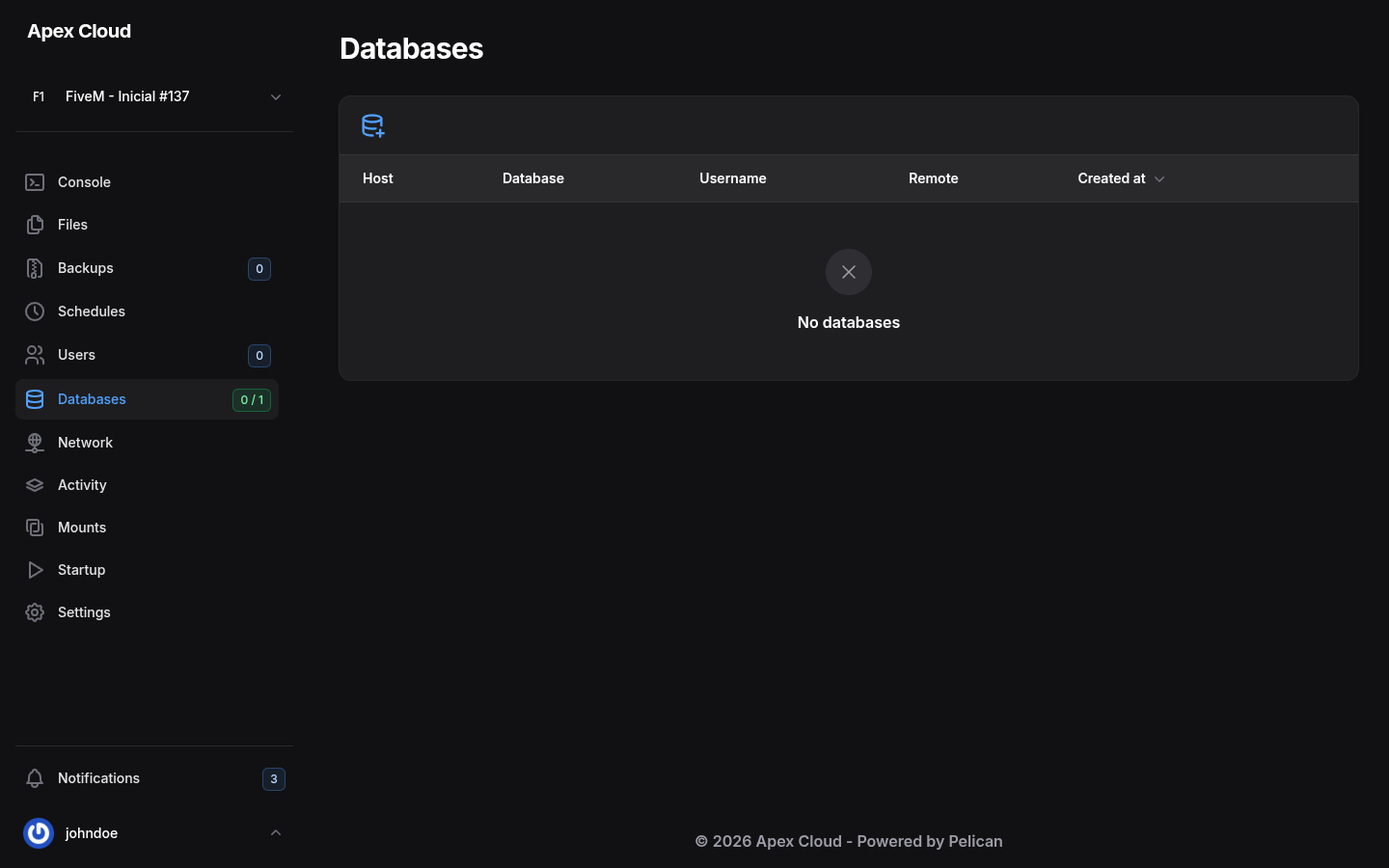
The number depends on your plan. It is shown next to Databases in the server menu, as used / limit, and in Limits under Settings. On the FiveM Inicial plan it reads 0 / 1: one database.
When you reach the limit the badge turns red (1 / 1) and the create icon turns red with a cross. To create another one, delete a database you no longer need.
Create a database
Open the create dialog
Go to Databases and select the New database icon at the top left of the table.
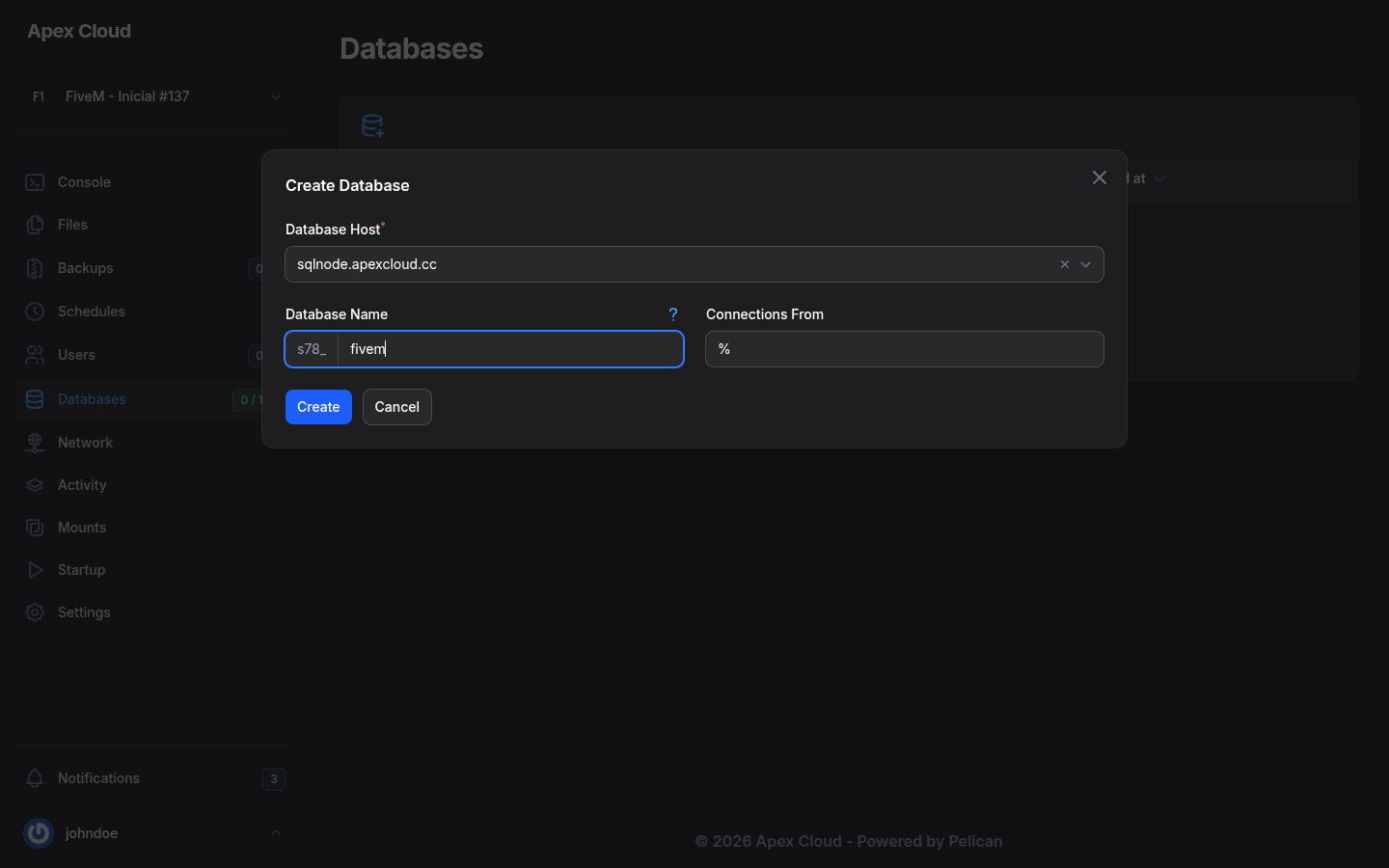
Fill in the form
- Database Host: select the database server. There is one,
sqlnode.apexcloud.cc. - Database Name: type a name. The panel adds a fixed prefix, for example
s78_, so typingfivemcreatess78_fivem. Leave it blank to get a random name. - Connections From: which addresses may connect. The default is
%, which allows any address. See Connections From.
Create
Select Create. After a few seconds a Created message appears and the database shows in the list.
See the credentials
The list shows the Host (with the port, 3306), the Database name, the Username and Remote (see below). The password is not in the list.
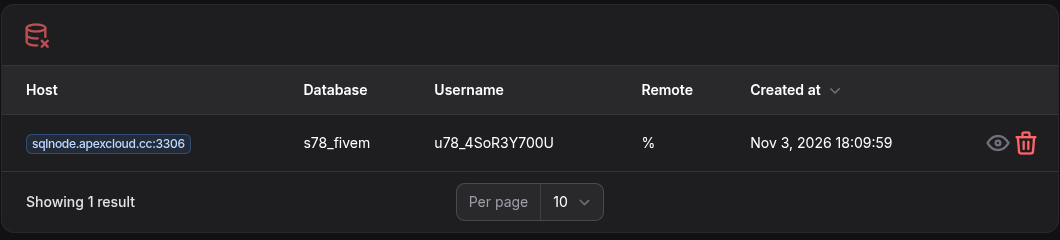
Select the eye icon at the end of the row to open the Viewing window:
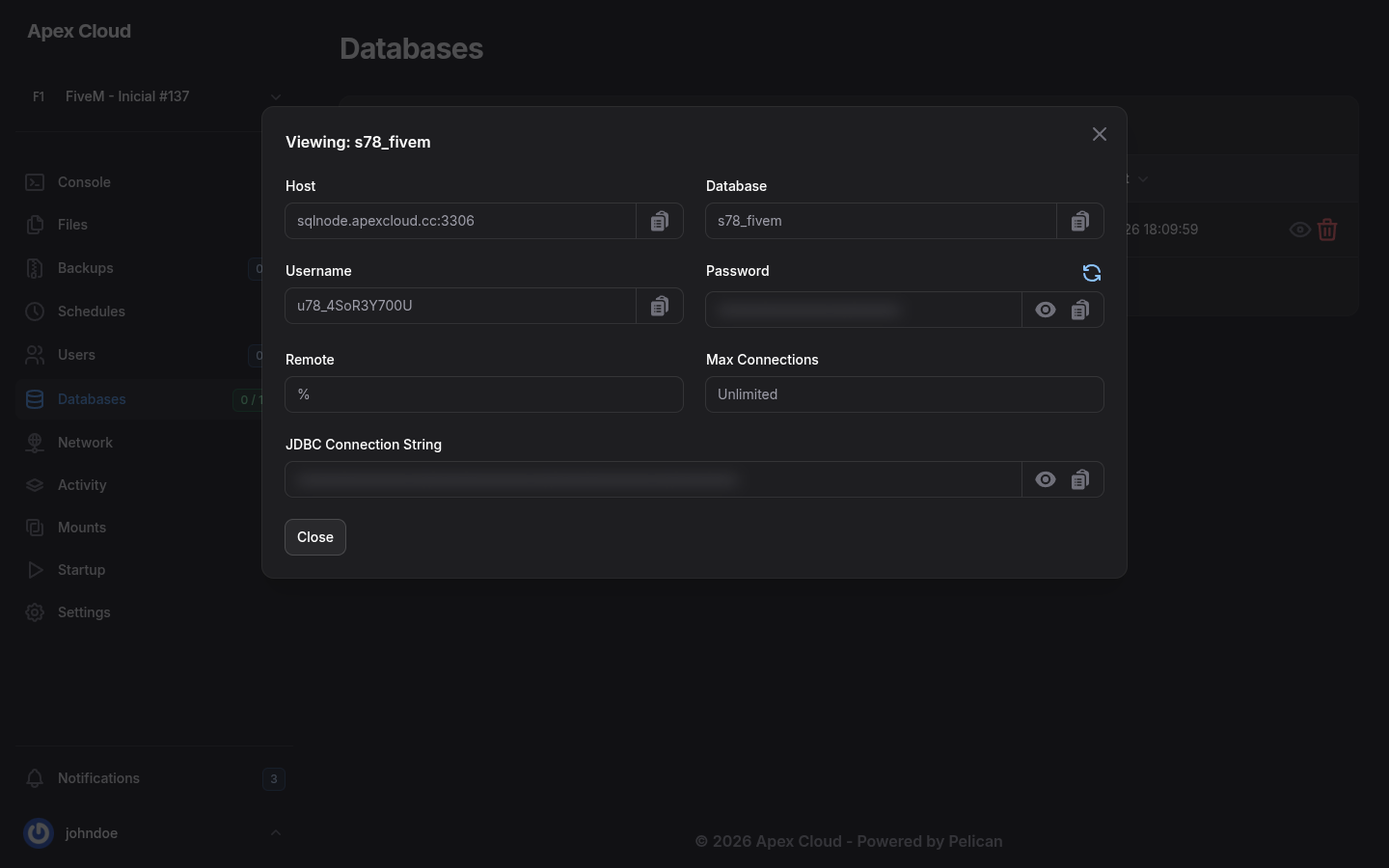
| Field | What it is |
|---|---|
| Host | Server and port to connect to, for example sqlnode.apexcloud.cc:3306 |
| Database | The database name, with its prefix |
| Username | The user created for this database, for example u78_... |
| Password | Hidden by default. Use the eye icon to show it |
| Remote | The Connections From value |
| Max Connections | Unlimited unless a limit is set |
| JDBC Connection String | A ready-made connection URL, hidden by default |
Each field has a Copy icon. Next to Password there is also a Rotate icon that generates a new password.
Keep the credentials private
The password gives full access to your data. Only share it with people who need it, and use Rotate if it leaks. After rotating, update the password in every resource or plugin that connects, otherwise they fail to connect.
Connection string
The JDBC Connection String has this shape, with your own values:
jdbc:mysql://<username>:<password>@<host>:3306/<database>Most game software takes the same four values separately, as host, port 3306, user, password and database name. Where a plugin wants a URL instead of separate values, mysql://<username>:<password>@<host>:3306/<database> is the usual format. Game-specific setup is on FiveM, Minecraft and MTA:SA.
Connections From
Connections From (shown as Remote in the list) says which IP addresses the database user may connect from. % means any address, so both your game and a database tool on your own computer can connect. A specific address, for example 203.0.113.256, only allows that one, which is safer if you know where the connections come from.
Manage your data
The panel creates the database but does not include a web tool like phpMyAdmin. To browse or edit tables, use a database client on your computer, such as HeidiSQL, DBeaver or MySQL Workbench, with the Host, Username, Password and Database above. This works as long as Connections From allows your IP address.
Delete a database
Select the red trash icon at the end of the row, then confirm with Delete in the Delete database window (Are you sure you would like to do this?). The database and its data are removed and the slot is free again.
Deleting a database loses its data
There is no way to undo it. Export what you need with your database client first.
Who can use it
The Database group of Users separates reading, creating, updating and deleting databases, and View Password is its own permission.