
FiveM
Set up a FiveM server with txAdmin or server.cfg, add your Cfx.re license key, connect a database and keep the server updated.
A FiveM server runs in the Apex Cloud game panel. This page covers what is specific to FiveM. For the panel itself, see Panel access and Console.
Your plan
| Plan | Player limit | RAM | Disk | CPU |
|---|---|---|---|---|
| Inicial | 7 | 1 GB | 5 GB | 1 vCPU |
| Basico | 32 | 4 GB | 15 GB | 1.5 vCPU |
| Plus | 64 | 6 GB | 25 GB | 2 vCPU |
| Pro | 128 | 8 GB | 35 GB | 3 vCPU |
| Expert | 256 | 12 GB | 50 GB | 4 vCPU |
| Elite | 500 | 16 GB | 70 GB | 5 vCPU |
| Enterprise | no limit set | 24 GB | 100 GB | 7 vCPU |
The player limit of your plan is locked on the Startup page as Max Players. The description of the variable says the server admin can set a lower number, but never a higher one. If you use a Patreon Key (below), the server cannot run more players than the smaller of your key tier and your plan limit.
Two ways to run the server
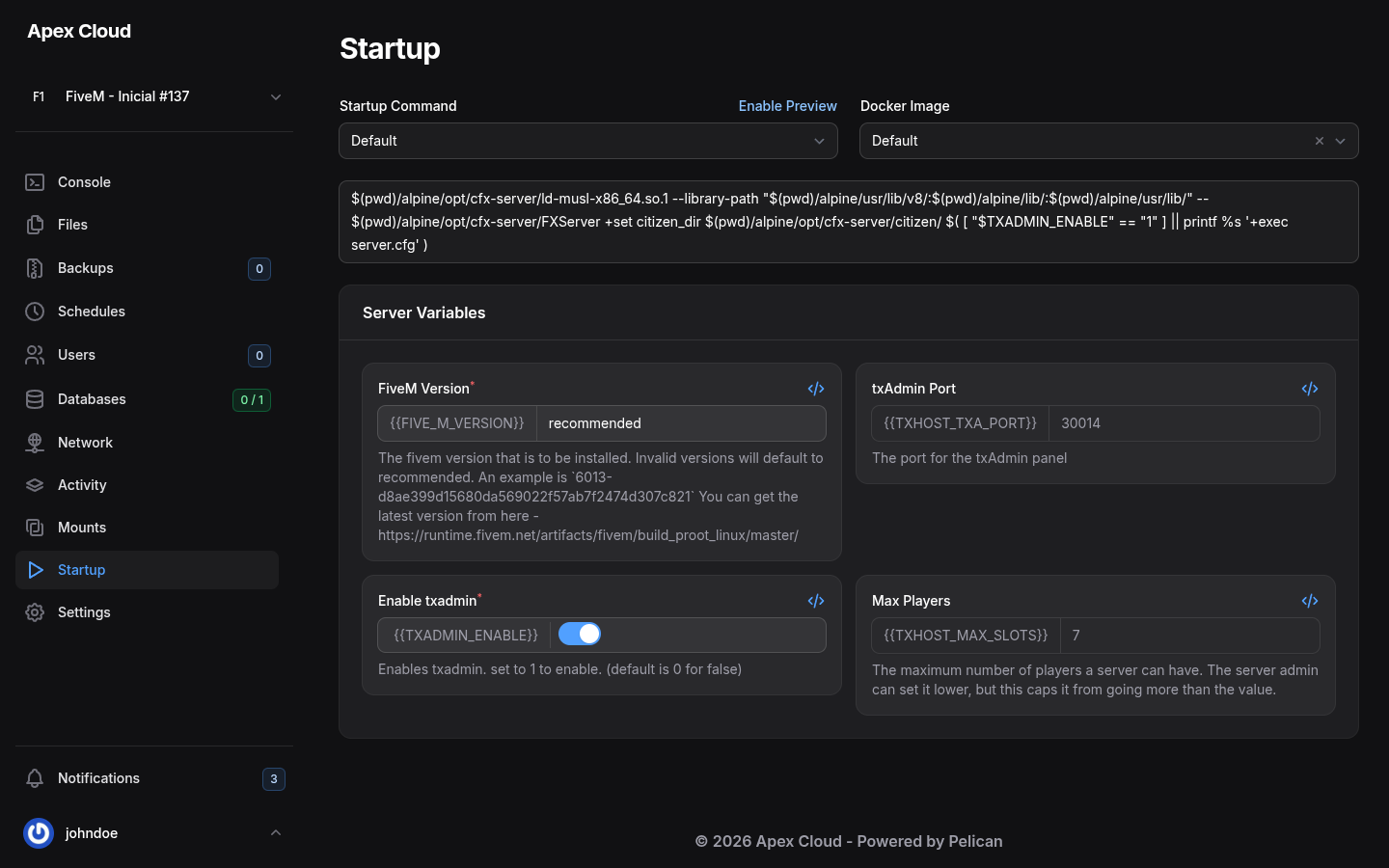
The startup command runs FXServer with +exec server.cfg unless the Enable txadmin variable is on. So there are two modes:
- txAdmin on (recommended): you set the server up in the txAdmin web panel: license key, recipe, resources, restarts and players.
- txAdmin off: FXServer runs your
server.cfgdirectly. You write the file yourself.
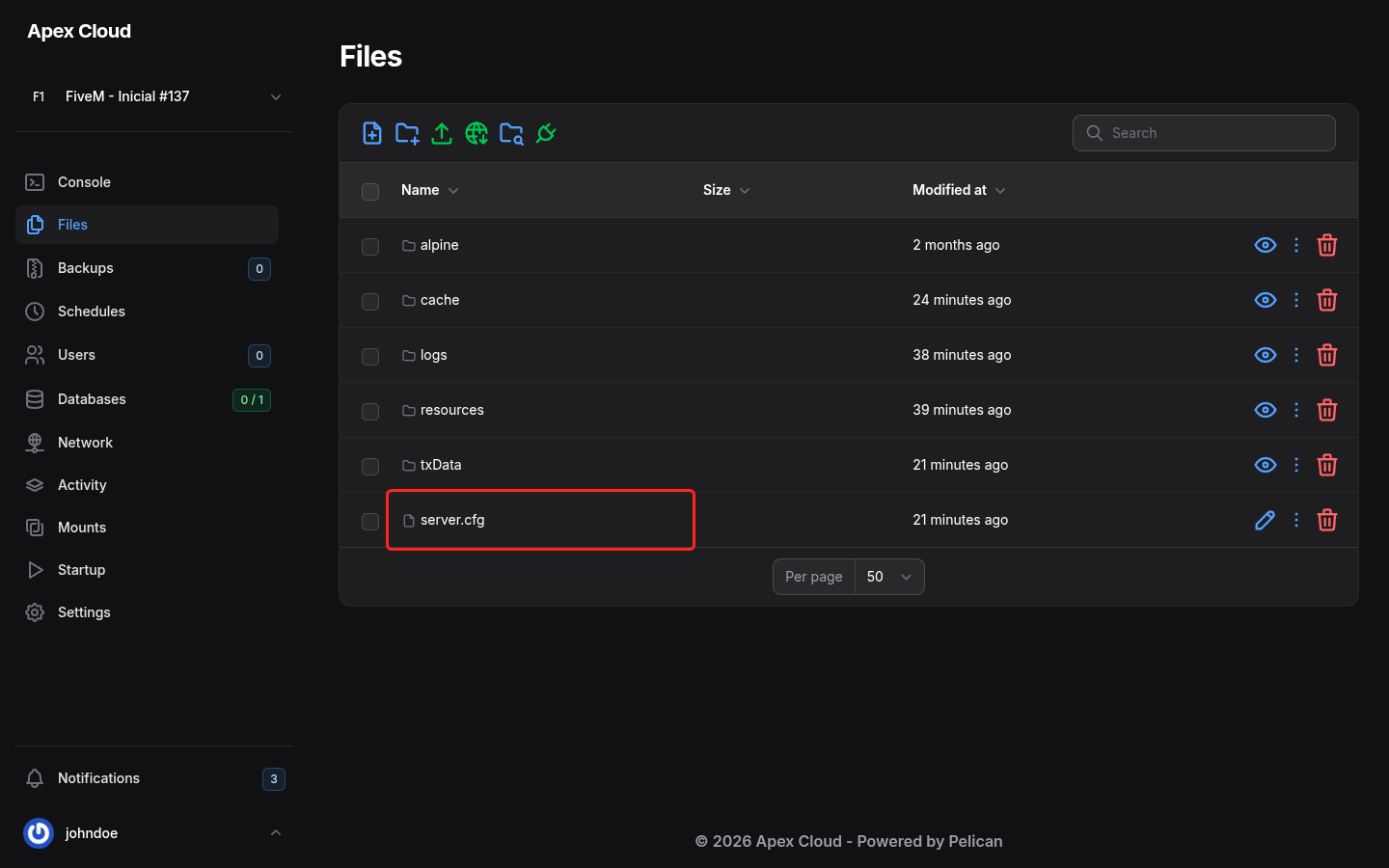
A new server comes with an empty server.cfg, an empty resources folder and the FXServer files in the alpine folder. Do not edit alpine.
Set up with txAdmin
Turn txAdmin on
Open Startup. Switch on Enable txadmin. Changes on this page are saved as you make them. The page also shows the txAdmin Port, which is locked, and the FiveM Version (the FXServer artifacts).
Start the server and read the PIN
Go to Console and click Start. After a few seconds txAdmin prints a box with the web address and a four-digit PIN. The PIN registers the first txAdmin administrator.
Open txAdmin
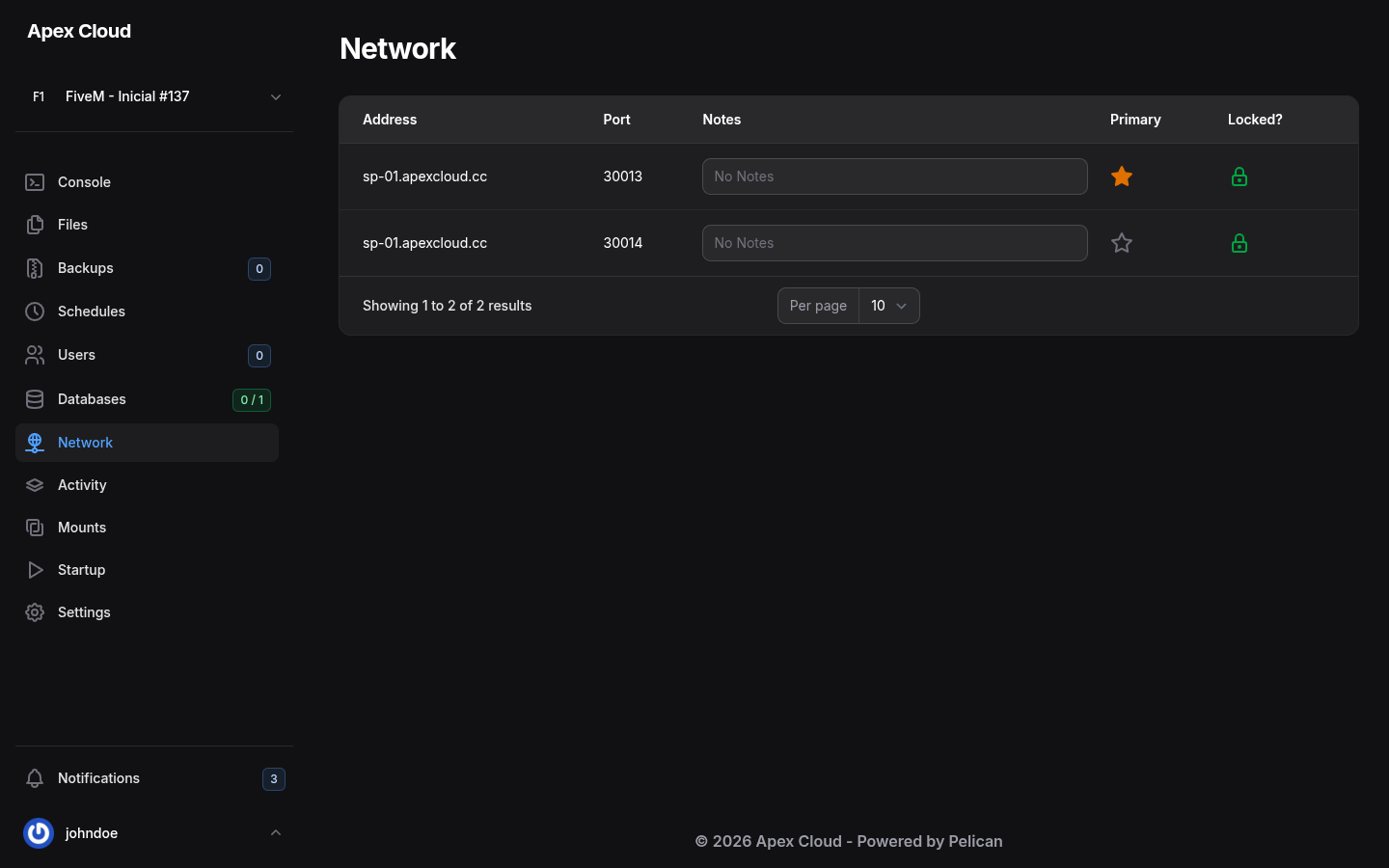
In your browser, open the address of your server with the txAdmin port, for example http://sp-01.apexcloud.cc:30014/. The txAdmin port is the second port on the Network page. The first one, the primary port, is the game port players connect to.
Enter the PIN
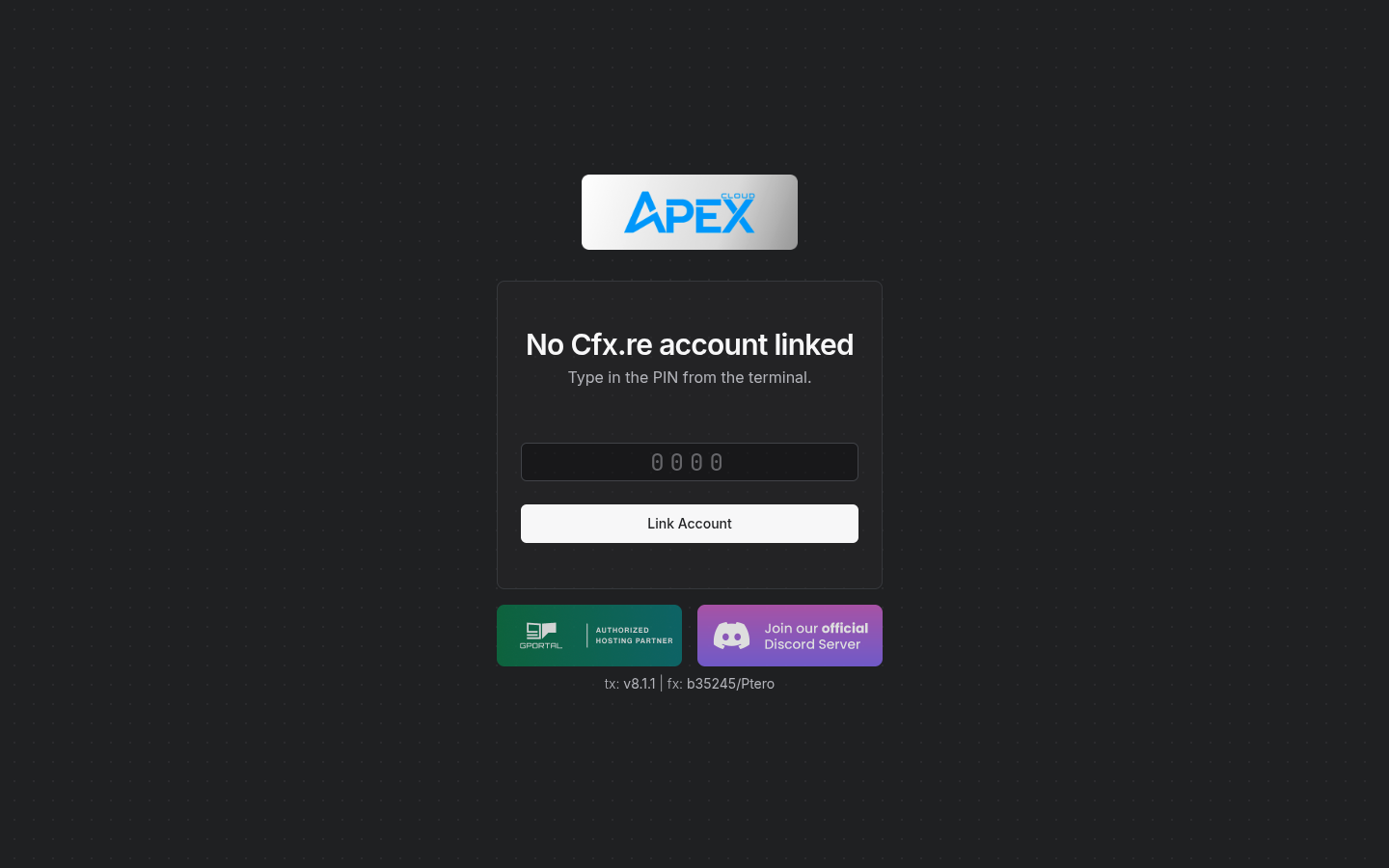
The page says No Cfx.re account linked. Type the PIN from the console and click Link Account. txAdmin sends you to the Cfx.re login, so you need a free Cfx.re account to continue. The footer of the page shows the txAdmin version and the artifact build (fx: b35245).
Finish the txAdmin setup
Follow the txAdmin wizard: it asks for your server name, the recipe that deploys the server files and your license key. txAdmin is a Cfx.re product and its screens can change, see the txAdmin documentation.
Without a license key the server does not stay up
FXServer refuses to start without a Cfx.re license key. If you turn txAdmin off before you have a key, the server starts and stops again right away.
Get your license key
Every FiveM server needs a license key (sv_licenseKey) from Cfx.re.
Open the Cfx.re Portal
Go to portal.cfx.re and sign in with your Cfx.re account.
Register the server
Open the server registration keys page, click the + button and fill in the form. The form asks for the public IP address of the server. The IP is printed in the txAdmin box in the console. Click Generate Key, then Copy Key.
Use the key
In txAdmin, paste the key when the wizard asks for it. Without txAdmin, add it to server.cfg:
sv_licenseKey "cfxk_your_key_here"Never post the key in public channels. If it leaks, generate a new one in the portal and replace it.
Recipes: QBCore, ESX and others
When you set a server up with txAdmin, the recipe you choose deploys the base resources, for example a framework such as QBCore or ESX. The recipe list belongs to txAdmin, not to Apex Cloud. We did not reach the recipe screen in our test because it needs a Cfx.re account, so we do not list recipes here. Pick the one you want in txAdmin and follow its steps. The files are written to the server, so you see them in Files afterwards.
Run with server.cfg only
Turn Enable txadmin off in Startup and write server.cfg yourself. Open it in Files and add at least the lines below.
endpoint_add_tcp "0.0.0.0:30013"
endpoint_add_udp "0.0.0.0:30013"

sv_licenseKey "cfxk_your_key_here"
sv_hostname "My city"
sv_maxclients 7- Replace
30013with the primary port on the Network page. It is the only game port your server has. sv_maxclientsmust not be higher than Max Players on the Startup page.- Put your resources in
resourcesand start them from the file withensure resource_name.
Click Save and start the server. For the full list of options, see the FiveM server manual.
Connect to the server
In FiveM, press F8 and type:
connect sp-01.apexcloud.cc:30013Use the address and primary port of your server. To give your players an easier address, see the next section.
Custom connect address
The Apex Cloud site offers one free custom address per city in the form yourcity.rpfivem.xyz, which it says is activated from the control panel. We checked the game panel (console, files, network, startup and settings) and the billing service page, and found no place to activate it. To get your address, contact support with the name you want, using letters, numbers and hyphens only.
External Cache
The External Cache is an HTTP server that sends your city files to players, so FXServer only runs the game. It is free for Game Server and VPS customers. There is nothing to switch on in the game panel: it is enabled on request. Contact support after you buy your server, and the team enables it and tells you if anything must change in your configuration. See Add-ons. It can also be bought on its own.
Patreon Keys
A Patreon Key is a FiveM license that includes OneSync and a slot tier. You buy it in the shop, see Add-ons.
| Key | Slots with OneSync |
|---|---|
| Key 64 Slots | 64 |
| Key 128 Slots | 128 |
| Key 2048 Slots | 2048 |
Receive the key
Keys are not delivered automatically. After you pay, contact support with your invoice number and the team sends you the key.
Replace the license key
Put the new key where the old one was: in server.cfg, replace the value of sv_licenseKey. With txAdmin, edit the server.cfg of your server data in the txAdmin CFG Editor.
Turn OneSync on
In the same server.cfg, make sure these lines are present:
set onesync on
sv_maxclients 64
Use the slot count of your key, or lower. The number of players is also limited by Max Players of your plan.
Restart the server
Restart from the Console so FXServer reads the new key.
Connect a database
Frameworks such as QBCore and ESX store data in MySQL through the oxmysql resource. Your plan includes databases, see Databases to create one.
Create the database
Open Databases, click New database, choose the host, type a name and click Create. Keep Connections From as %.
Copy the details
Click the eye icon on the database. Note the Host with its port, the Database, the Username and the Password.
Add the connection string
In server.cfg, before the resource is started, add:
set mysql_connection_string "user=u1_username;password=the-password;host=sqlnode.apexcloud.cc;port=3306;database=s1_database"Use your own values. With mysql-async use its own format, for example server=sqlnode.apexcloud.cc;port=3306;database=s1_database;userid=u1_username;password=the-password.
Special characters in the password
The panel generates the password and it can contain characters such as @. In the mysql://user:password@host/database format those characters must be URL-encoded, otherwise the connection fails. The user=...;password=... format shown above does not need that. Copy the password with the copy icon instead of typing it.
Restarts
You can restart the server on a schedule in two places:
- Panel schedule: in Schedules create a task that restarts the server at a given time. It restarts the whole server, txAdmin included. See Scheduled tasks.
- txAdmin restarts: txAdmin has its own restart schedule that warns players before it restarts the game server. Configure it in txAdmin.
Use one of them, not both, so the server does not restart twice.
Update FXServer
The FXServer artifacts are installed in the alpine folder. The FiveM Version variable on Startup tells the installer which build to download. recommended is the default, and you can type a build number instead, for example 6013-d8ae399d15680da569022f57ab7f2474d307c821. The list of builds is at runtime.fivem.net/artifacts/fivem/build_proot_linux/master.
The txAdmin page footer shows the build that is running (fx: b35245), and the console tells you when txAdmin has an update available.
Updating runs the installer
The variable is read by the installation script. The Reinstall button in Settings runs it again, and the panel warns that some files may be deleted or modified. Back up first, see Backups, and contact support if you are not sure. See also Settings.
Good to know
- Ports: the primary port is for players, the second port is txAdmin. See Network.
- Files: use SFTP to upload many resources at once.
- Upgrades: moving to a bigger plan keeps your files, see Upgrades.
- Problems: see Troubleshooting.