
Console and power actions
Start, restart and stop your server, send console commands and read the CPU, memory, disk and network graphs.
Console is the first item of the server menu, and the page you land on when you open a server.
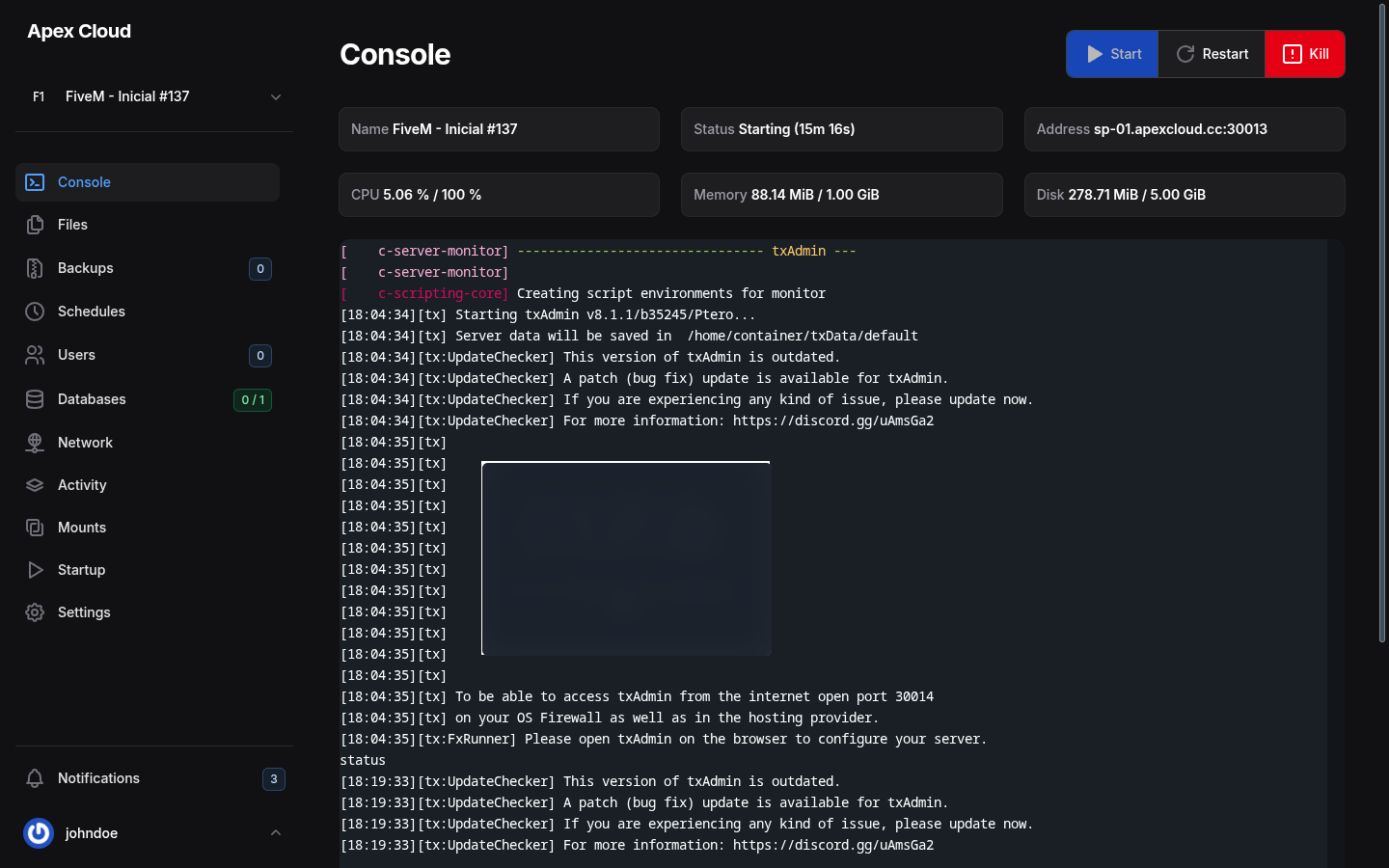
What the page shows
| Box | Meaning |
|---|---|
| Name | The name of the server, you can change it in Settings |
| Status | The state of the server, for example Offline or Starting, with how long it has been in that state |
| Address | The hostname and port players use to connect, for example sp-01.apexcloud.cc:30013. See Network |
| CPU | Current CPU usage and the limit of your plan, for example 5.06 % / 100 % |
| Memory | Current memory usage and the limit of your plan, for example 88.14 MiB / 1.00 GiB |
| Disk | Disk used and the disk space of your plan, for example 278.71 MiB / 5.00 GiB |
While the server is offline, CPU and Memory show Offline.
CPU is per core
The CPU limit is a percentage of one core: 100 % equals 1 vCPU. A plan with 2 vCPU shows a limit of 200 %, and a half-core plan shows 50 %. The server list on the panel home page uses the same scale, for example 0% / 100% for a plan with 1 vCPU.
Power actions
The buttons at the top right of the page control the server.
| Button | What it does |
|---|---|
| Start | Starts the server. Disabled while the server is already starting or running |
| Restart | Stops the server and starts it again |
| Stop | Asks the game to shut down cleanly, as if you typed its stop command. Use it by default |
| Kill | Ends the server process immediately. It appears in place of Stop while the server is starting, for example while a game is still booting |
Prefer Stop to Kill
Kill does not give the game time to save. Use it only when Stop does not work and the server is stuck, because unsaved progress and open files can be lost.
When you press Start the console prints what the panel does: it checks the disk, prepares the files, pulls the game image if needed and starts the process. Wait for the Status to change before pressing a button again.
Send a command
Click the command box
At the bottom of the console there is a line starting with » and the text Type a command.... Click it.
Type the command and press Enter
Type a command of your game and press Enter. The command is sent to the server and the console shows what the game answers. It is also recorded in the Activity log (Executed "status" on the server).
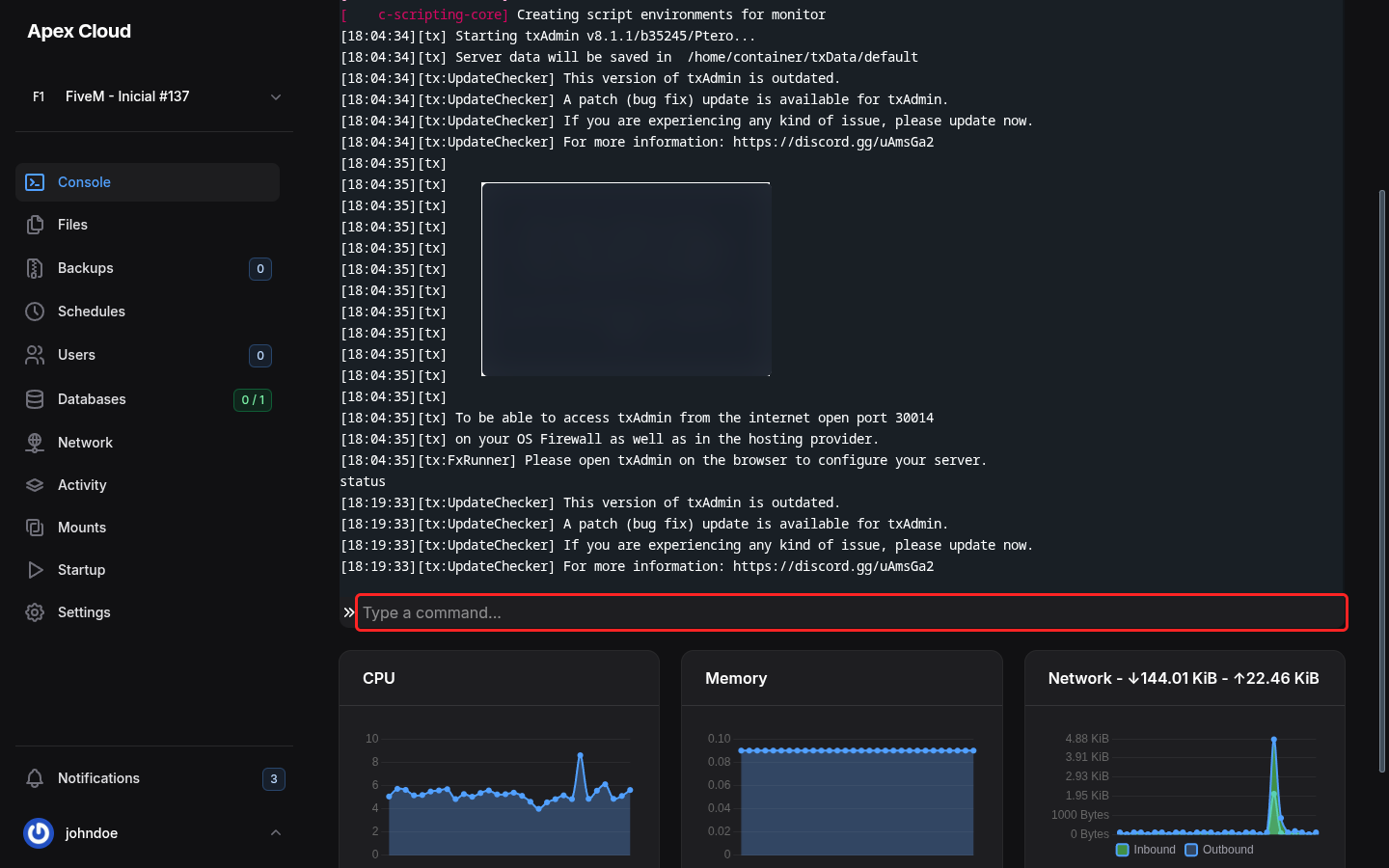
Which commands exist depends on the game, see FiveM, Minecraft and MTA:SA.
Resource graphs
Under the console there are three graphs, updated while the server runs:
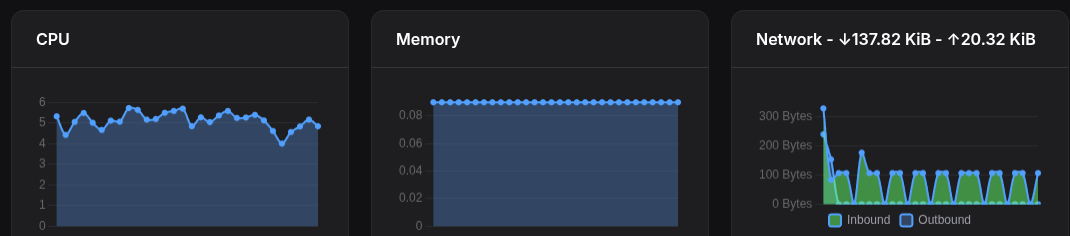
- CPU: the same scale as the CPU box, so a line at
100means one full core. - Memory: in GiB. If the line reaches your plan's memory limit the game is at risk of being killed, see Troubleshooting.
- Network: the title shows the total data received (down arrow) and sent (up arrow); the chart separates Inbound and Outbound.
Who can use it
Everything on this page can be limited per person: the Control permission group of Users decides who can send commands and who can start, stop or restart the server.