
Scheduled Tasks
Run commands, restarts and backups on a timer, straight from the panel.
Scheduled Tasks let you automate actions on your Game Server at a defined time or interval, without an external script or software. In the panel the page is called Schedules.
A schedule says when (a cron time). Each schedule has one or more tasks that say what happens, in order. For example, a FiveM server can be restarted on a schedule directly from the panel, without a separate restart script.
Create a schedule
Open the form
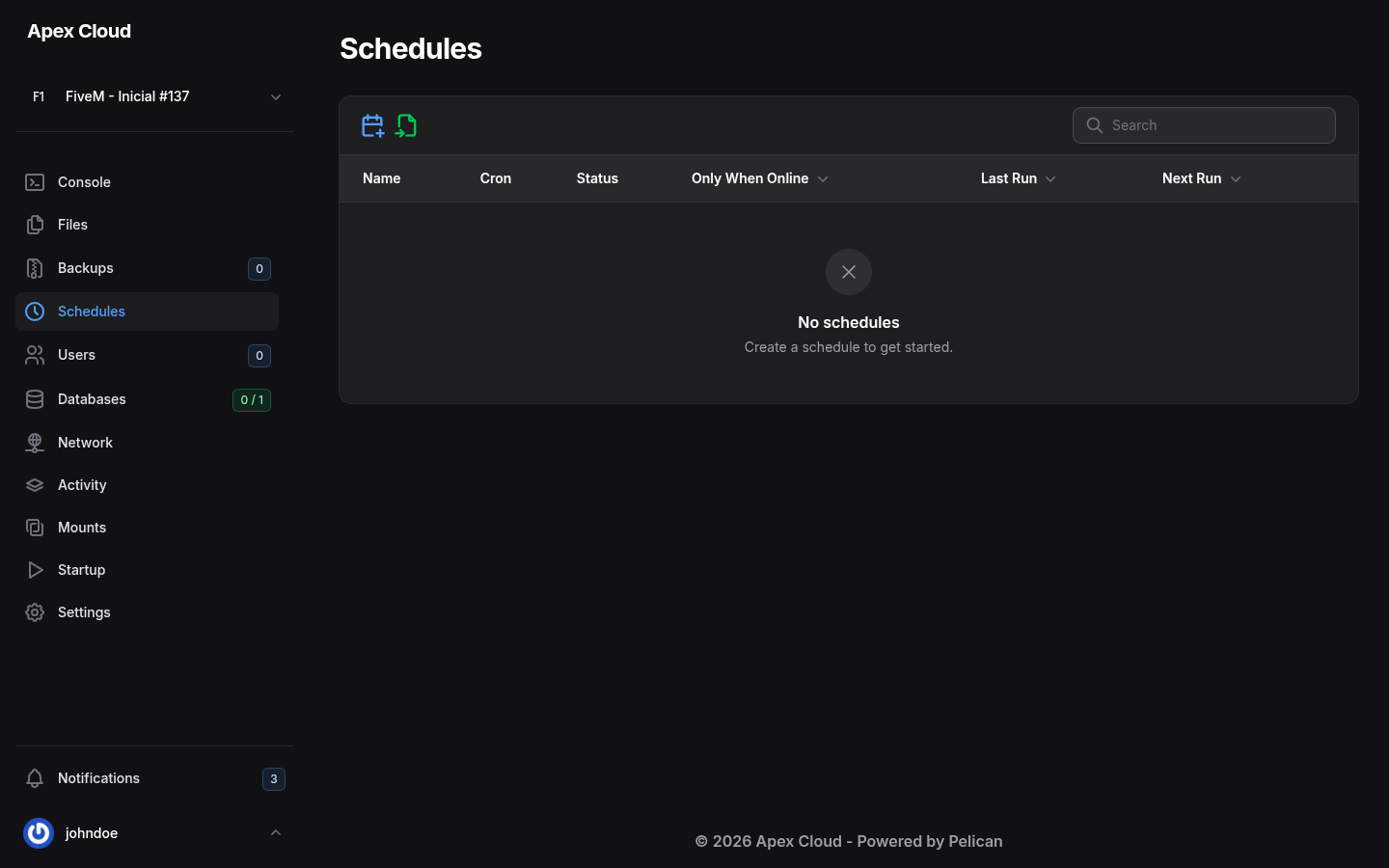
Go to Schedules and select the New schedule icon (blue calendar with a plus). The other icon, Import, creates a schedule from a file you exported before.
Name it and choose when it runs
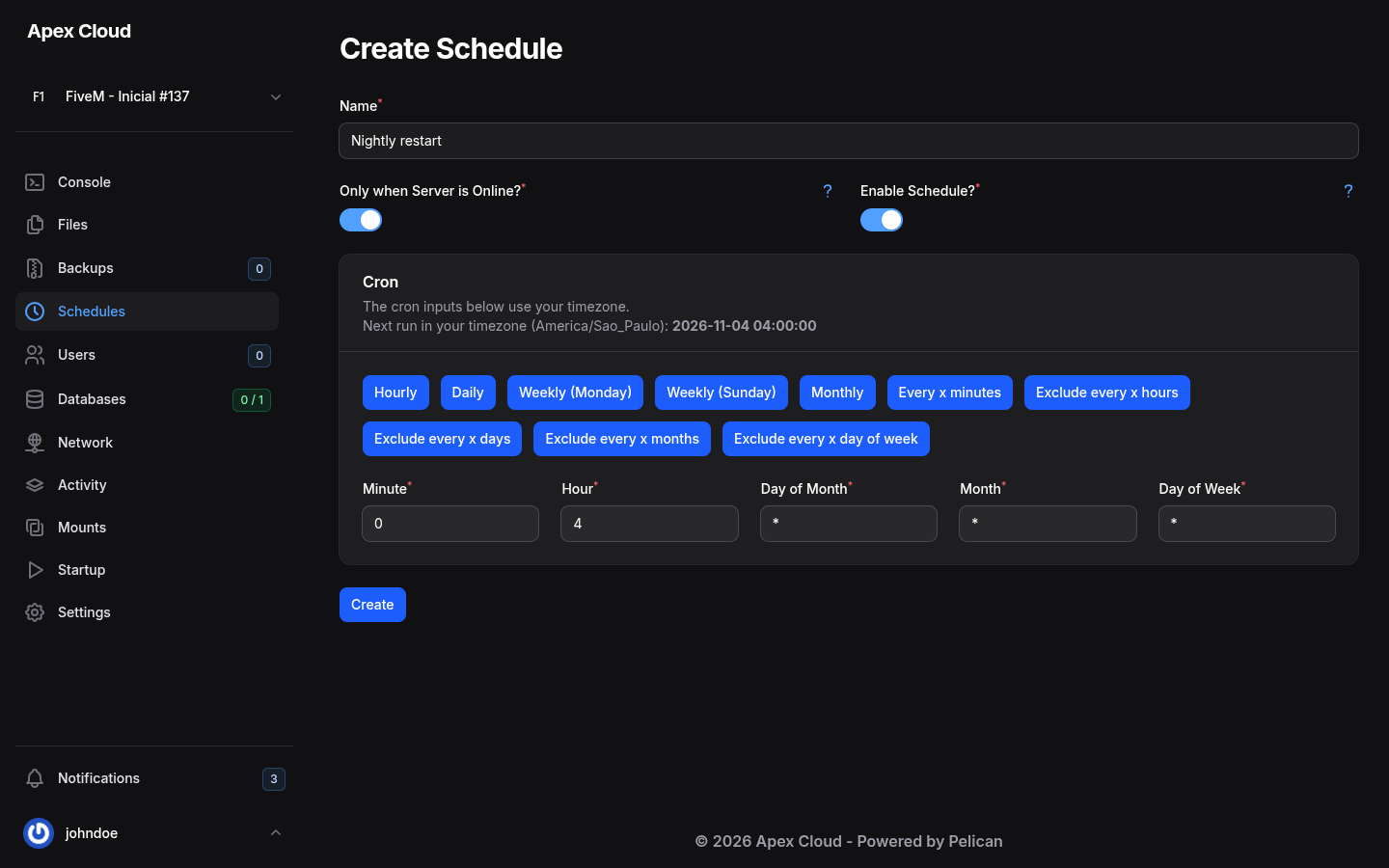
On the Create Schedule page:
- Name: a name you will recognise, for example
Nightly restart. - Only when Server is Online? On by default. When on, the schedule only runs if the server is running at that moment.
- Enable Schedule? On by default. Turn it off to keep the schedule without running it.
- Cron: the five time fields, see below.
Create it, then add tasks
Select Create. The schedule opens, but it does nothing until it has a task, see Add tasks.
Cron fields
A cron time has five fields. * means "every".
| Field | Allowed values | Example |
|---|---|---|
| Minute | 0-59 | 0 |
| Hour | 0-23 | 4 |
| Day of Month | 1-31 | * |
| Month | 1-12 | * |
| Day of Week | 0-6, 0 is Sunday | * |
Other forms work in every field: a list (0,30), a range (1-5) and a step (*/15 is every 15).
| Cron | When it runs |
|---|---|
*/5 * * * * | Every 5 minutes (the default of the form) |
0 * * * * | Every hour, on the hour |
0 4 * * * | Every day at 04:00 |
0 4 * * 1 | Every Monday at 04:00 |
30 6 1 * * | The 1st of every month at 06:30 |
The buttons above the fields fill them for you: Hourly, Daily, Weekly (Monday), Weekly (Sunday), Monthly, Every x minutes, and the Exclude every x hours / days / months / day of week variants. Daily sets 0 0 * * *. Edit the fields afterwards to move the time.
Times use your timezone
The text under Cron says The cron inputs below use your timezone and shows the next run in it, for example America/Sao_Paulo. Change the timezone in your profile, see Panel access.
Add tasks
On the Edit Schedule page, under Tasks, select the + icon (Create Task). Every task has an Action:
| Action | What it does | Extra field |
|---|---|---|
| Send Power Action | Starts, restarts, stops or kills the server | Power action: Start, Restart, Stop or Kill |
| Send Command | Types a command in the server console | Command |
| Create Backup | Creates a backup, see Backups | |
| Delete Files | Deletes files from the server |
Every task also has:
- Continue On Failure: off by default. If it is off and the task fails, the remaining tasks of the schedule do not run.
- Time Offset (in Seconds): shown from the second task on. It is the delay between the previous task and this one. The first task shows First Task instead.
The icon with two arrows above the task list (Reorder records) changes the order of the tasks.
Example: a nightly restart with a warning
This restarts the server every day at 04:00 and warns the players one minute before.
Create the schedule
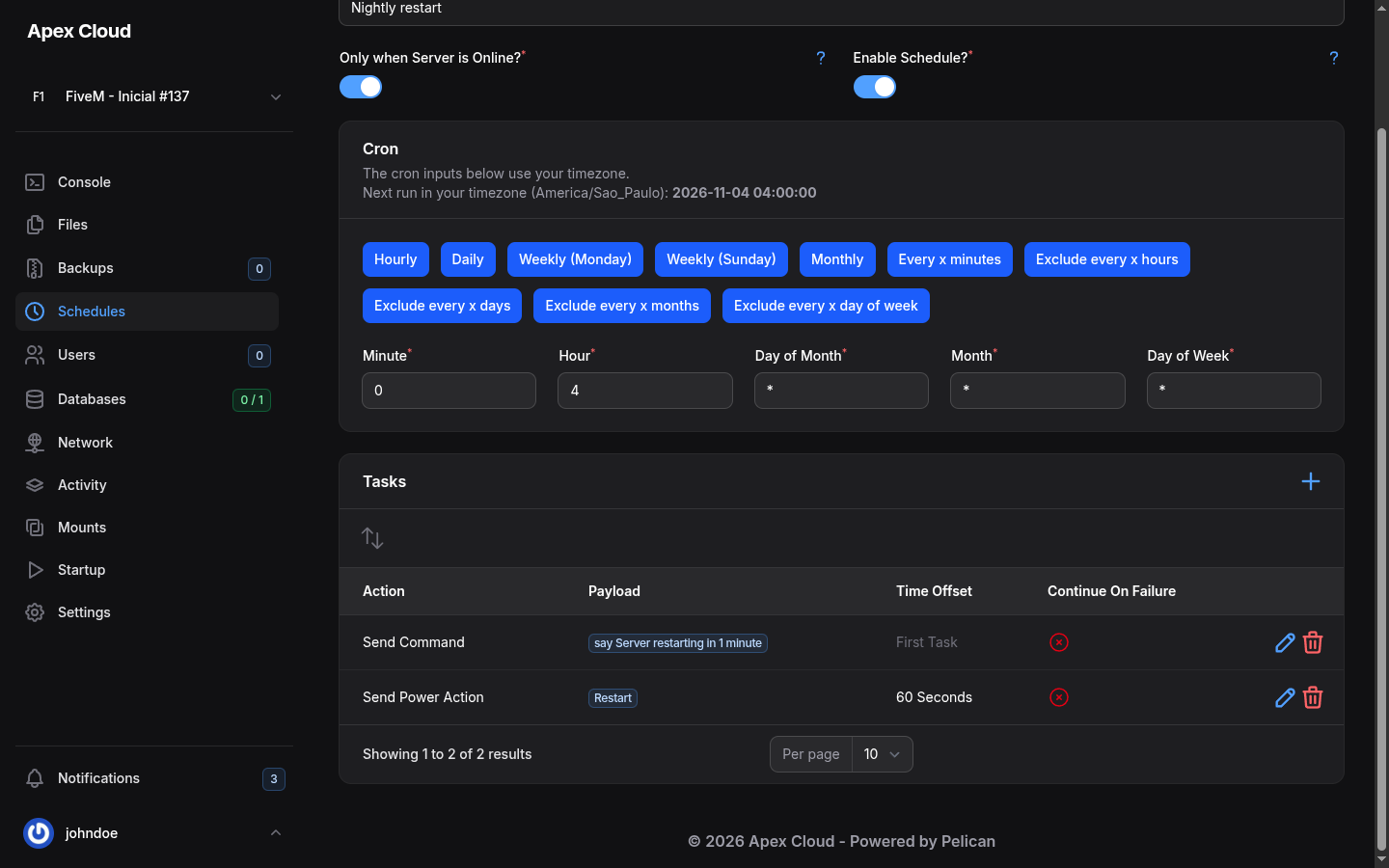
Name it Nightly restart, press Daily and set Hour to 4, so the cron is 0 4 * * *. Keep Only when Server is Online? on, then select Create.
Task 1: warn the players
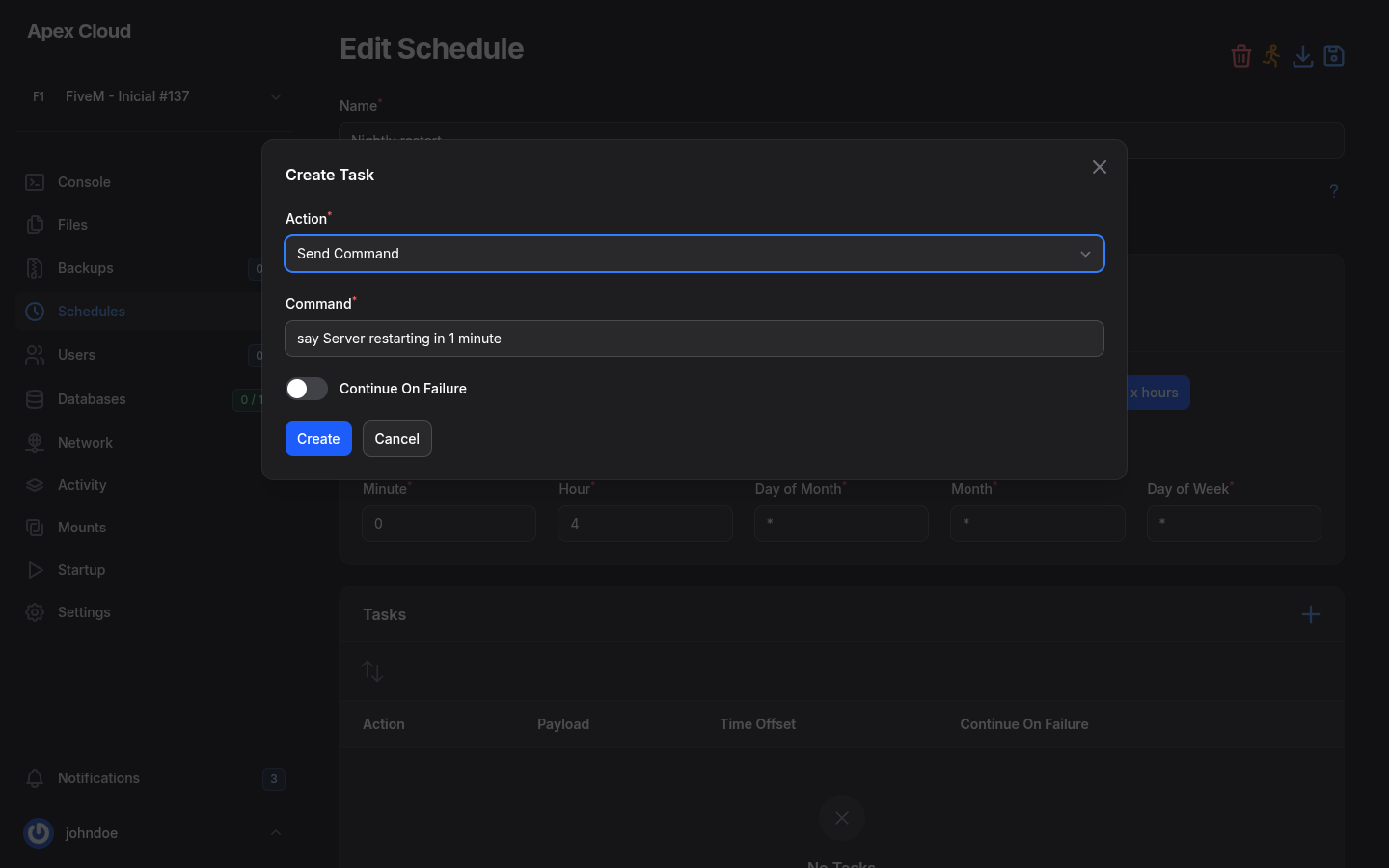
Select +. For Action choose Send Command. In Command type the warning command of your game. For FiveM, for example: say Server restarting in 1 minute. Select Create.
Task 2: restart one minute later
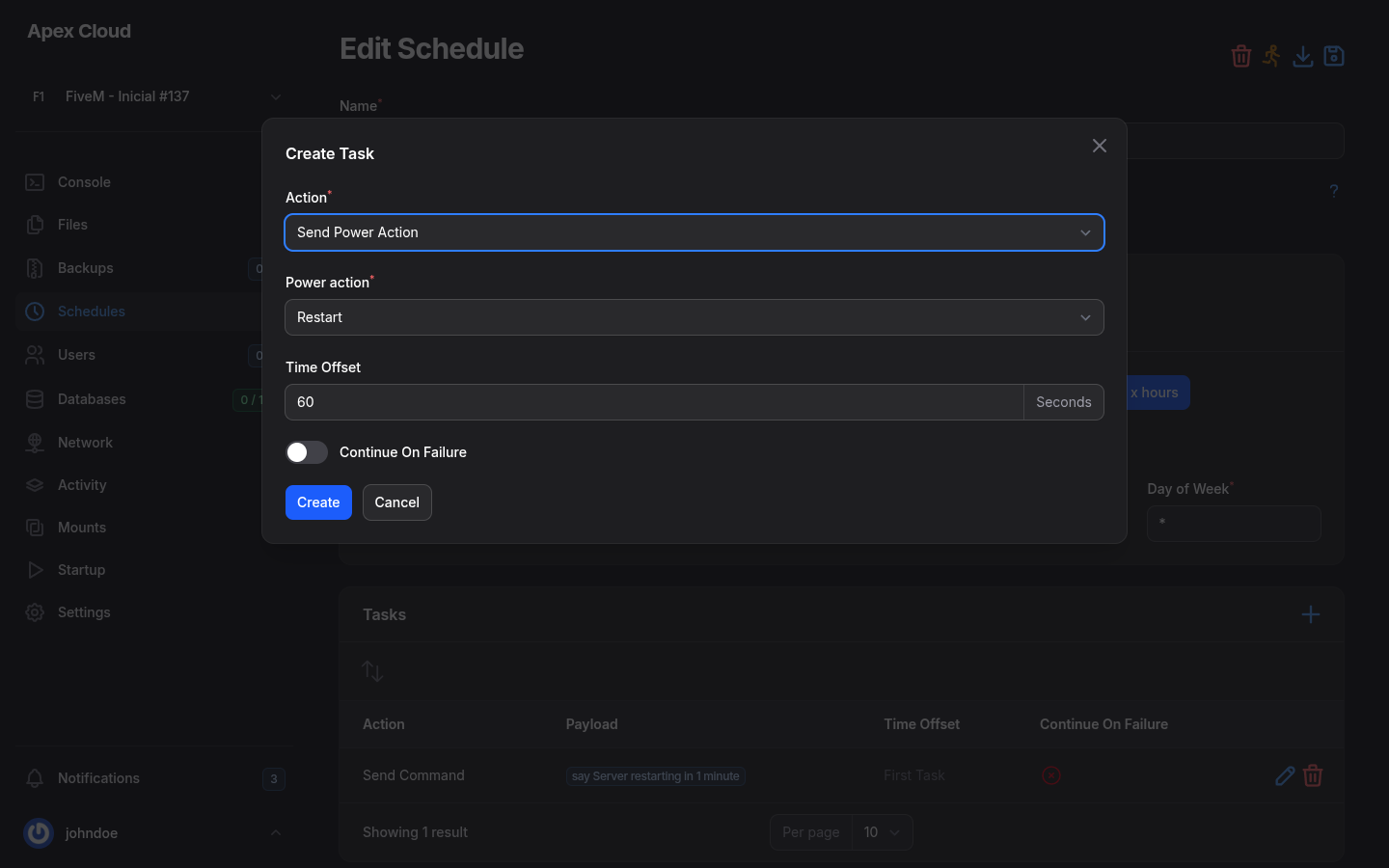
Select + again. For Action choose Send Power Action and for Power action choose Restart. Set Time Offset to 60 seconds. Select Create.
Check the result
The schedule now has two tasks: Send Command, then Send Power Action with Restart after 60 Seconds.
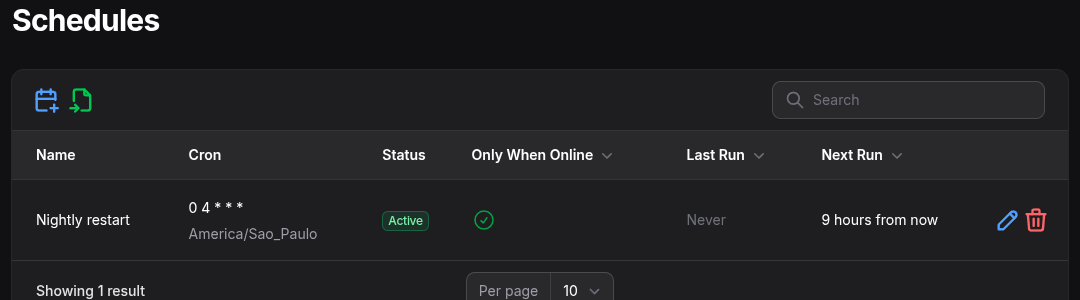
The schedule list now shows the cron, its timezone, the Status (Active), when it last ran and when it will next run.
Run, edit, export and delete
On Edit Schedule the icons at the top right are, from left to right:
| Icon | Name | What it does |
|---|---|---|
| Red trash | Delete | Deletes the schedule |
| Running figure | Run now | Runs the tasks right now. It needs at least one task |
| Download | Export (Export Schedule) | Saves the schedule to a file, which Import can load later |
| Disk | Save (Save Schedule) | Saves your changes |
Use Run now to test a new schedule without waiting for the time. In the schedules list, the pencil edits a schedule and the trash deletes it.
Who can use it
The Schedule group of Users controls who can see, create, change and delete schedules.