
Settings
Rename your server, read its limits and SFTP details, and reinstall it.
Settings in the server menu has the details of your server and the reinstall action.
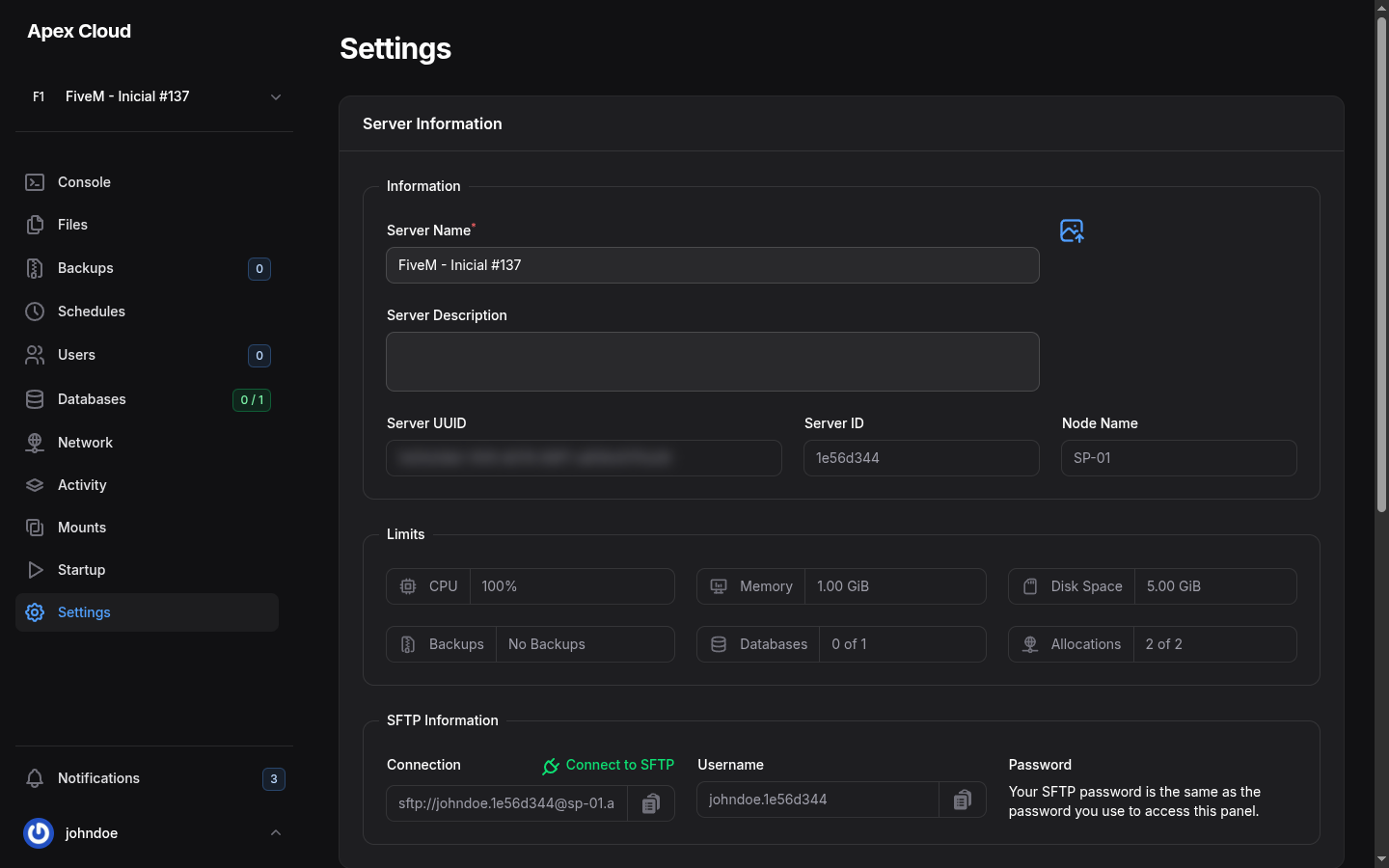
Server information
- Server Name: the name shown in the panel and in the server list. Type a new one and save to rename the server.
- Server Description: a free text note.
- Server UUID: the unique identifier of the server.
- Server ID: the short code (for example
1e56d344) that appears in the panel URL and in your SFTP username. Support will ask for it. - Node Name: the machine that hosts your server, for example
SP-01.
Limits
Limits is a read-only summary of what your plan includes.
| Limit | Example on the FiveM Inicial plan | Meaning |
|---|---|---|
| CPU | 100% | Per core: 100% is 1 vCPU, see Console |
| Memory | 1.00 GiB | RAM. If the game needs more, it can be stopped, see Troubleshooting |
| Disk Space | 5.00 GiB | Total size of all the files |
| Backups | No Backups | How many backups the server can keep |
| Databases | 0 of 1 | Used of the number of databases |
| Allocations | 2 of 2 | Used of the number of ports |
To raise a limit, see Upgrading your plan.
SFTP information
The SFTP Information box has the Connection link (sftp://...), the Username and a note that your SFTP password is the same as your panel password. See SFTP for the host, port and FileZilla / WinSCP steps.

Reinstall
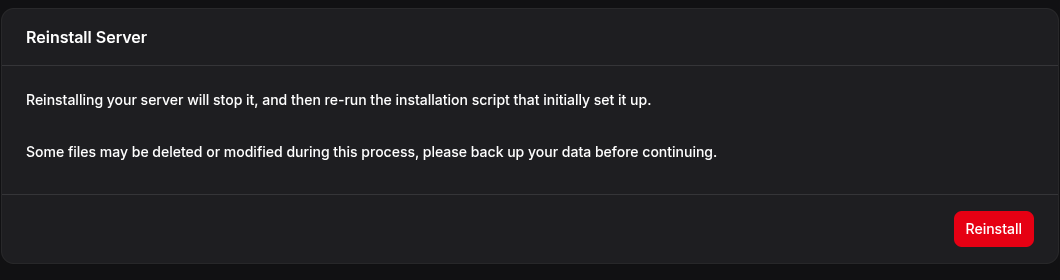
The box says:
Reinstalling your server will stop it, and then re-run the installation script that initially set it up.
Some files may be deleted or modified during this process, please back up your data before continuing.
Select Reinstall and the panel asks once more:
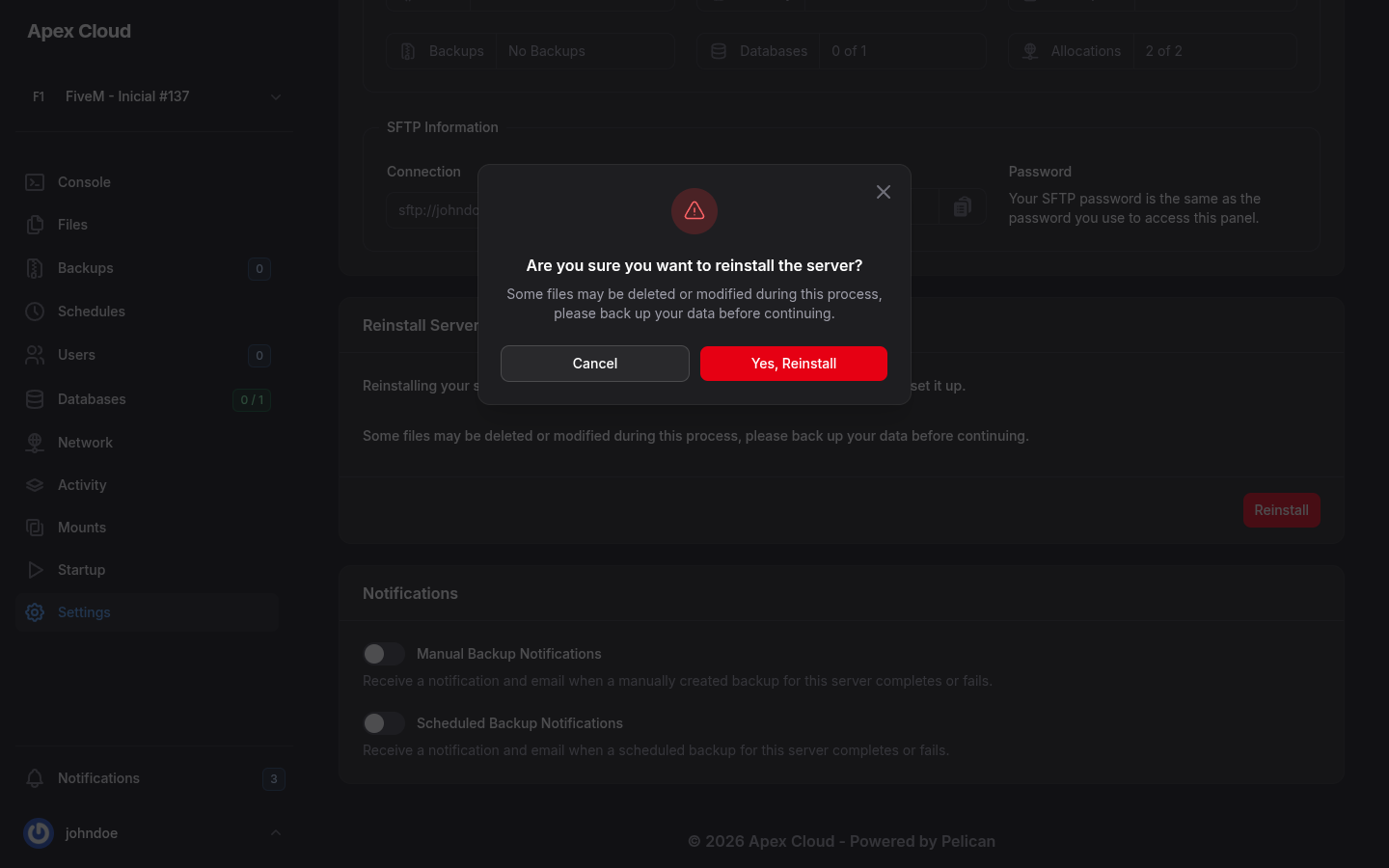
Cancel (or the X) closes the window and nothing happens. Yes, Reinstall starts the reinstall.
What it does to your files
The panel does not list which files change. What it tells you is that your server is stopped and that the installation script that first set the server up runs again, and that some files may be deleted or modified. In practice assume that:
- The game files that the installation script provides are downloaded again, so manual changes to them can be lost.
- Configuration files the script creates can be replaced with their default content.
- Your own files, such as resources, plugins and worlds, may or may not be touched, depending on the game.
So treat a reinstall as something that can erase your server, and download everything you need over SFTP or take a backup first.
Try other fixes first
Most problems do not need a reinstall. See Troubleshooting. If you do reinstall, expect to configure the server again, and then start it from the Console.
Notifications
The bottom of the page has two switches, Manual Backup Notifications and Scheduled Backup Notifications, to receive a notification and an email when a backup completes or fails, see Backups.
Who can use it
The Settings group of Users has separate permissions to Rename, change the Description, Reinstall and Change Icon.