
Panel access
Sign in to the game panel, reset your password and secure your account.
The game panel is a separate system from the Billing Panel: it has its own login. It lives at panel.apexcloud.cc.
Open the panel from the Billing Panel
Open your service
In the Billing Panel, go to Services and select your game server, see Your services.
Select Go to server
Under Actions, select Go to server. It opens the panel at the console of that server (panel.apexcloud.cc/server/<id>).
The button is a plain link: it does not sign you in. If you are not signed in to the panel yet, the panel shows its login page first.
You can also go straight to panel.apexcloud.cc and bookmark it.
Sign in
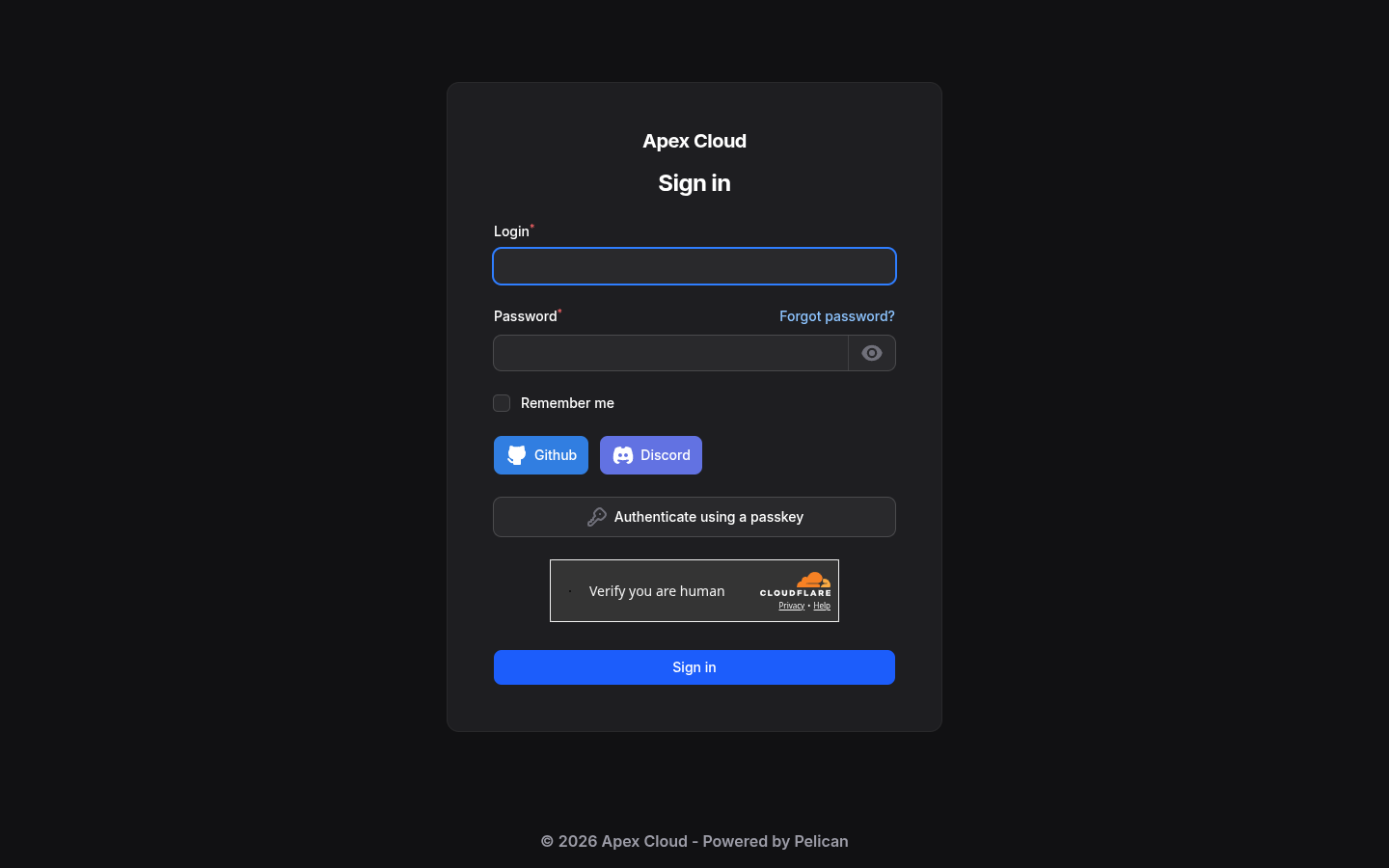
Enter your login
In Login, type your panel username or your email address.
Enter your password and pass the check
Type your Password (the eye icon shows it), tick Remember me if you want to stay signed in on this device, and complete the human verification. Then select Sign in.
The login page offers other ways in:
| Option | What it does |
|---|---|
| Github / Discord | Sign in with that account. It works after you link the account in your profile, see OAuth below |
| Authenticate using a passkey | Sign in without a password using a passkey you registered in your profile, see Passkeys below |
If two-factor authentication is on for your account, the panel asks for the code after your password, see Two-factor authentication.
Where your credentials come from
Your panel account is created automatically with your first game server, using the email address of your Billing Panel account. The login details are sent to that address by email. If you cannot find the email, check your spam folder, or simply set a new password with Forgot password: it works as soon as the account exists.
The panel password is separate from your Billing Panel account and Virtualizor passwords, see which credentials go where. Changing one does not change the others.
Cannot sign in?
Use Forgot password? with your Billing Panel account email. If the reset email does not arrive, contact support with your service number, see Getting support.
Forgot your password
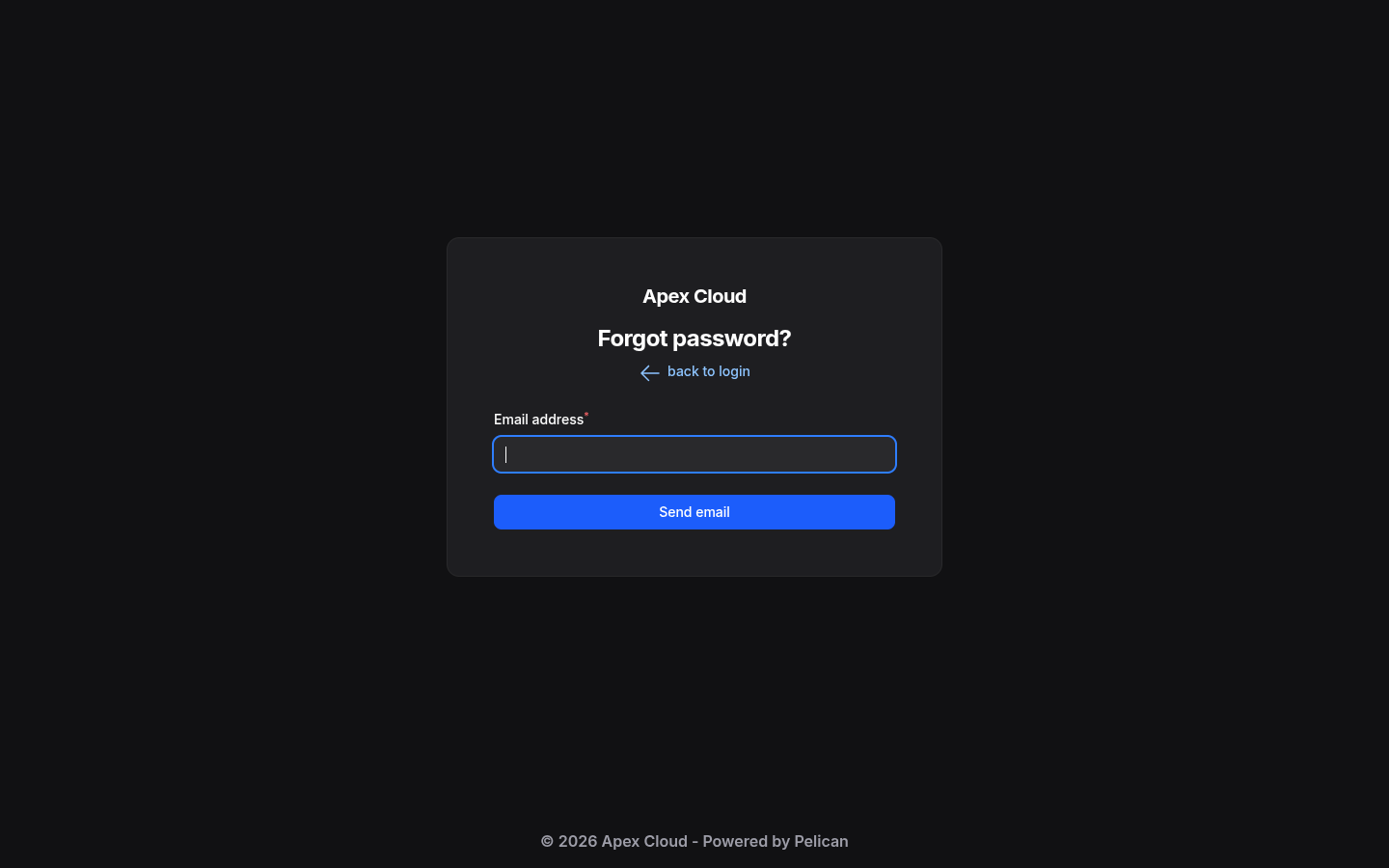
Request the email
On the login page select Forgot password?, type the email address of your panel account in Email address and select Send email.
Choose a new password
Follow the link in the email. Use back to login to return to the login page.
Your profile
Open the menu with your avatar at the top right, then select Profile. It has these tabs:
| Tab | What it is for |
|---|---|
| Account | Username, email, password, Timezone and Language |
| OAuth | Link a GitHub or Discord account |
| 2FA | Two-factor authentication |
| Passkeys | Passwordless login |
| API Keys | Keys for programs that talk to the panel |
| SSH Keys | Public keys you can add to your account |
| Activity | Your own activity |
| Customization | Display preferences, such as how the server list is shown |
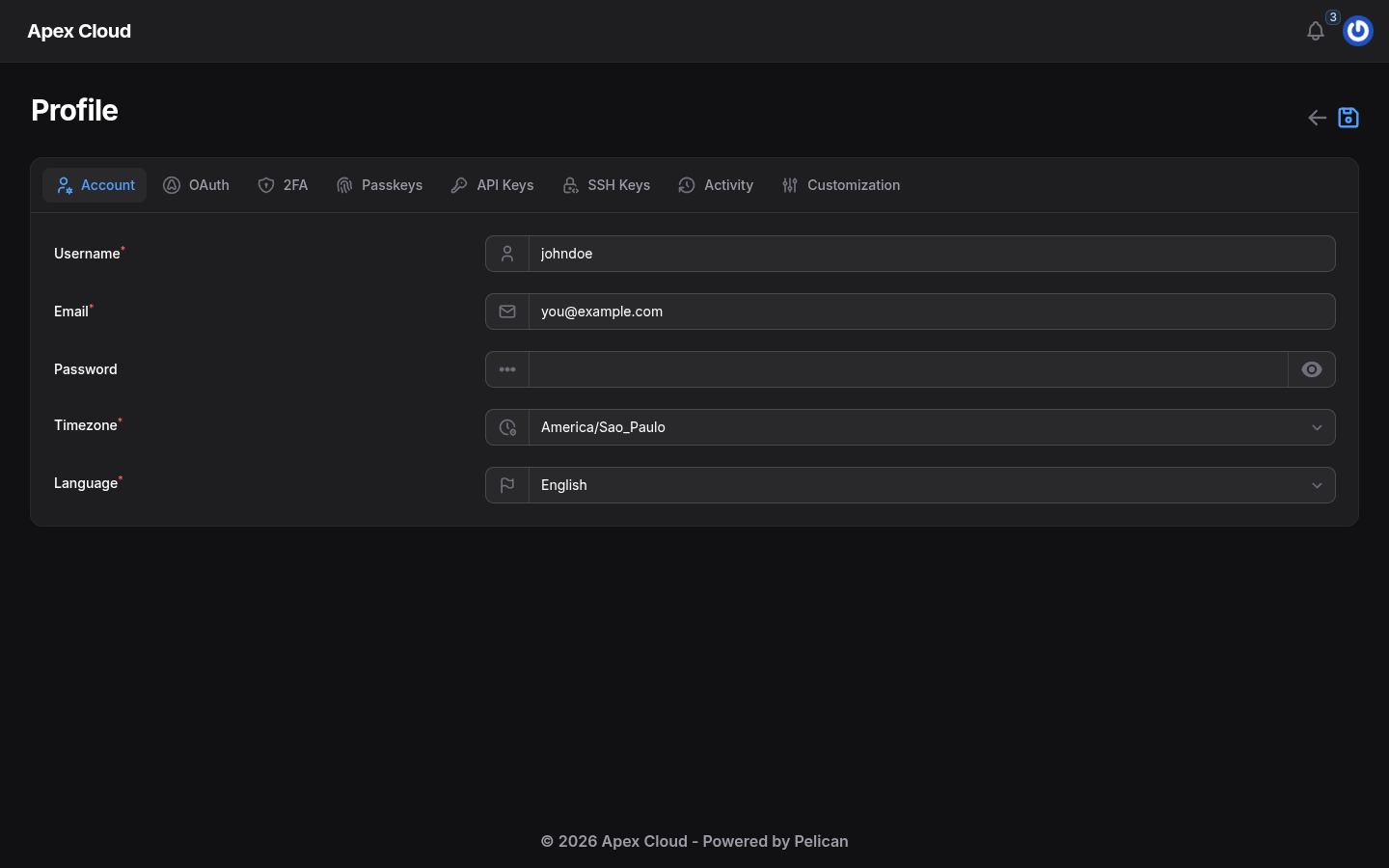
Language and timezone
In the Account tab, choose Language and Timezone, then select the save icon at the top right. The timezone also decides how the cron times of Scheduled Tasks are shown.
Link GitHub or Discord
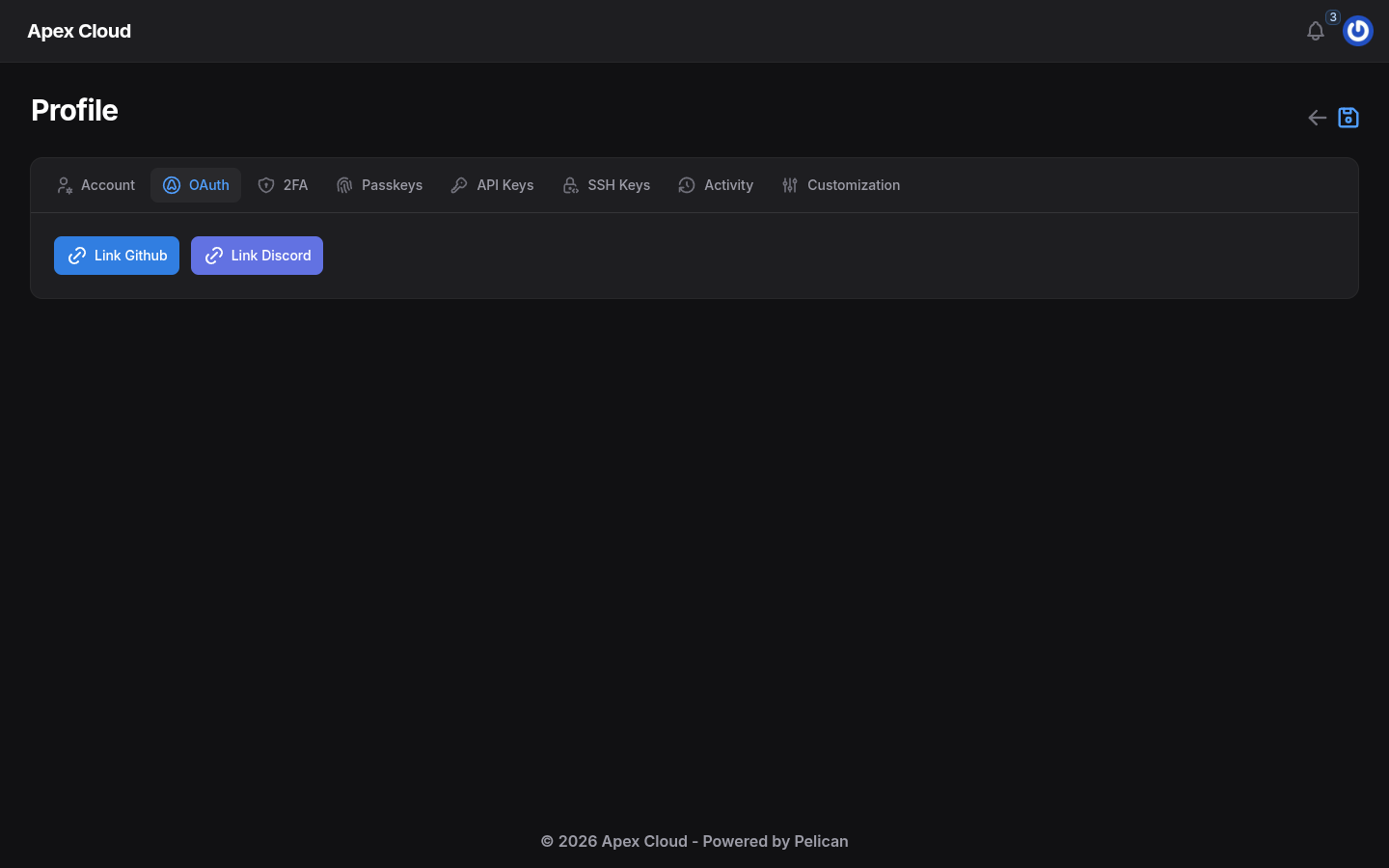
In OAuth, select Link Github or Link Discord and approve the request on that service. After that you can use the matching button on the login page.
Two-factor authentication
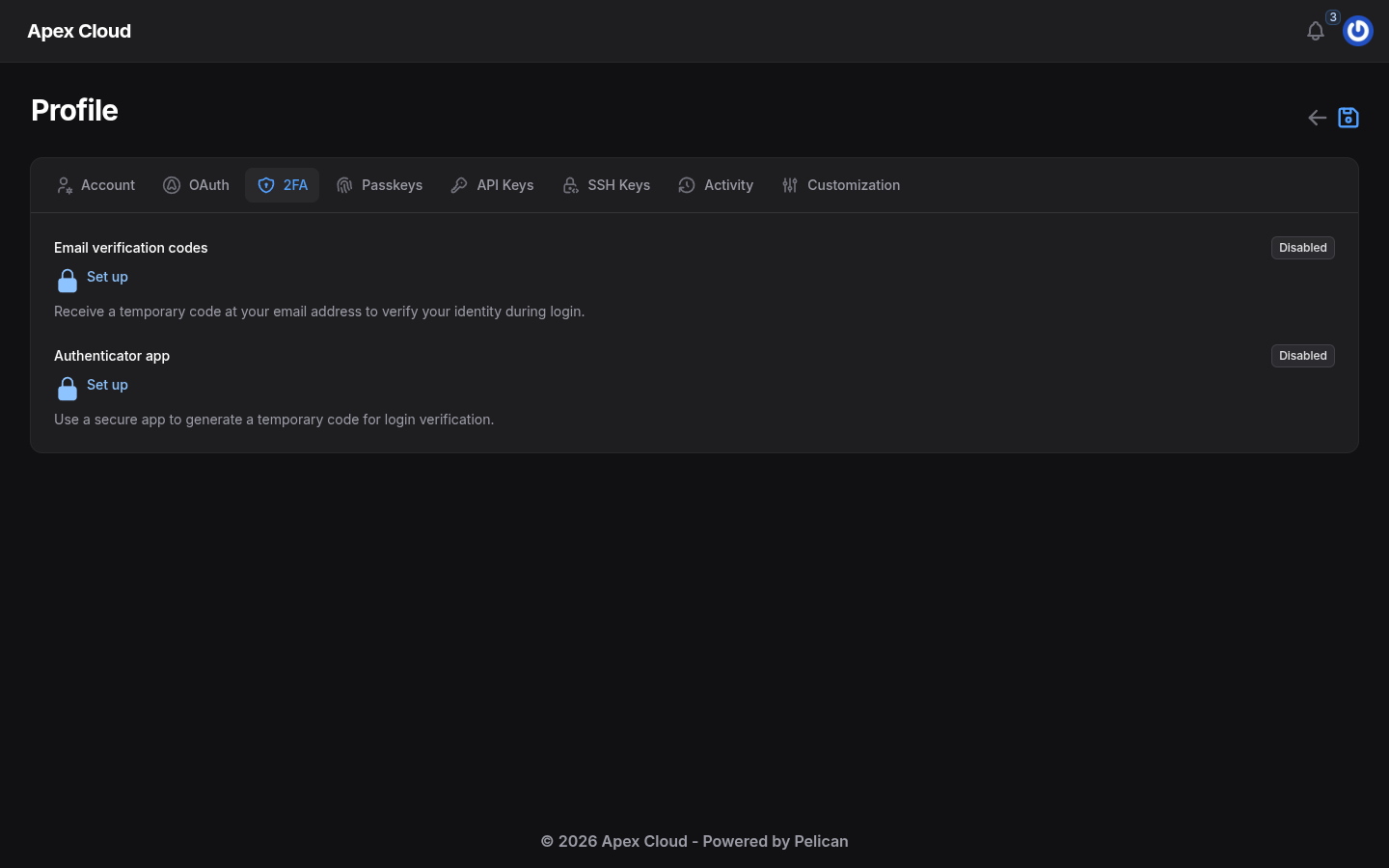
The 2FA tab has two methods, both Disabled by default:
- Email verification codes: the panel sends a temporary code to your email address to verify your identity during login.
- Authenticator app: you use a secure app to generate a temporary code for login verification.
Select Set up next to the one you want and follow the steps on screen.
Passkeys
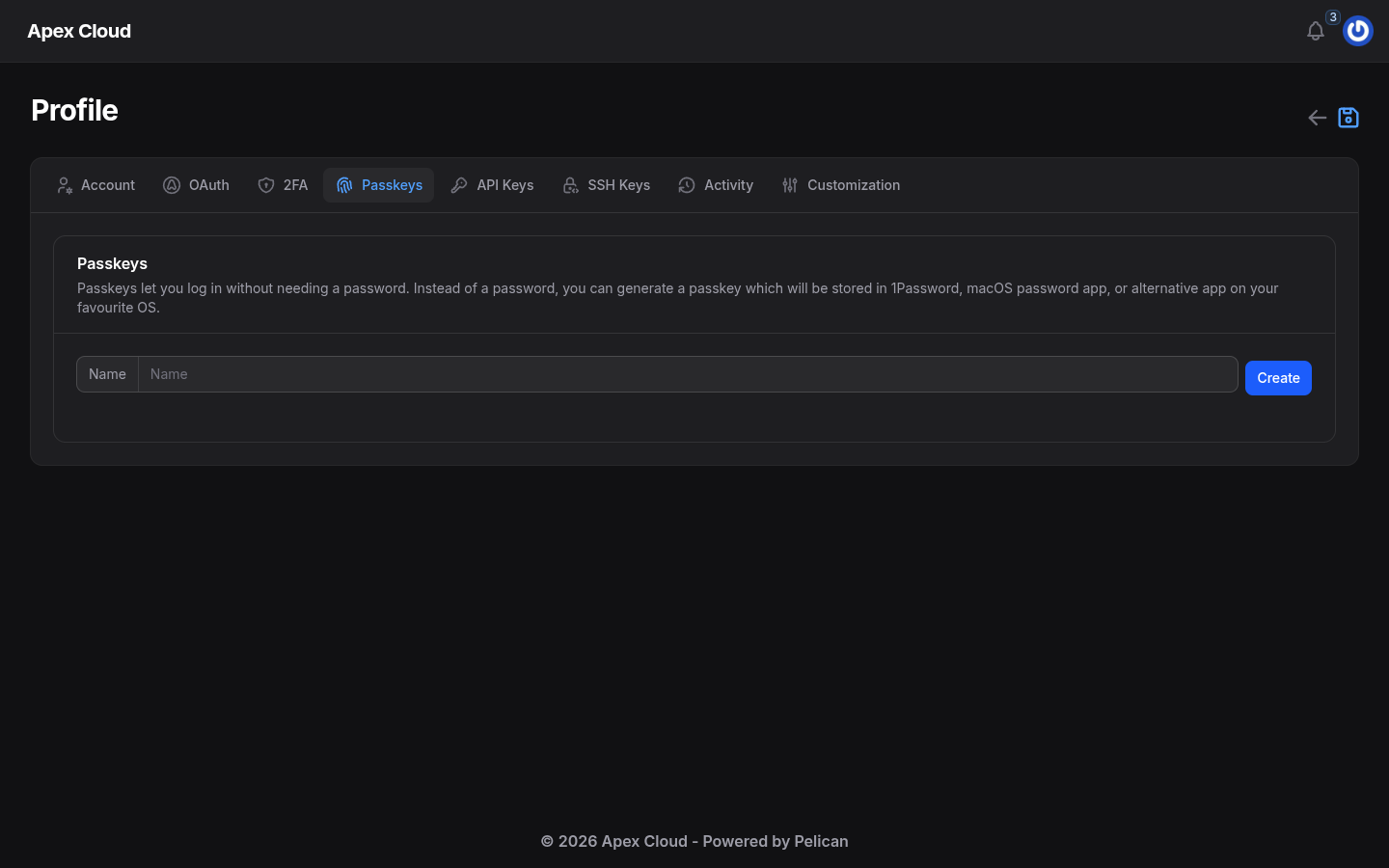
Passkeys let you log in without a password. Type a Name (for example the device) and select Create. The passkey is stored in your password manager or your operating system.
API keys
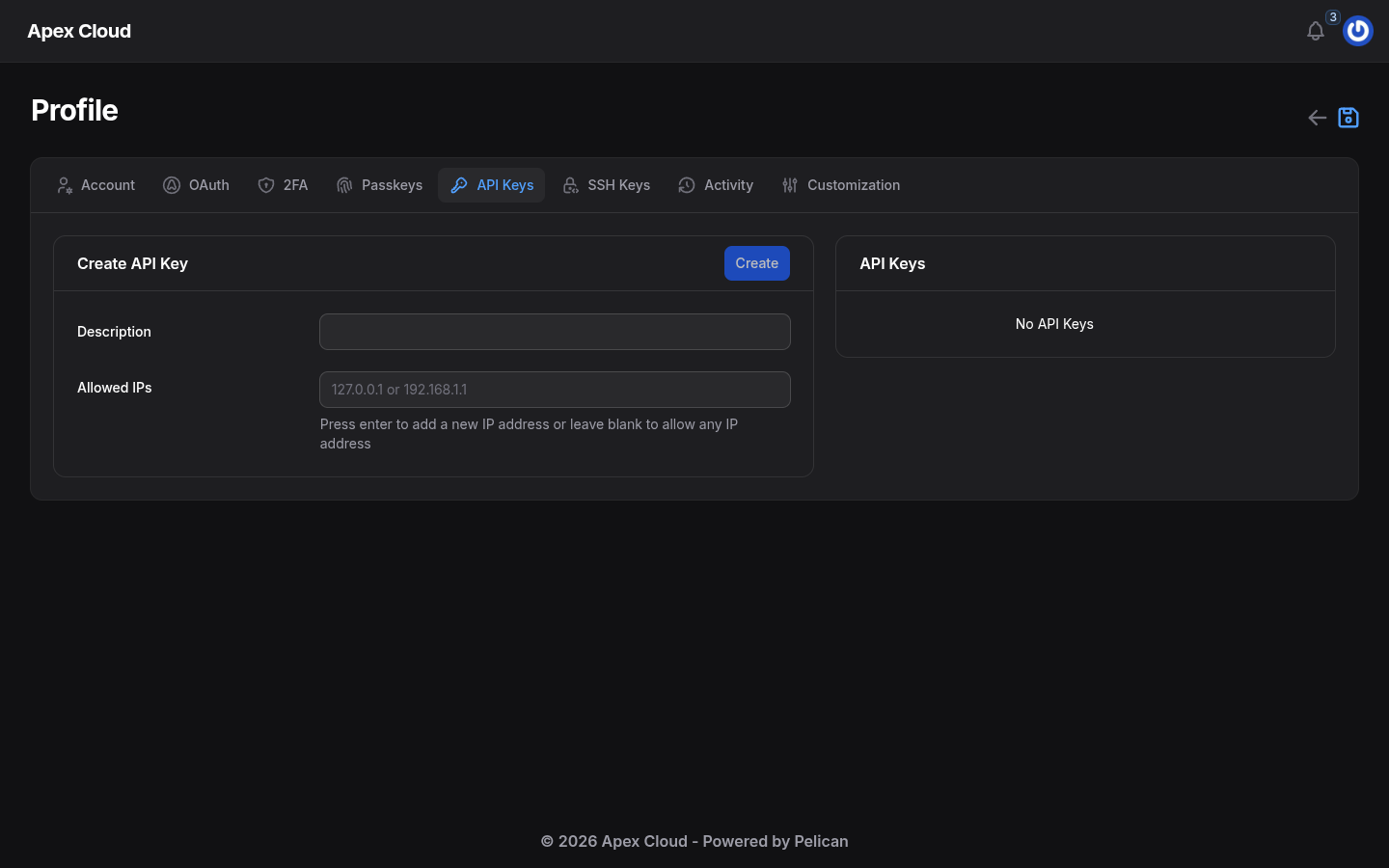
API keys are for programs that control the panel, for example a Discord bot. Type a Description, optionally add Allowed IPs (press enter after each one; leave it blank to allow any IP address) and select Create.
Treat API keys like a password
Anyone with the key can act as you through the API. Restrict it with Allowed IPs when you can, and delete keys you no longer use.
SSH keys
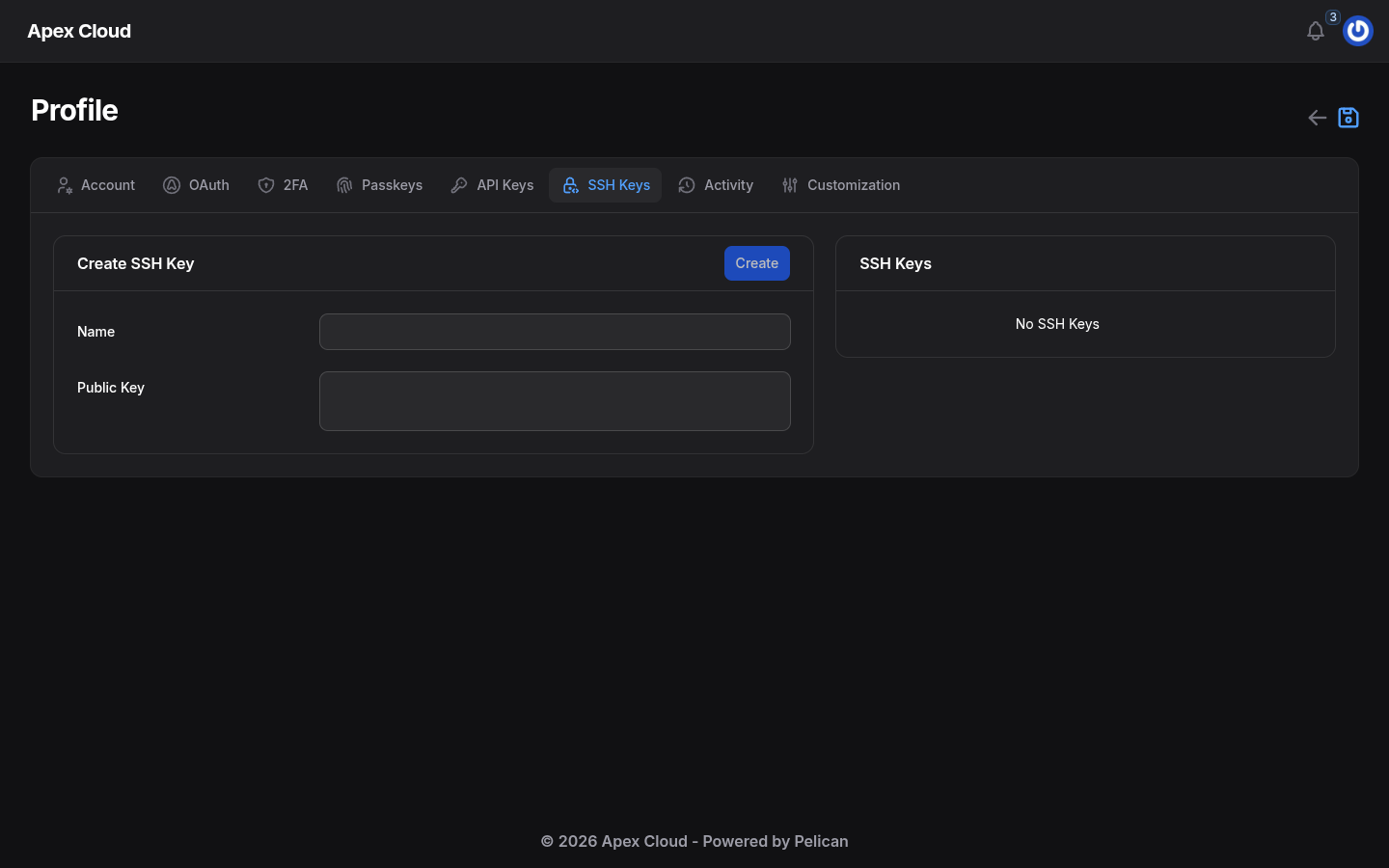
In SSH Keys you add the Public Key of a key pair, with a Name. Pelican uses these keys for key-based login over SFTP, as an alternative to the password. Game Servers have no SSH shell.
The server list
After you sign in, the home page lists your servers with their CPU, memory and disk usage. Select a server to open it. The tabs My Servers, Others' Servers and All Servers separate the servers you own from those other people shared with you, see Users.