
Users
Give other people access to your server without sharing your password, and choose exactly what they can do.
You can add other users to your Game Server without sharing your own account password. Each user gets only the permissions you tick, so you control which server actions and resources they can reach.
This is useful for a development team, administrators or moderators. You can remove their access later without changing your own password.
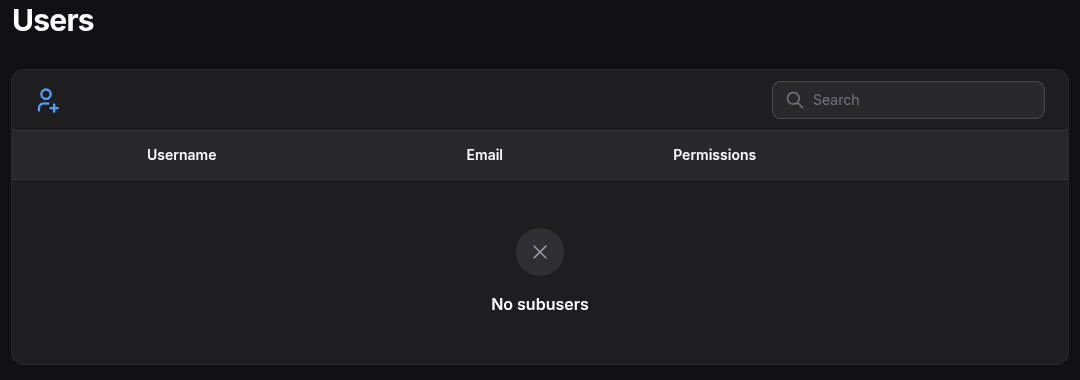
The list shows each person's Username, Email and Permissions. The number next to Users in the server menu is how many people have access.
Invite a user
Open the invite form
Go to Users and select the New subuser icon at the top left of the table. The Invite User window opens.
Type their email
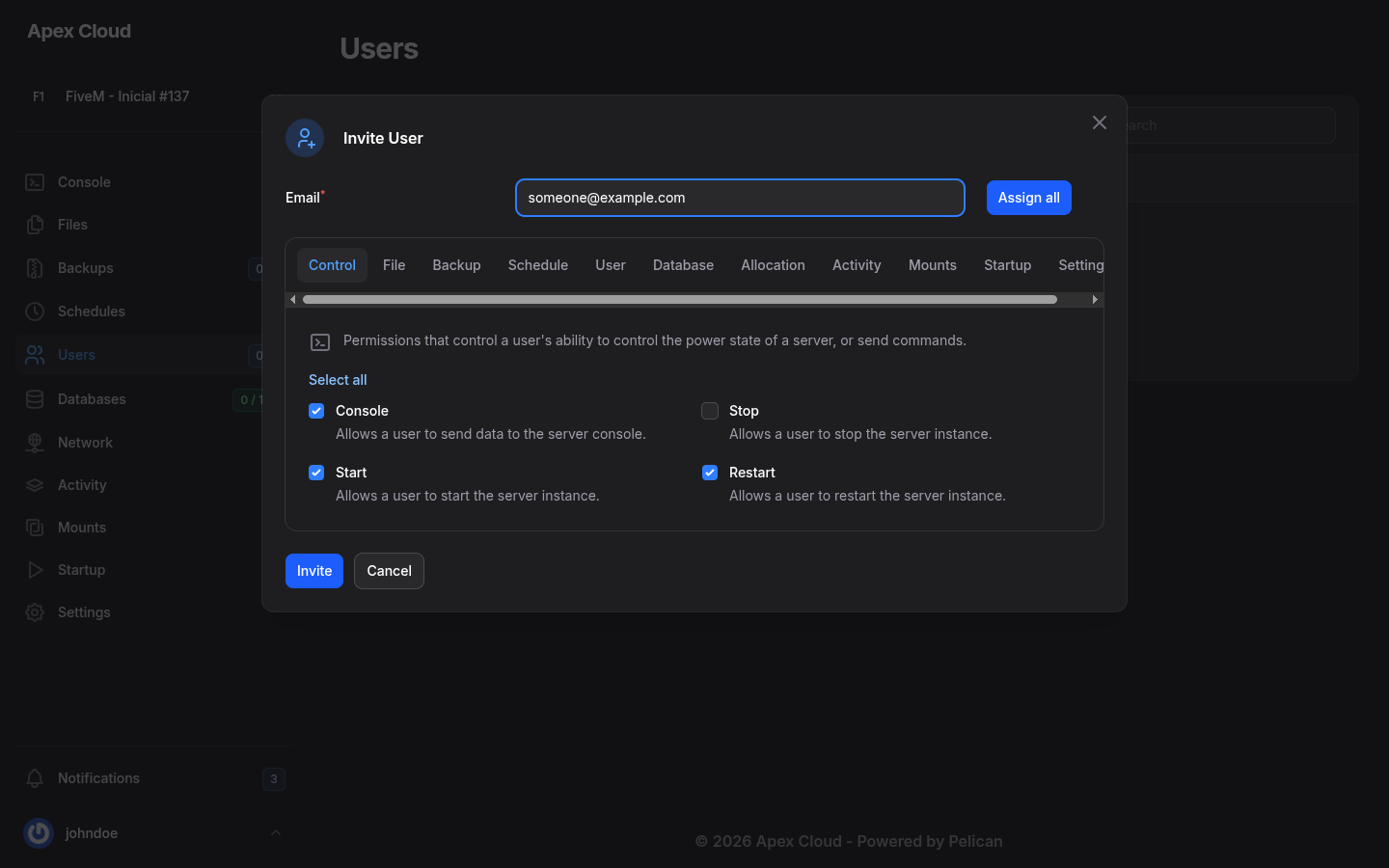
Type the email address of the person in Email. In the example below we use someone@example.com.
Choose the permissions
Select the tabs one by one and tick what they may do: Control, File, Backup, Schedule, User, Database, Allocation, Activity, Mounts, Startup and Settings. Select all inside a tab ticks the whole group, and Assign all at the top right ticks every permission of every group.
Invite
Select Invite. Until you do, nothing is sent and nothing changes.
Start small
Give people only what their job needs: for example Console, Start and Restart for a moderator who restarts the server, or only the File group for a developer who uploads scripts. You can edit the permissions later.
What each permission group does
Control
| Permission | Allows |
|---|---|
| Console | Send data to the server console |
| Start | Start the server |
| Stop | Stop the server |
| Restart | Restart the server |
File
| Permission | Allows |
|---|---|
| Read | See the list of a folder, but not open or download files |
| Read Content | View the content of a file. This also allows downloading files |
| Create | Create new files and folders |
| Update | Change files and folders |
| Delete | Delete files and folders |
| Archive | Create archives and extract existing ones |
| Sftp | Do the file actions above with an SFTP program, see SFTP |
Backup
| Permission | Allows |
|---|---|
| Read | See all backups of the server |
| Create | Create backups |
| Delete | Delete backups |
| Download | Download a backup. Danger: this gives access to all the files of the server in the backup |
| Restore | Restore a backup. Danger: it can delete all the server files in the process |
Schedule
| Permission | Allows |
|---|---|
| Read | See the schedules |
| Create | Create a schedule |
| Update | Change an existing schedule |
| Delete | Delete a schedule |
User
| Permission | Allows |
|---|---|
| Read | See the users of the server |
| Create | Create new user accounts for the server |
| Update | Change other users |
| Delete | Delete other users |
The User group is powerful
Someone with Create and Update in the User group can give themselves or others permissions you did not intend. Only give this group to people you fully trust.
Database
| Permission | Allows |
|---|---|
| Read | See the databases |
| Create | Create a database |
| Update | Change a database. Without View Password they cannot change the password |
| Delete | Delete a database |
| View Password | See a database password |
Allocation
| Permission | Allows |
|---|---|
| Read | See all the ports assigned to the server. Everyone with any access can always see the primary one |
| Create | Assign additional ports |
| Update | Change the primary port and add notes to each port |
| Delete | Remove a port |
Activity, Mounts, Startup and Settings
| Group | Permission | Allows |
|---|---|---|
| Activity | Read | See the Activity log |
| Mounts | Read | See the Mounts page and the available mounts |
| Mounts | Update | Turn mounts on or off |
| Startup | Read | See the startup variables |
| Startup | Update | Change the startup variables |
| Startup | Docker Image | Change the Docker image the server runs on |
| Settings | Rename | Rename the server |
| Settings | Description | Change the description |
| Settings | Reinstall | Reinstall the server |
| Settings | Change Icon | Change the icon |
Edit or remove a user
Once someone is on the list, use the buttons at the end of their row to change their permissions or to remove them. Removing a user takes their access away straight away, and your own account password is never involved.
What the invited person sees
The invited person signs in to the panel at panel.apexcloud.cc with their own account, see Panel access. The server appears under Others' Servers in their server list, and only the pages their permissions allow show in the menu.
Everything they do is recorded in the Activity log with their name.