
Backups
Create, lock, download and restore backups of your server from the panel.
Panel backups can preserve Game Server files to help recover from an accidental change, a failed update or another issue. They require a backup add-on, which is not yet on sale. For now, download your files using SFTP, especially before major changes.
Backups are not a replacement for keeping important data in more than one place. Download the ones you care about.
Backup slots come from an add-on
Backups are not included in the standard Game Server plans. The number of backups a server can hold is a limit of the server, and it is 0 unless you have a backup add-on.
You can see the limit in Settings, under Limits, in the Backups box. It reads No Backups when the server has none. The Backups item of the server menu also shows how many backups exist.
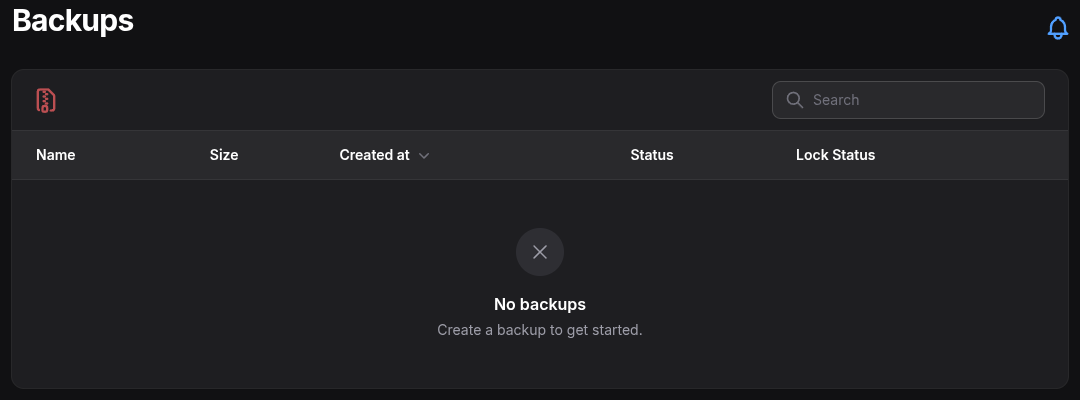
While there are no slots, the New backup icon is red and disabled, and its tooltip reads Backup Limit Reached. The same happens when you have used all your slots: delete or download an old backup to free one.
The backup add-on is not yet on sale. The instructions below describe the panel's backup features for servers with backup slots.
What the list shows
| Column | Meaning |
|---|---|
| Name | The name you gave the backup |
| Size | How big the backup is |
| Created at | When it was created |
| Status | Whether it is still running or finished |
| Lock Status | Whether the backup is locked |
The Search box above the list filters by name.
Create a backup
Select New backup
Go to Backups and select the New backup icon at the top left of the table.
Name it and choose what to leave out
Give the backup a name. If you leave it blank the panel names it for you. In Ignored Files list files and folders to leave out, for example the cache or logs folders, so the backup is smaller. To use the same list for every backup, put it in a .pelicanignore file in the root of your server instead, one pattern per line, written like .gitignore. The file is only read when the Ignored Files field is empty.
Create
Confirm. The backup shows in the list with a status while it is being made. When it finishes the status changes and, if you turned the notifications on, you get a message, see Notifications.
Back up on a timer
Instead of doing this by hand you can add a Create Backup task to a schedule, see Scheduled Tasks.
Lock a backup
Open the menu at the end of the row and select Lock. A locked backup cannot be deleted until you select Unlock. Lock the ones you must keep, for example the last one before a big change, so nobody removes it by mistake.
Download a backup
In the row menu select Download. You get a file with everything that was in the backup. Store it somewhere safe, away from the server.
Restore a backup
Open the restore dialog
In the row menu of the backup select Restore. Stop the server first, so no file is open while it is replaced.
Decide what happens to the current files
The dialog asks whether to delete all files before restoring. If you tick it, everything that is on the server now is removed first and the server ends up exactly as it was in the backup. If you do not tick it, the files of the backup are written over the current ones and files that are not in the backup stay.
Confirm and wait
Confirm and wait for the restore to finish, then start the server from the Console.
Restoring can delete your server files
Restoring replaces data. Keep a fresh backup or a downloaded copy of the current state if you may need it, and tick the delete option only if you are sure.
Delete a backup
In the row menu select Delete and confirm. Locked backups must be unlocked first. Deleting one frees a slot.
Notifications
The bell icon at the top right of the Backups page opens Notification Settings, the same two switches that are at the bottom of Settings:
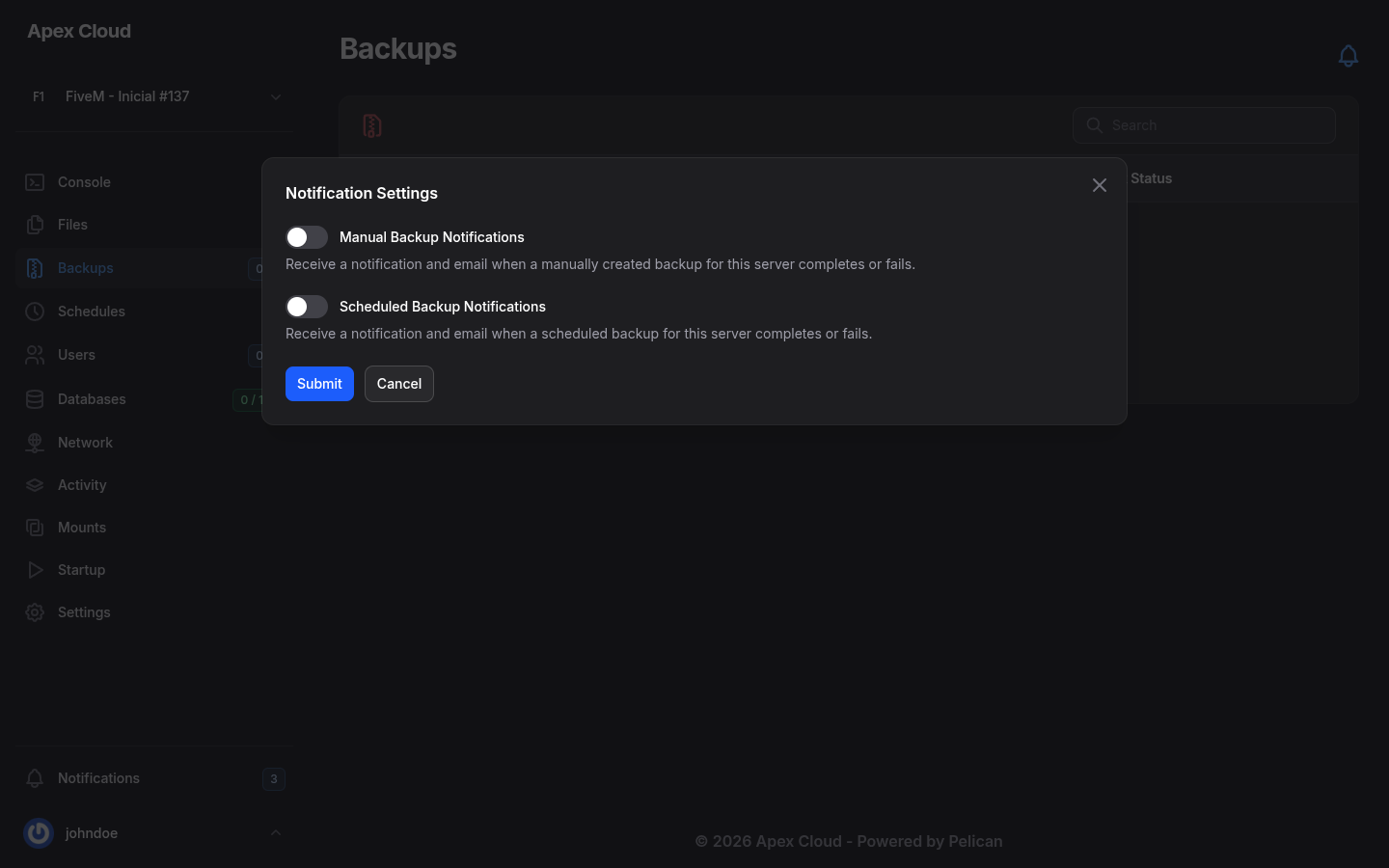
- Manual Backup Notifications: receive a notification and an email when a manually created backup for this server completes or fails.
- Scheduled Backup Notifications: the same, for backups created by a schedule.
Both are off by default. Select Submit to save.
Who can use it
The Backup group of Users has five separate permissions: Read, Create, Delete, Download and Restore. The panel warns that Download gives access to all the files of the server in the backup, and that Restore can delete all the server files, so only give them to people you trust.