
Your services
Find your services, rename them and jump straight to the server panel.
Every active service you bought shows up under Services in the left sidebar. The dashboard also lists them under Active Services, with a View All link, see Billing Panel.
Services list
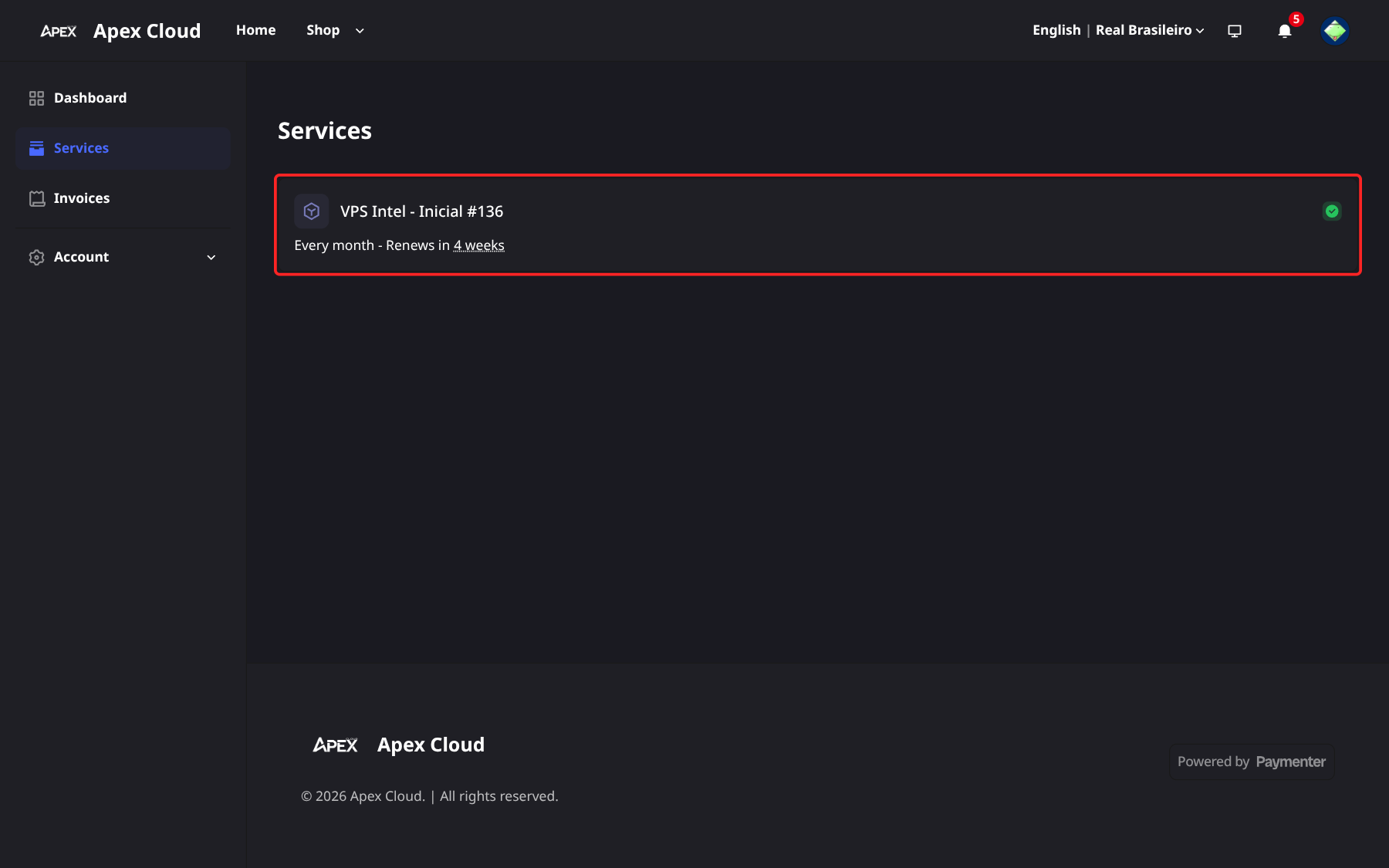
Each card shows the product name, the service number (for example #136), the billing cycle and when it renews. Keep the service number at hand: support will ask for it, for example for refunds.
Select a service to open its page.
Service page
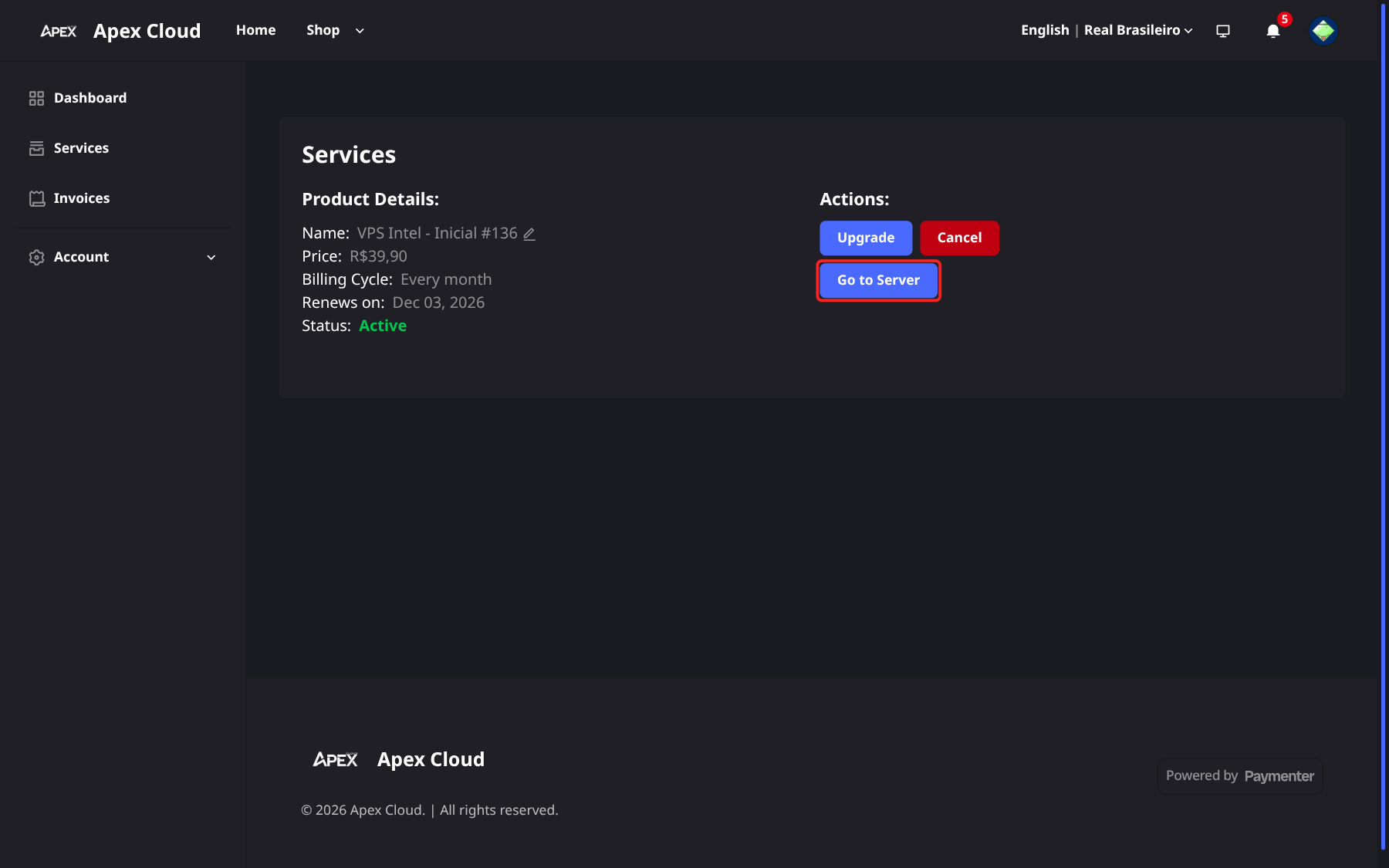
The page (/services/<id>) shows the product details:
| Field | Meaning |
|---|---|
| Name | The name of the service. Select the pencil icon to rename it |
| Price | What you pay per billing cycle |
| Billing Cycle | For example monthly or quarterly |
| Renews on | The date of the next renewal, see Renewals and overdue invoices |
| Status | For example Active |
Under Actions you have:
- Upgrade: move to a bigger plan, see Upgrades.
- Cancel: see Cancel a service.
- Go to Server: open the server panel.
Rename a service
Select the pencil
Next to the Name of the service, select the pencil icon.
Type a name and save
Type a name that helps you tell your services apart, then confirm.
Go to Server
Go to Server works for VPS and for game servers.
- VPS: it opens Virtualizor (vps.apexcloud.cc) already logged in to that VPS, so you do not need the Virtualizor email and password. From there, see VPS control panel.
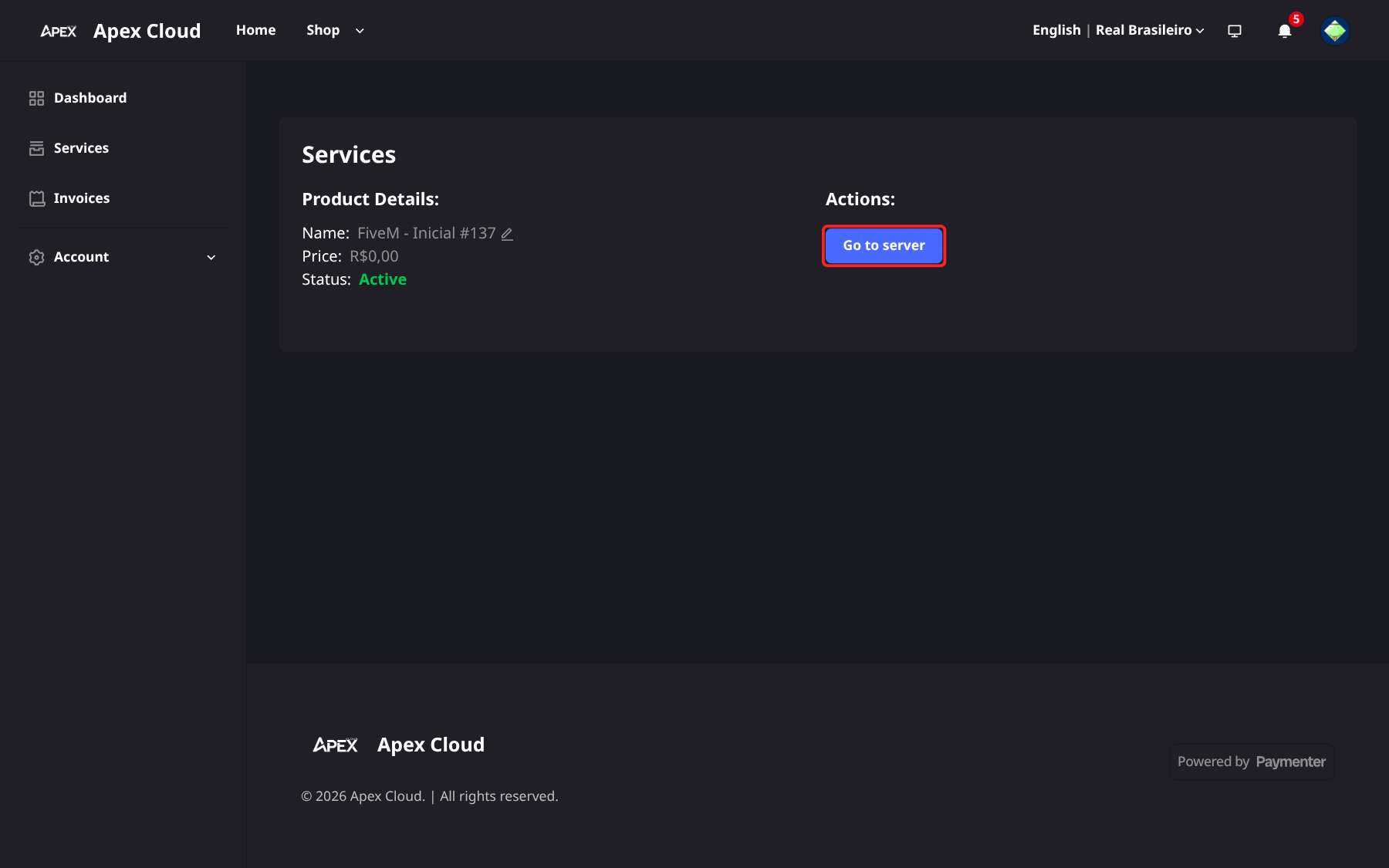
- Game server: the button is labelled Go to server and opens the game panel (panel.apexcloud.cc) at the console of that server. See panel access.
Where credentials appear
| Service | Where to find access |
|---|---|
| VPS | An email from virtualizor@systems.apexcloud.cc is sent when the VPS is created, with the credentials. See Connect to the VPS |
| Game server | The panel is at panel.apexcloud.cc. See panel access |
The three logins (billing, Virtualizor and game panel) are different, see which credentials go where.